
Ready to start automating your workflows? This article will walk you through the basics of building a workflow using the Workflow Builder. From understanding Starting actions and Actions, to adding and configuring nodes in the Workflow Editor.
The basics
Every workflow you build must include:
- At least one Starting action – the event that starts the workflow
- At least one additional Action – the event that happens as a result
Let’s break that down.
What is a Starting action?
A Starting action is the starting point of your workflow. It’s the event that causes your automation to begin.
Example:
You want to start a workflow whenever you receive a new job request via email. In this case, the receipt of the email acts as the Starting action.
Available starting actions
Currently, you can choose from the following Starting actions in the Workflow Builder:
|
Starting action name |
What does it do? |
Link to article |
Incoming Email |
Triggered when a new email is received |
|
|
Out of Hours Receptionist |
Triggered when a call is received during out of hours |
Coming soon |
|
Bot message received |
Triggered when a message is received from a linked bot |
Coming soon |
|
Call completed |
Triggered once a call has been completed in the Concierge Support |
What is an Action?
An Action is a step that runs after a Starting action triggers a workflow, or after another Action or condition occurs within it.
Example:
Following a job request email (the Starting action), your workflow might automatically create a new job in BigChange. That job creation is the Action.
Available Actions
These are the Actions currently available in the Workflow Builder:
|
Action name |
What does it do? |
Link to article |
|
Search Contact in BigChange |
Search BigChange for a contact by name/email/phone and return either one, many, or not found. |
|
|
Create a Contact in BigChange |
Create a new contact in BigChange |
|
|
Create a Job in BigChange |
Create a new job in BigChange |
|
|
Create a Contact Note in BigChange |
Create a new Contact Note (or ticket) in BigChange |
|
|
Find a Contact in BigChange |
Find a contact by ID or reference in BigChange |
|
|
Find a Job in BigChange |
Find a job by ID or reference in BigChange |
|
|
Conditional Value |
Match text and set a value if found |
|
|
Date Time |
Perform actions based on date and time |
|
|
Extract Text |
Extract something from text to use later |
|
|
Send Email |
Send someone an email |
|
|
AI Prompt |
Send a prompt to an AI and get a structured response |
|
|
External Action |
Call a Third Party System to perform actions or get data |
Coming soon |
Want to learn how to configure specific Actions? Check out the dedicated articles in the table above.
Conditions
In some workflows, you’ll want to make decisions before continuing with an action. That’s where conditions come in.
A condition is a rule that checks whether certain criteria are met before the workflow moves forward. Conditions help your workflow decide what to do next, based on real-time data.
📚Learn more about setting up conditions, including examples, in the Conditional Value node article.
Using the Workflow Editor
- The Workflow Editor is your visual canvas for building workflows.
- Each block in your workflow is called a node.
- You can drag and drop nodes from the Library on the left-hand side of the editor.
- To open the Library, click the Library button in the editor.
- Click the X button to close the Library for more editing space.
.gif?width=670&height=380&name=chrome-capture-2025-08-11%20(2).gif)
Adding and Moving Nodes
- To add a node, drag it from the Library into the editor canvas.
- To move a node, simply drag it to a new position.

Deleting Nodes
To delete a node:
- Click on the node to highlight it.
- Press the Backspace or Delete key on your keyboard.
Configuring Nodes
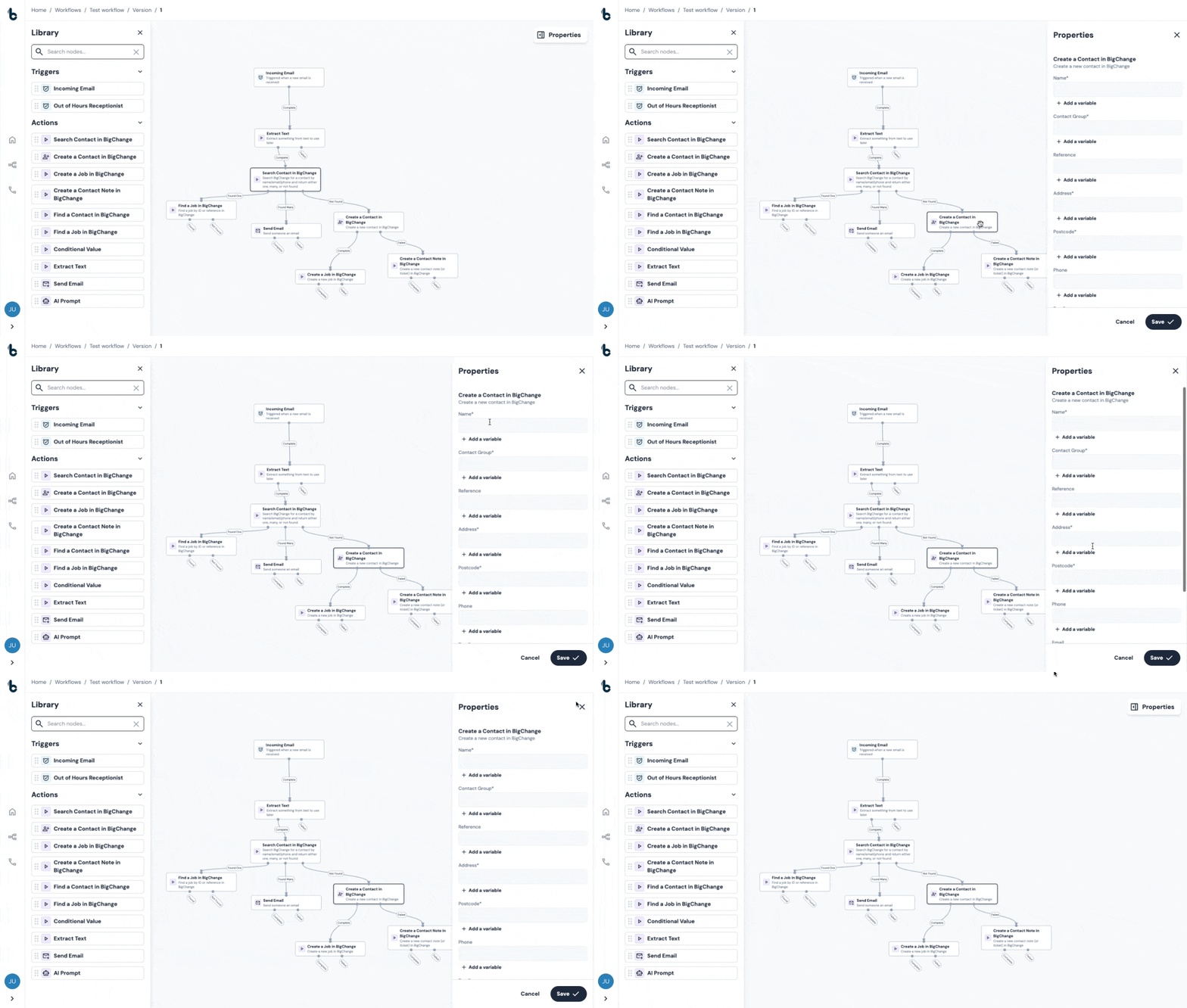
To configure a node:
- Once you have added a node to the canvas click on the node.
- This will open the Properties panel on the right hand side.
- Fields marked with an asterisk must be populated in order to configure a node.
- Press the Save button at the bottom to save your configuration.
⚠️ Note
Closing the Properties panel without pressing save will mean all configuration/changes will not be saved.
Using Variables
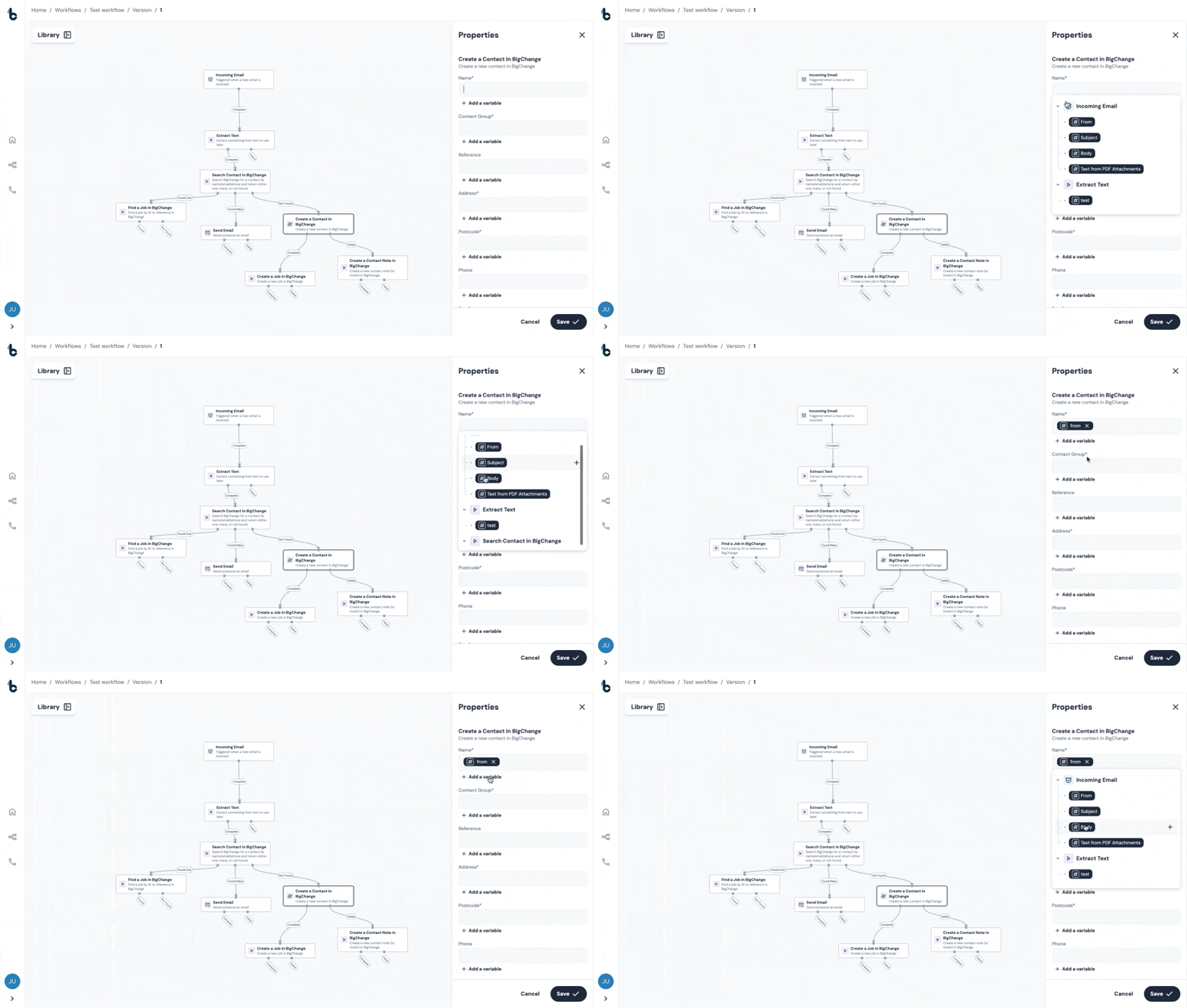
Variables allow you to use data from earlier in your workflow in later steps of your workflow.
By adding variables, you dynamically map the data output of the specified data point, into the node you're currently configuring.
Click + Add a Variable when configuring a node to see a list of available variables, grouped by the earlier nodes in your workflow. This helps you quickly understand what data can be reused and where it originally came from.
Default variables
Some nodes provide default variables which can be used later in the workflow, for example:
Incoming Email Starting action:
- From - Sender or the forwarding address depending how the emails are set up
- Subject - The email subject line
- Body - The main email content
- PDF Text - Text extracted from any attached PDFs
BigChange Actions, (like Searching for/Creating a Contact or Job), will give certain BigChange specific data points as variables, such as:
- Contact / Job ID
- Job reference
Custom Variables
Using the Extract Text node or the AI Prompt node, you can also define your own variables.
💡 Tip
You can combine multiple variables or mix static and dynamic data to tailor the outcome to your workflow's needs.
Connecting Nodes
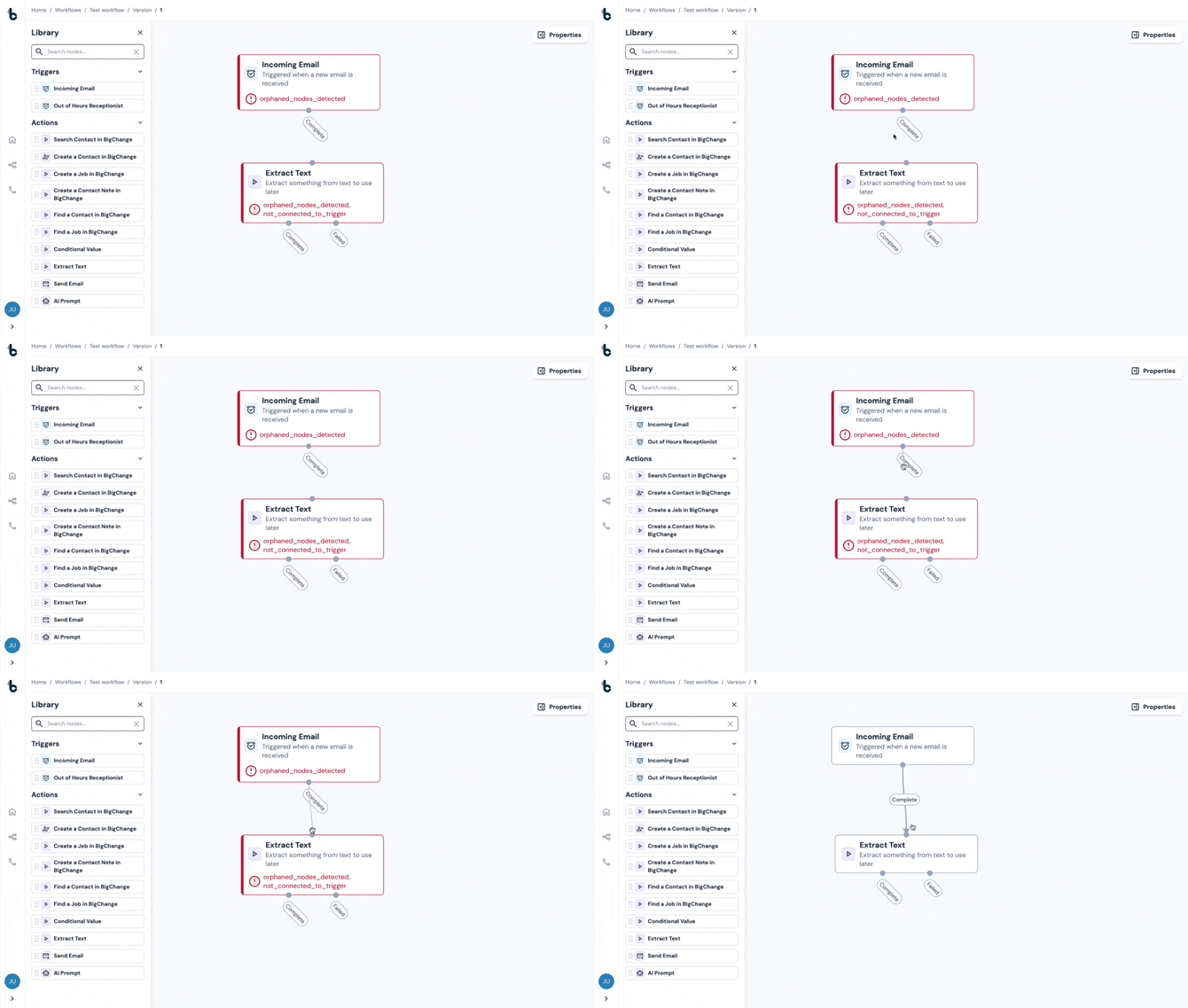
To connect nodes:
- Hover over the small connection point on the edge of a node.
- Click and drag to the connection point on another node.
- An arrow will appear, linking them together.
⚠️ Note
You can’t connect backwards from an Action to a Starting action.`
Now that you know how to build workflows step-by-step, you're ready to start automating!