
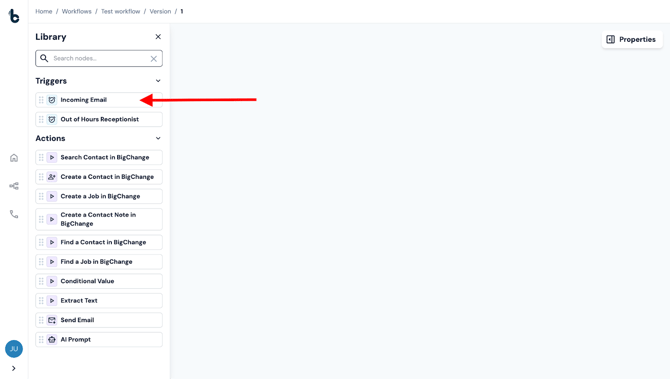
Want your workflow to spring into action the moment an important email lands? The Incoming Email Starting action kicks off your workflow automatically when an email arrives at a unique, dedicated address.
Configuration
To set up the Incoming Email Starting action:
- Add the node to your workflow.
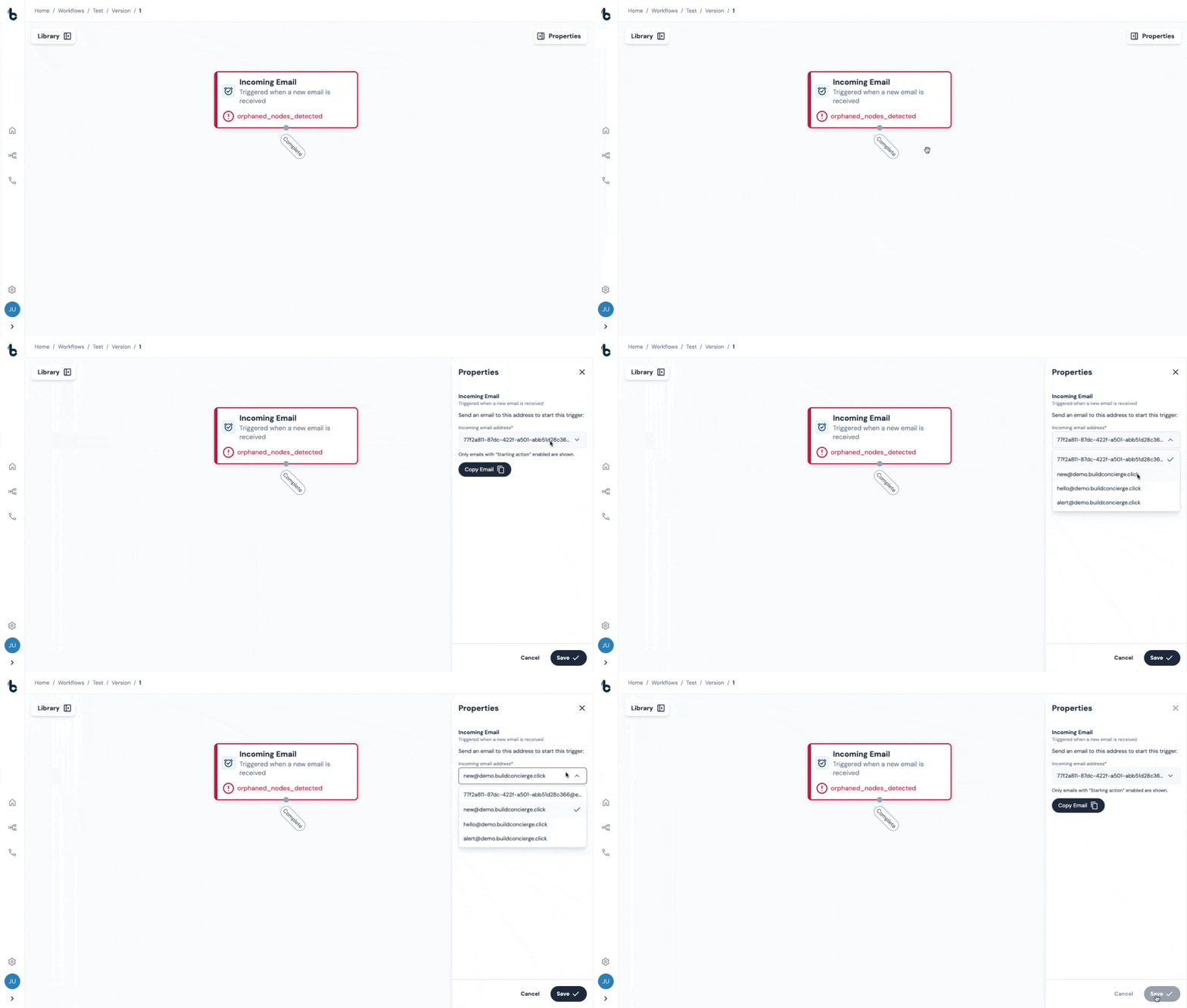
- Click on the node to open the Properties panel where you can configure the node.
- In the field Incoming email address, select from the dropdown which email address you want to trigger the workflow.
You can decide between:
- The default unique email address provided by Build Concierge; or
- The inbound email address which you added to your account via Email Management in Settings.
📚 Learn more about how to add an inbound email address to your account in the Settings by reading this article.
Attachment filtering
You can control which email attachments are captured and made available to your workflow.
In the Properties panel, use the attachment filtering options to define which files should be included when the email is received.
This allows you to:
-
Select specific file types (e.g. PDFs only)
-
Filter attachments by file name or pattern
-
Ignore irrelevant or unsupported attachments
Only attachments that match your configured filters will be passed into the workflow and made available for use in later steps.
This is particularly useful when emails contain multiple attachments but only certain documents (e.g. job reports, invoices, or fault logs) should be processed.
You can use the Upload Files to BigChange action later in your workflow to send filtered attachments directly to BigChange.
Forwarding emails
Depending how your emails are set up in your workflow, you may need to set up automated forwarding to forward emails to the email address which is triggering the workflow.
To ensure that irrelevant emails are not triggering the workflow, setup conditional forwarding to limit which emails trigger the workflow e.g. all emails with a specific subject line or from a specific email address.
💡 Tip
Need help with forwarding?
Here are quick guides for Gmail forwarding and Outlook forwarding to get you started.
Outcomes
As with all Starting actions, the only outcome is Complete.
Default variables
The Incoming Email Starting action provides several default variables that can be used later in your workflow:
.png?width=338&height=804&name=chrome-capture-2026-01-14%20(5).png)
From Email - The sender of the email.
From Name - The name of the sender of the email.
Subject - The subject of the email.
Body - The actual message in the email body.
Text from pdf attachments - If there are any pdfs attached to the email, the text of those pdfs is stored as a variable.
These variables can be used to map the data into fields of later nodes.
Example uses
Some typical example use cases for using the Incoming Email starting action are:
-
Automatically reply to customer's emails using an Extract Text node and Send Email node.
-
Extract job request information from the email using an Extract Text node to book a job in BigChange or another tool.
-
Route urgent support messages coming in through email to the right team instantly.
💡 Tip
You can combine the Incoming Email starting action with an Extract Text or AI Prompt node to classify intent, extract structured data, or detect sentiment before taking action.