
The Send Email action allows your workflow to automatically send emails directly from within the system.
You can include this action multiple times within the same workflow.
Common examples of why you might add this action are to:
- Send a confirmation email when a job is created;
- Send an acknowledgment of a customer’s request; or
- Send yourself an alert when a node fails in one of your workflows.

Configuration
To set up the Send Email action:
- Drag and drop the node in the Workflow Editor.
- Connect it to a Starting action or another Action node.
- Click on the node to open the Properties panel.
Mandatory fields
All of the fields in the Properties panel must be populated for this node.
How to configure:
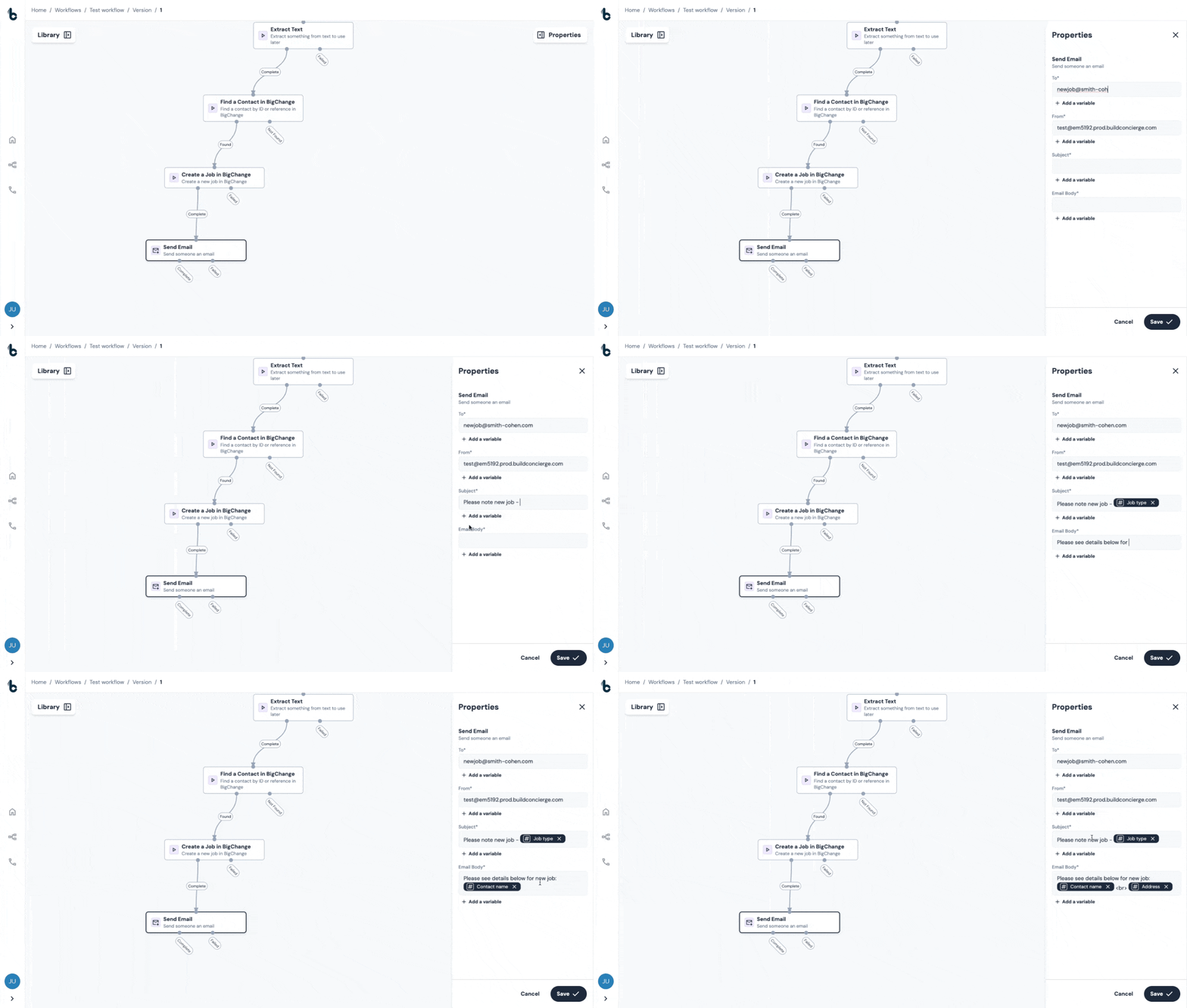
Recipient (To)Determine who you want to send the email to,
Either:
- Manually enter the recipient’s email address; or
- Click + Add a variable and select from:
- a default output from an earlier node e.g. the From variable from a Incoming Email Starting action to reply the sender of an Incoming Email; or
- a custom output that you defined earlier in the workflow, e.g. an email output that was extracted from an SMS or web advisor message, using an Extract Text or AI Prompt node.
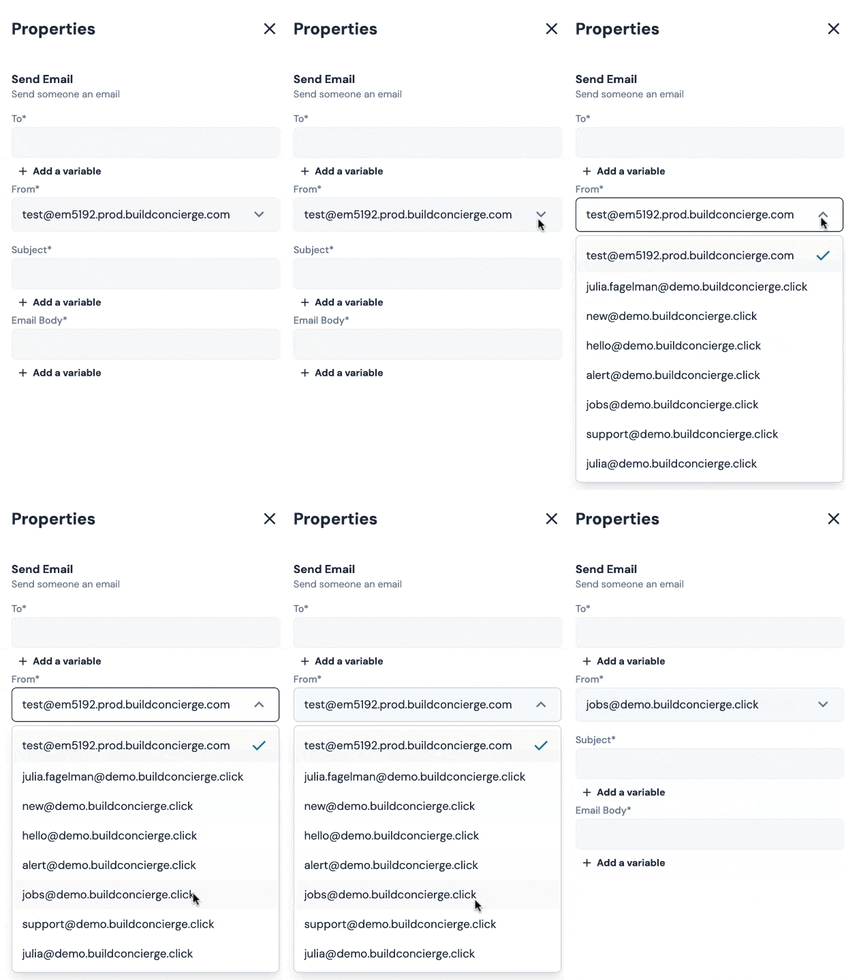
The From field will be automatically populated with a unique test@prod.buildconicerge email address.
However, you can also select from the dropdown any Inbound email addresses configured as Starting actions under the Email Management section of your account's settings.
📚 Learn how to set up your own email addresses to send emails in the Workflow Builder via the Email Management section of your account's settings in this article.
Determine the subject line of the email which will be sent. You can:
-
Type it manually; and
- Map data from earlier nodes into the subject line using variables by clicking + Add a variable and choosing the relevant variables from the dropdown.
Body
Write the email body that you want to appear in every automatically sent email.
As with the other fields, you can give the email more context by mapping dynamic data using variables from earlier nodes (e.g. job reference or description, contact name, address etc).
Press Save to save your preferences.
💡 Tip
HTML formatting is supported for styling text of emails (e.g. bold, font size, colour and line breaks).
Outcomes
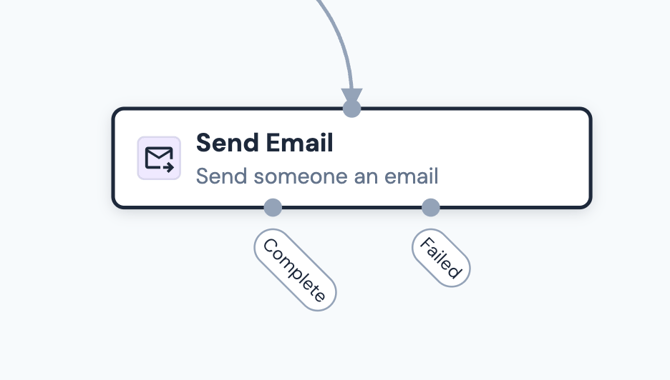
When the Send Email action runs, it will return one of two outcomes:
- Complete – the email was successfully sent.
- Failed – the email could not be sent.
💡Tip
You may want to add another Send Email node on the Failed branch, to send an internal alert if the previous Send Email node fails.
Default variables
If the node's outcome is Complete, there are no default variables carrying through to later nodes.
If the node's outcome is Failed, the default variable will be an Error Message, that can be used in later nodes.
Example use case: Email notification of new job workflow
Smith & Co are using Build Concierge to automate the creation of jobs, which are received via email. They would also like to automate the additional step of notifying field technicians when jobs are scheduled, to improve efficiency and reduce manual work.
- The relevant job information is extracted from the incoming emails as variables using the Extract Text node.
- The contact is located in BigChange using the email address of the customer via the Search a Contact in BigChange node.
- The job is then created against the contact using the Create a Job in BigChange node
- An email is then sent to the technicians confirming all of the important information using the Send Email node.
.png?width=379&height=613&name=chrome-capture-2025-12-17%20(1).png)
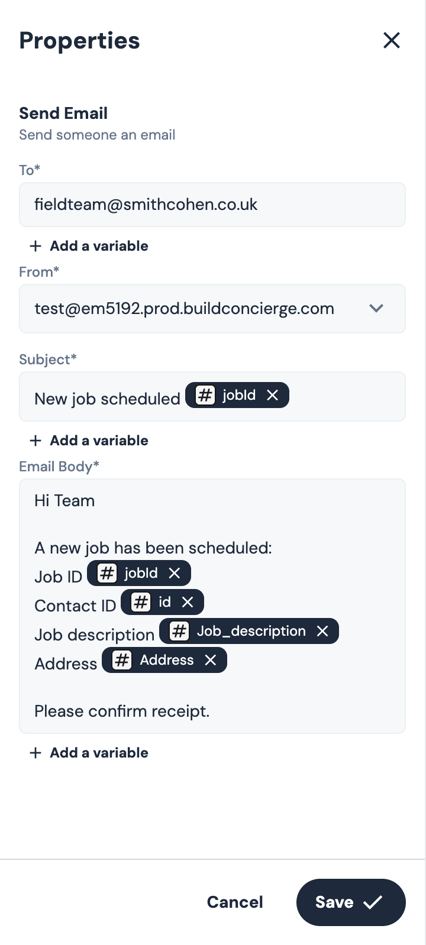
In terms of how they configure the Send Email node:
- Recipient - will be manually set to the field team’s group email address (fieldteam@smith-cohen.com).
- Subject - “New Job Scheduled” followed by the Job ID which will be inserted as a variable from the newly created job.
- Email body - informs that a new job has been scheduled with all the important information dynamically populated with variables from earlier in the workflow.
Keep reading to learn about how to use the Send Email node for troubleshooting purposes!
Example use case: Automate troubleshooting alerts
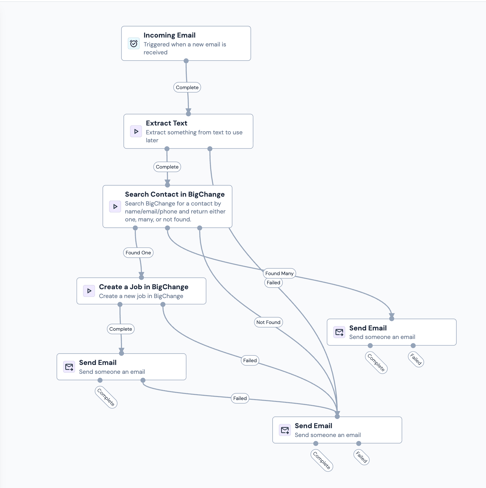
Adding a Send Email action on the failed branch of each node in your workflows allows you to alert a member of your team whenever something in a workflow fails.
You could also add a Send Email action to send alerts when a step in the workflow requires further action. For example, when multiple contacts are found through the Search Contact in BigChange node.
Using the previous example workflow, this would look something like this:
💡 Tip
Get more context in the alert as to why the node failed, by mapping the Reason for Failure variable (coming from the failed node) into the Email Body.