
Even the best-designed workflows can sometimes run into issues. Build Concierge provides clear error handling and visibility tools to help you identify, understand, and resolve problems quickly.
1. Error messages when building/editing your workflow
When you’re building a workflow, you may occasionally see error messages inside the Workflow Editor. These appear if something in your configuration is incomplete or invalid.
These messages are shown directly in the editor so you can correct the problem before publishing your workflow.
List of error messages
- orphaned_nodes_detected - the action is not connected to any other nodes. This error will show when you first drop a starting action node into the workflow editor, or when you add a new node which has not yet been connected. Once the node is connected, the error will disappear.
- not_connected_to_trigger - the node is not directly or indirectly (via any other workflow nodes) connected to a starting action node.
- context_reference_not_found - the variable added to the node does not exist.
- required_field_missing - a required field in the node has not been set (may show multiple times if multiple required fields exist on the node).
2. Workflow error messages and failed runs
Sometimes errors only appear once a workflow is live and running.
To get more information about why a workflow did not run as expected, head to the Workflow Overview page.
In the Run History section, you’ll find a history of all workflow executions.
- Successful runs will be marked as Complete.
- Workflows that encounter an issue where the workflow cannot continue past a particular node due to incorrect setup, will be marked as Error in the status column.

If you believe a workflow run did not behave as expected or you see an Error status, click on the run to see detailed logs about what went wrong and which actions were taken. This information will make it easier to identify the exact step in the workflow where things broke down.
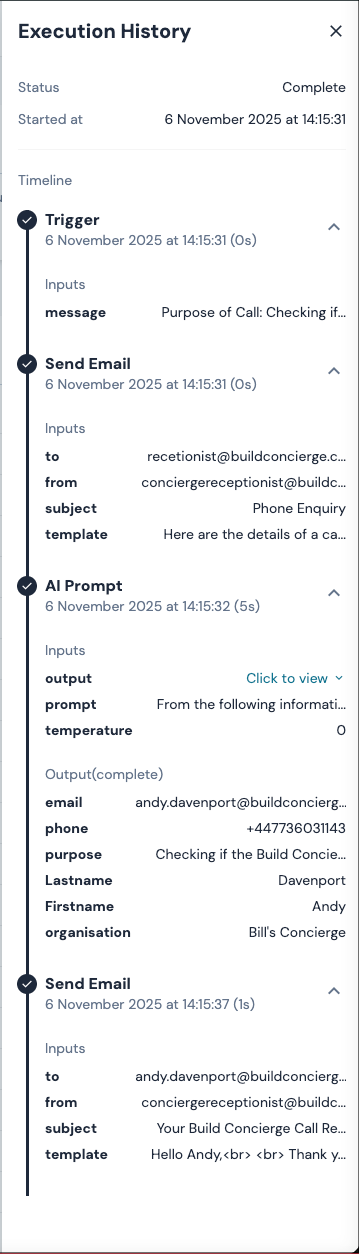
Common examples of errors in workflows
AI Prompt node - no value found
An AI Prompt node might put out an error message if it doesn't find a value that matches the variable which was defined in the configuration of the node.
There are 2 ways to deal with this outcome:
- If you don’t want the workflow to continue running, no action is required.
- If the workflow should continue running, add additional steps into the workflow to ensure that the workflow can continue.
Example
Add a Conditional Value node or another AI Prompt node. If the AI Prompt node was checking a particular data source and nothing is found there in it, may consider adding additional AI Prompt nodes to check different data sources.
Extract Text node error
If no match is found in an Extract Text node for the variable defined using Regex, you will see a particular error in the Execution Log in the Run History.
The error will read as: Text Extract fail No match found for [VariableName] in regex: [regex].
If no match is found by this node, the workflow will continue down the failed branch. If you don’t want the workflow to stop, add a node onto the failed branch to take another action. For example, an AI Prompt node could be added as an alternative way to extract text.
3. Pro Tip: get alerts when a workflow fails
Instead of only checking failures after the fact, we recommend setting up real-time alerts by:
- Adding a Send Email action on the failed branch of each node in your workflow.
- Configuring the node to send an automatic email alert to your own email address (or your support team), which will be triggered if the node fails.
- You can also include the reason for the failure of the node in the body of the email which will be sent out automatically.
The node would be configured similar to this:
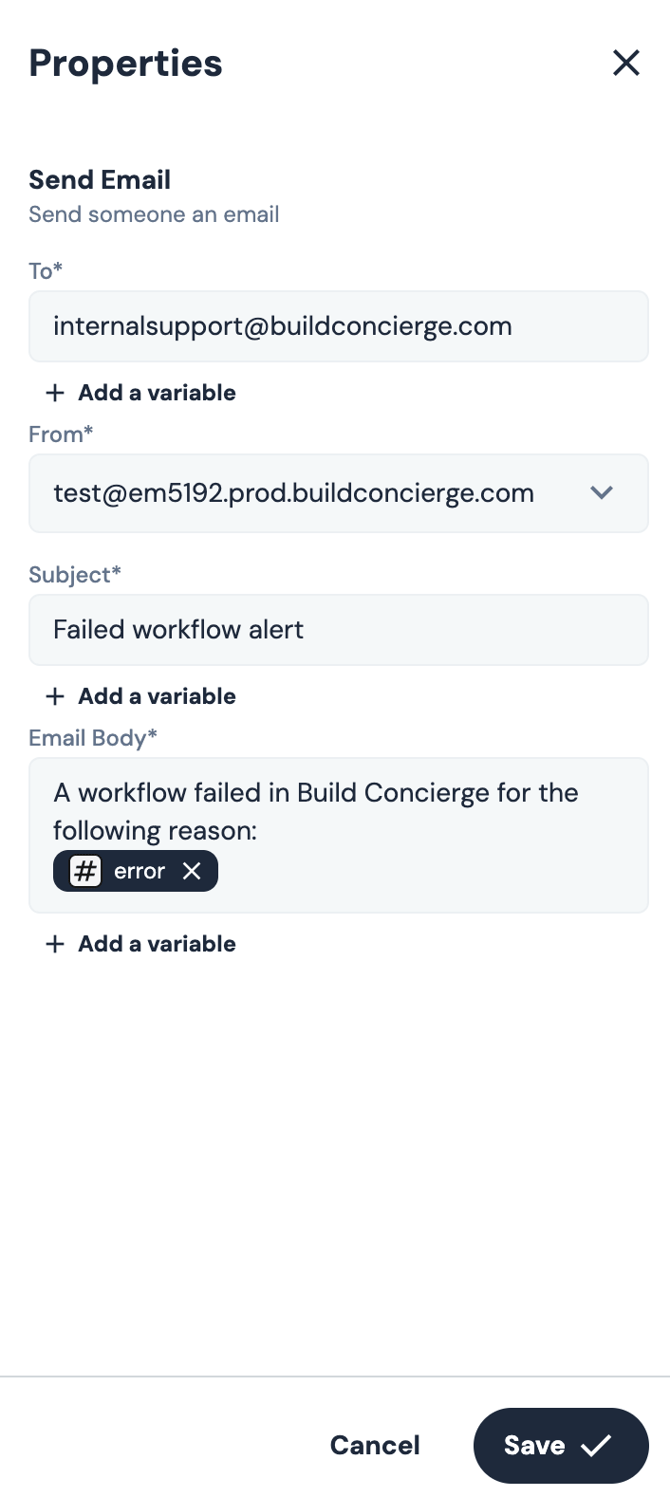
This way, you’ll know immediately if a workflow doesn’t run successfully, and you can take action straight away.
📚 Learn more about the Send Email action in this article.