
The Upload files to BigChange action allows your workflow to automatically attach files from incoming emails directly to records in your BigChange account.
It works by capturing file attachments from an email trigger and passing them through the workflow to be uploaded to a selected entity, such as a Job, Contact, or Sales Opportunity.
Automating this step removes the need to manually download and re-upload documents, ensures important files are not missed, and provides your teams with full context directly inside BigChange.
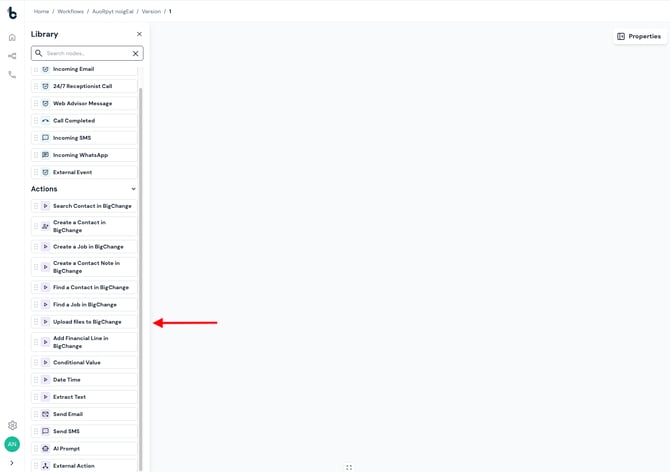
Configuration
To set up the Upload Files to BigChange action:
- Add the action to your workflow and connect it to a previous step in the workflow (a Starting action or Action node).
- Click the Upload to BigChange action to open the Properties panel.
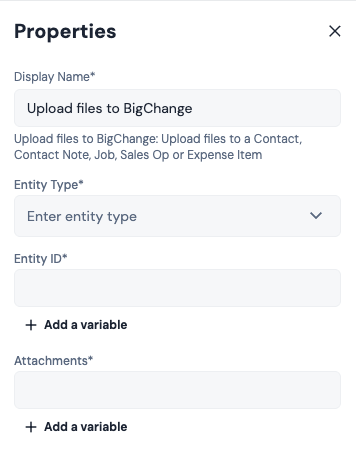
Mandatory Field Configuration
Entity Type:
Select the BigChange entity you want to attach to. This can be any of:
- Contact
- Contact Note
- Job
- Sales Opportunity
- Expense Item
Entity ID:
This defines the specific record in BigChange that the files will be attached to.
This is typically mapped from a previous node in the workflow (e.g. Contact ID or Sales Opportunity ID).
Click + Add a variable and select the relevant ID.
⚠️ Note: The Entity ID or Job ID must match a valid record in BigChange. If the ID is incorrect or missing, the upload will fail.
Attachments:
This field defines which files will be uploaded.
This is usually mapped from the attachments variable created by the Incoming Email trigger.
By default:
- All attachments from the email are included
- You can optionally filter which files are passed through the workflow (see the Incoming Email Starting Action for details on filtering the files)
Optional fields
For Attach to Job
Add to Job Group:
Enable this if you want the files to also be attached at the job group level (if the job is part of a group).
Visibility:
Control who can see the uploaded files in BigChange:
- Webuser
- Resource
- Contact User
⚠️ Note: Visibility settings are only available when attaching files to Jobs. Other entity types in BigChange do not support visibility configuration.
Workflow tip
If your workflow creates a job or sales opportunity from an email, place the Upload files to BigChange action after that step.
This ensures:
- The record exists before files are uploaded
- The correct ID is available for mapping
You can also reuse the same attachments variable across multiple upload nodes if you want to attach the same files to multiple records.
Outcomes
Once the Upload files to BigChange node runs, it will return one of two possible outcomes:
Complete – The files were successfully uploaded to the selected record in BigChange. The workflow will continue to the next connected step, if at all.
Failed – The files could not be uploaded, usually due to incorrect configuration or invalid IDs.
💡 Tip
To troubleshoot failures, connect the Failed branch to a Send Email node and include the Reason for Failure variable in the email body.
Default variables
The default variables available for this node are dependent on the outcome of the node.
If the node completes:
- No additional output variables are returned (the action performs the upload only)
If the node fails:
- Reason for failure – A system-generated value explaining why the upload failed
Important notes
Attachments are processed only within the workflow and are not stored long-term in Build Concierge. Files are temporarily stored for processing and removed after a short period.
Attachments are not viewable within Build Concierge and cannot be used by other nodes such as AI Prompt.
This feature is designed for operational automation, not document storage.