Send and receive all automated emails under your company’s brand, ensuring consistency and professionalism by setting up your own email domain.
Setting up your own email domain in Build Concierge
Step 1: Request domain setup
Before you begin, ask a member of the Build Concierge team to add your website domain to your account. Once this is complete, you’ll be able to configure and manage inbound and outbound email settings linked to that domain.
Step 2: Open Settings
In the Build Concierge dashboard, click the Settings icon (the cog button) on the left-hand navigation pane.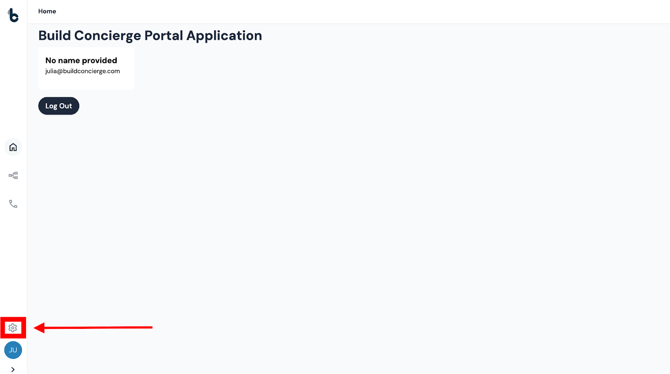
Step 3: Go to Email Management
Select Email Management from the Settings menu to access all domain and email configuration options.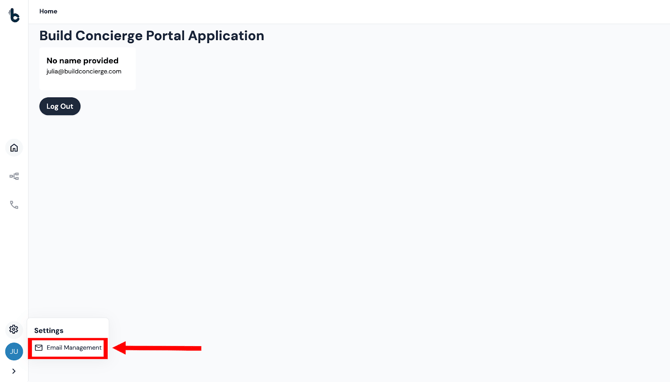
Step 4: Create an Inbound Email
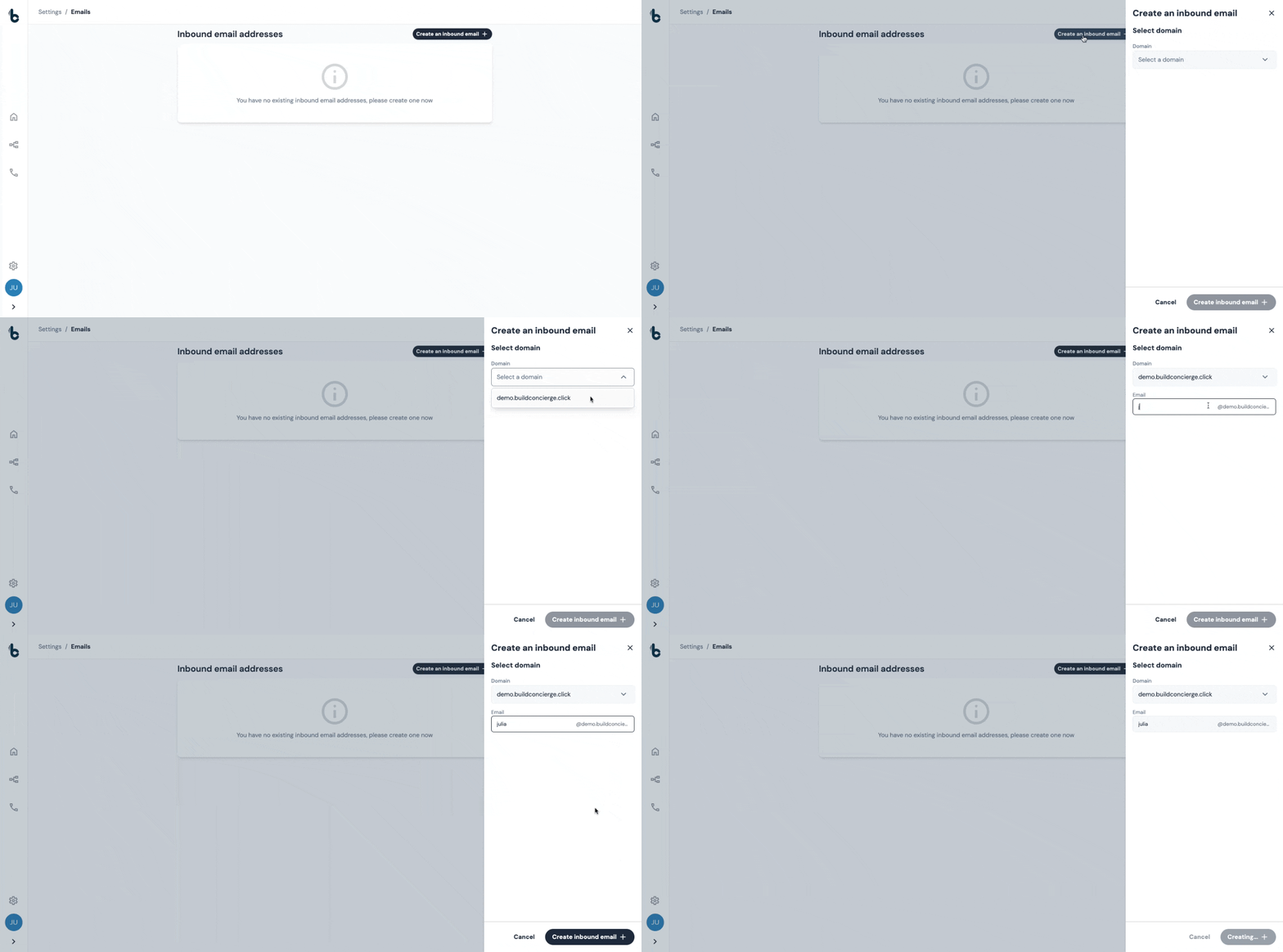
Click Create an inbound email +
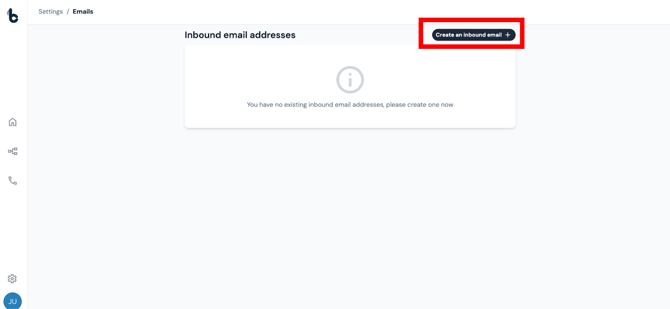
A configuration panel will appear on the right-hand side of the screen.
- Select the domain from the dropdown in the Domain field (which should appear once the team have added the domain to your account)
- Add the start of the email address in the Email field.
- Click Create inbound email +
Step 5: Select the settings associated with the inbound email address
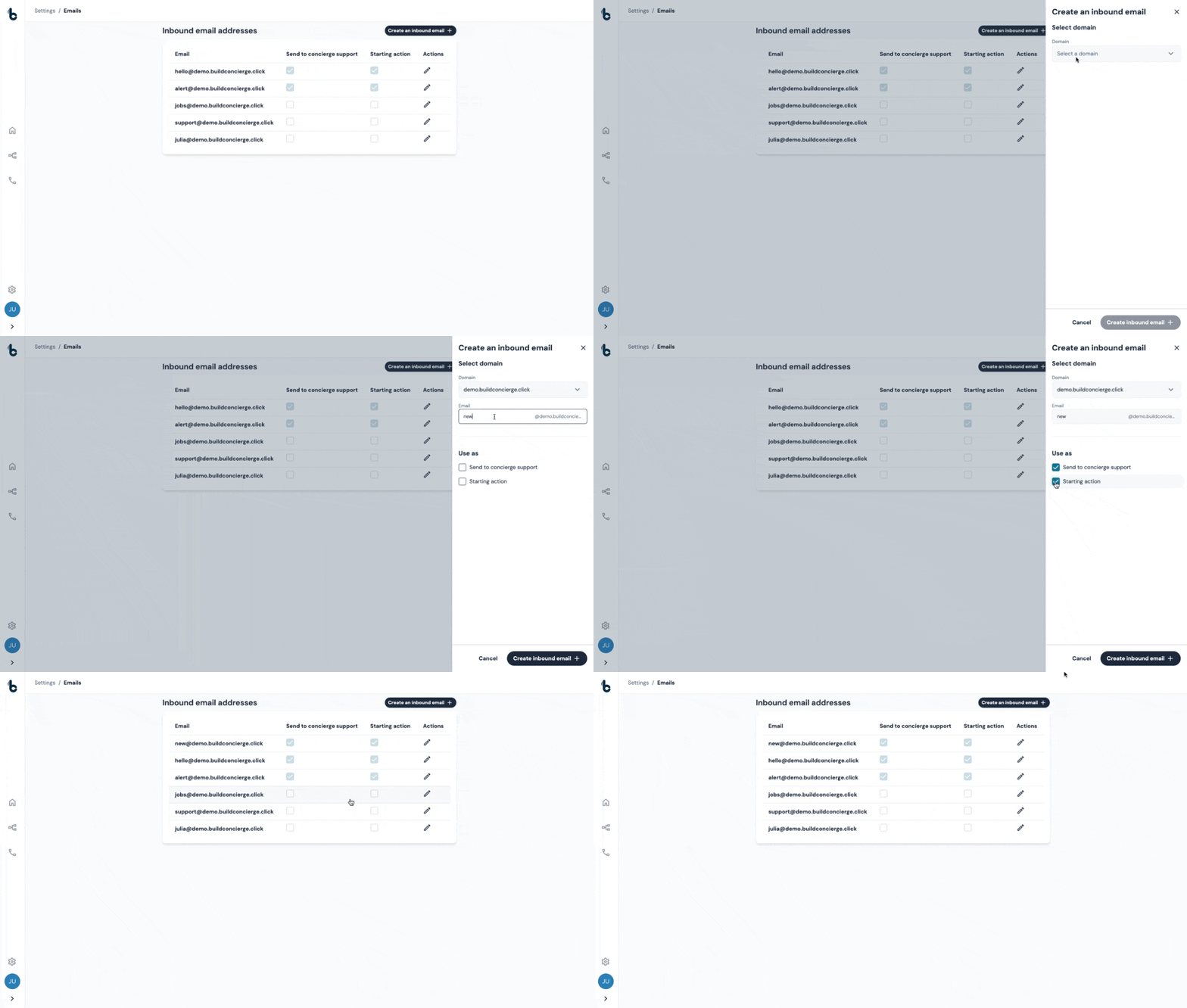
After your domain has been added, you can choose how you’d like to use it:
- Sending emails to Concierge Support;
- As a Starting Action in the Workflow Builder; or
- Both
Sending emails to Concierge Support - any emails which are sent to the email address specified will appear in the Contact timeline in Concierge Support.
Starting Action in the Workflow Builder - the domain will be available to choose when configuring an Incoming Email starting action node, as the email address that would trigger the workflow.
📚 Learn how to use your incoming email in the Incoming Email Starting action in this article.
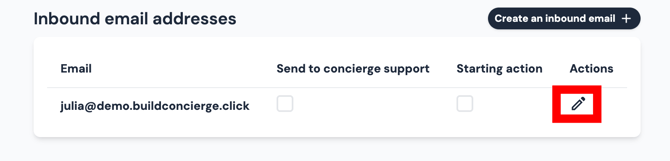
Select what you want the email address to be used for by checking the checkbox associated with each of the options available, according to your preferences.
Managing Multiple Domains
If your organization uses more than one domain (for example, different brands or departments), you can add and manage multiple domains in Email Management. 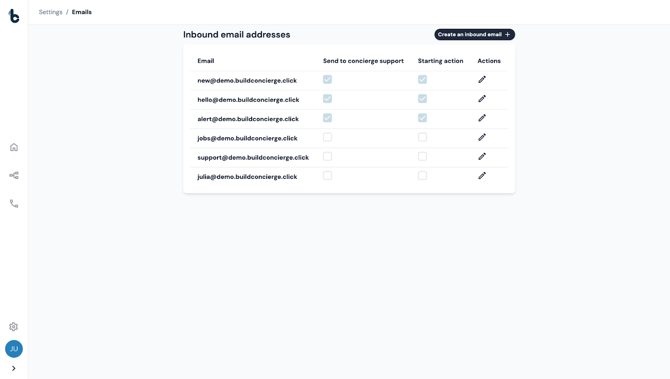
Each domain will appear in your list with its own configuration options and usage settings.
Editing an Inbound Email
You can edit an existing inbound email by clicking on the pencil icon under the Actions column in the Inbound email addresses list.