
Automate BigChange job card review
In this guide, you will learn how to set up a workflow in Build Concierge that automatically reviews BigChange job cards and flags those that require manual review.
1. Example company introduction
Martin & Sons are a plumbing company serving commercial and domestic customers across the Midlands.

2. Example current workflow explanation
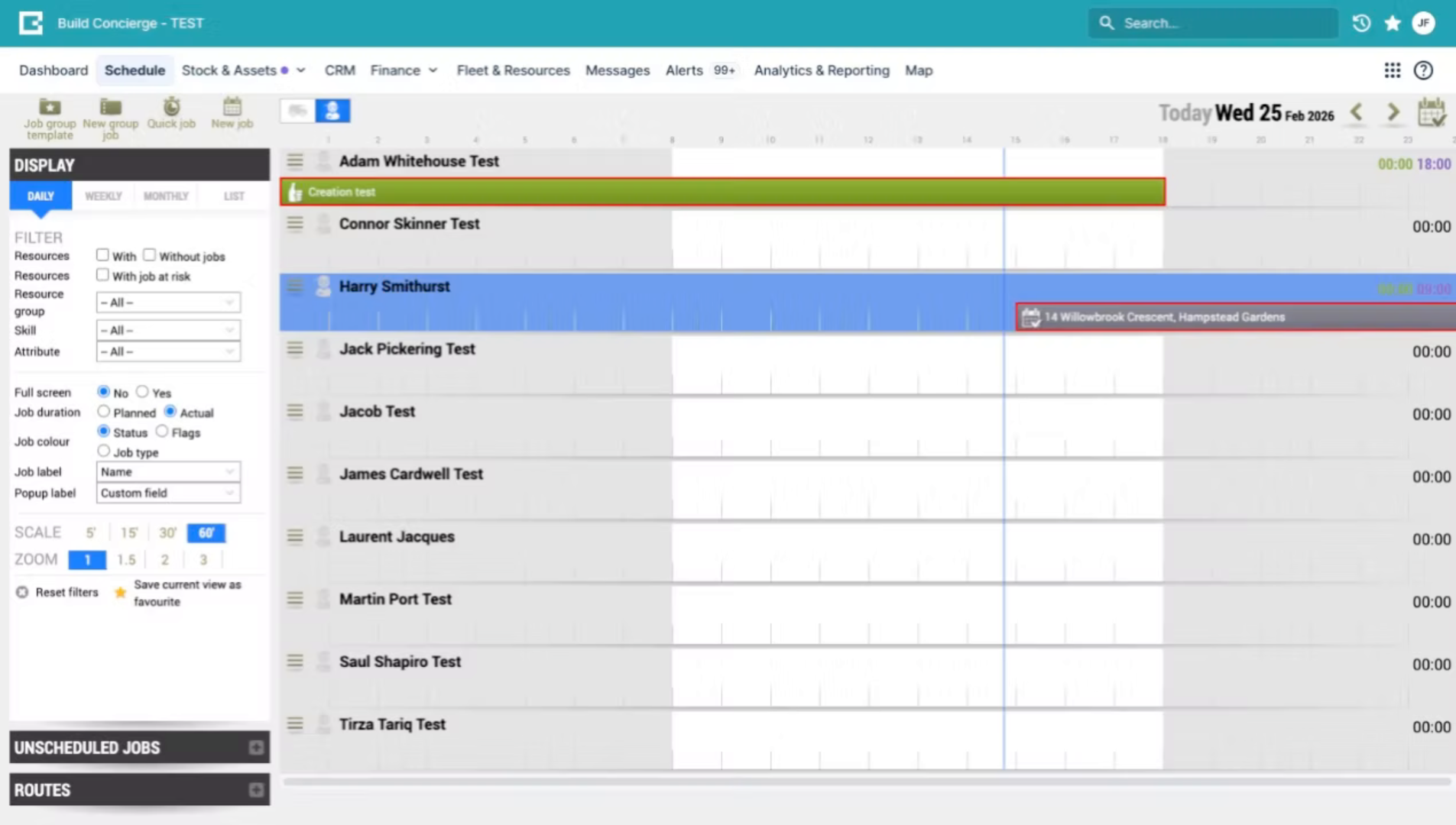
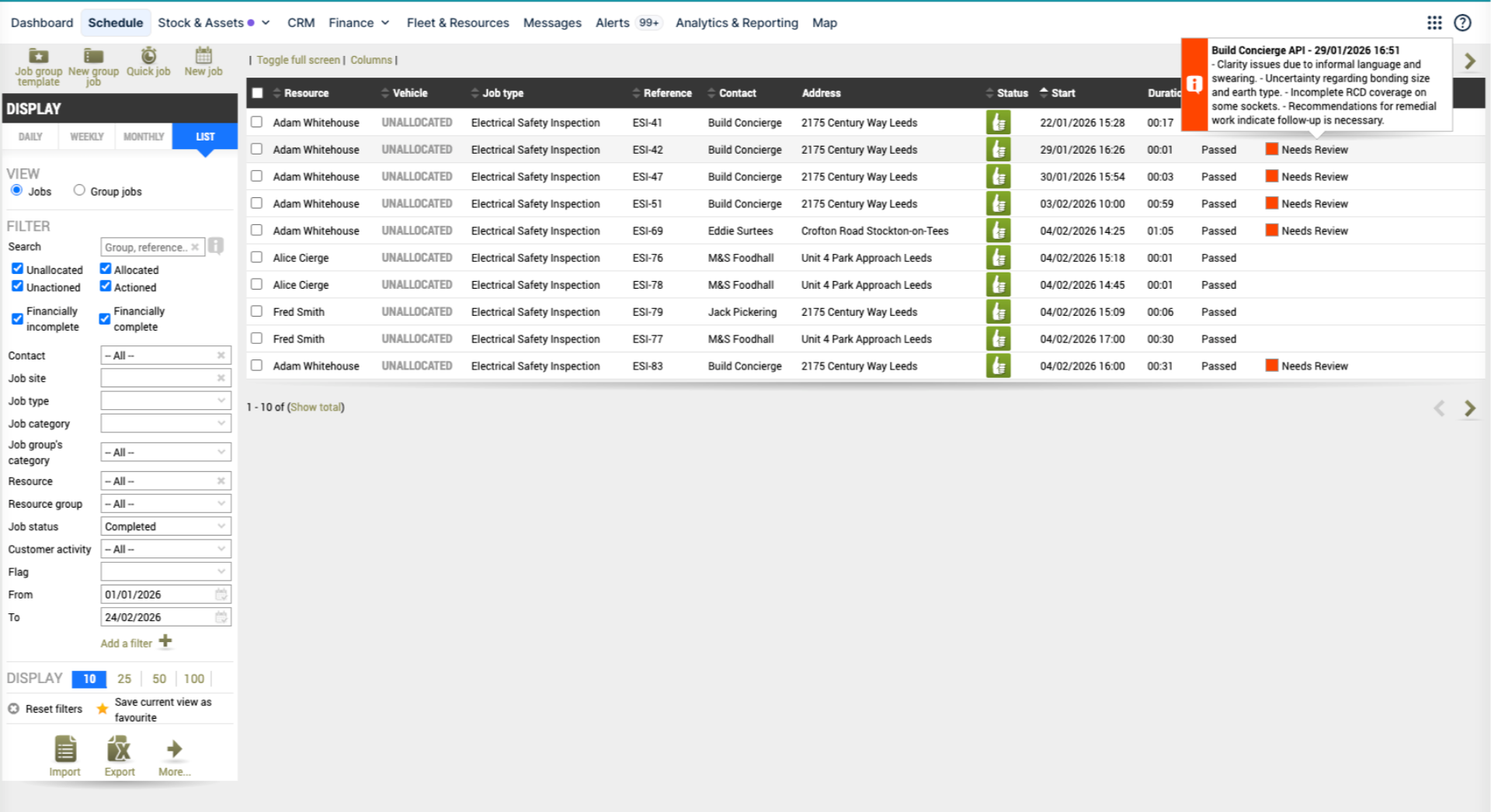
On completion of a job, plumbers fill out a job card in BigChange with details of the work carried out and notes about any follow-up work required.
Currently, these job cards are reviewed manually by the support team before being sent to customers to ensure they're clear, professional and to flag any further work.
3. Value of the workflow
By building this workflow in Build Concierge, the whole process can be automated.
Let's see how to build it!
4. ⚠️ Note of advanced level
This is a more advanced workflow to set up, but once it's live, it runs entirely in the background with no ongoing input required.
5. Log in to your account
To begin, make sure you're logged into your Build Concierge account.
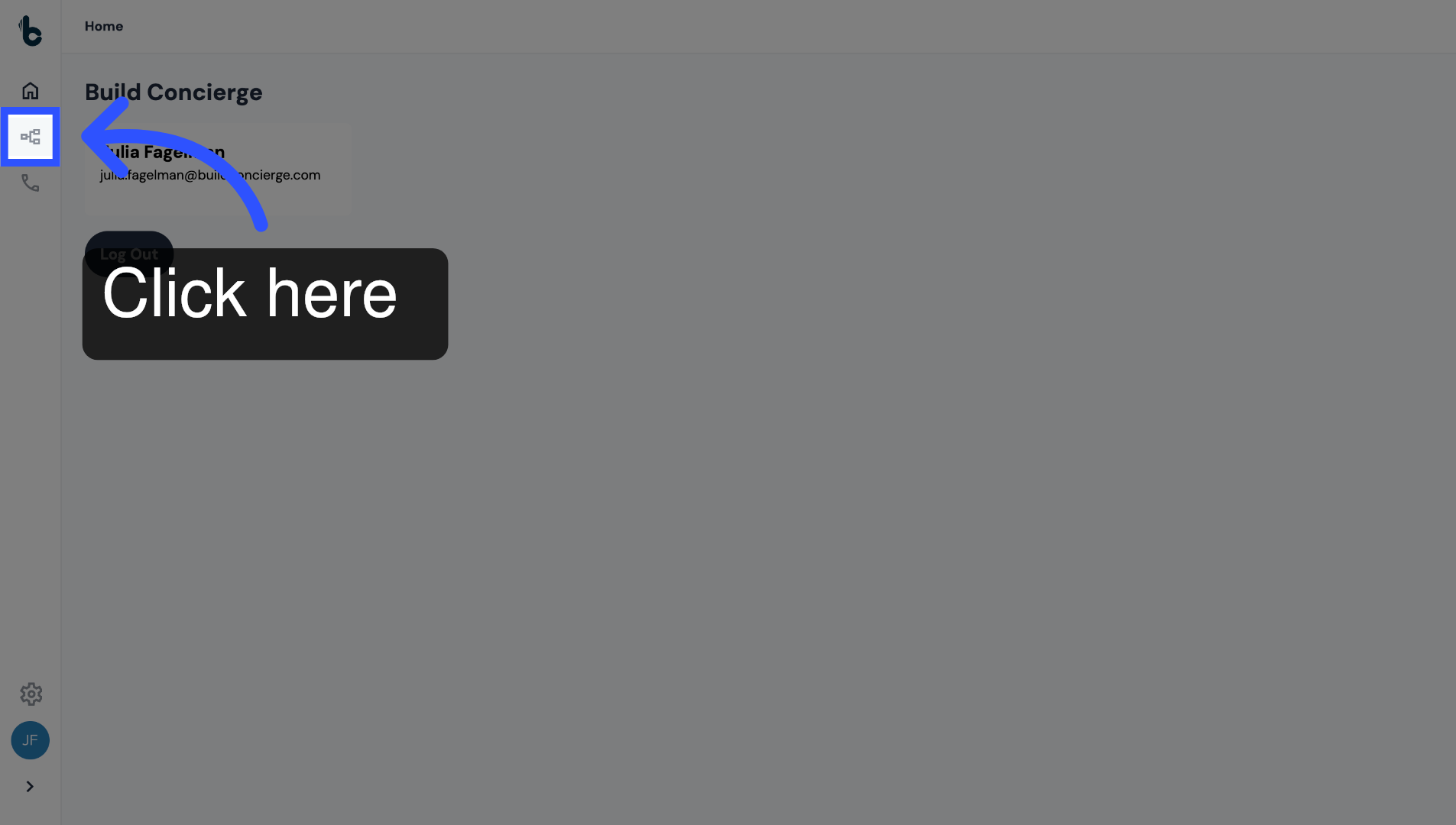
6. Click Workflow Builder icon
Click the Workflow Builder icon.
7. Add a new workflow
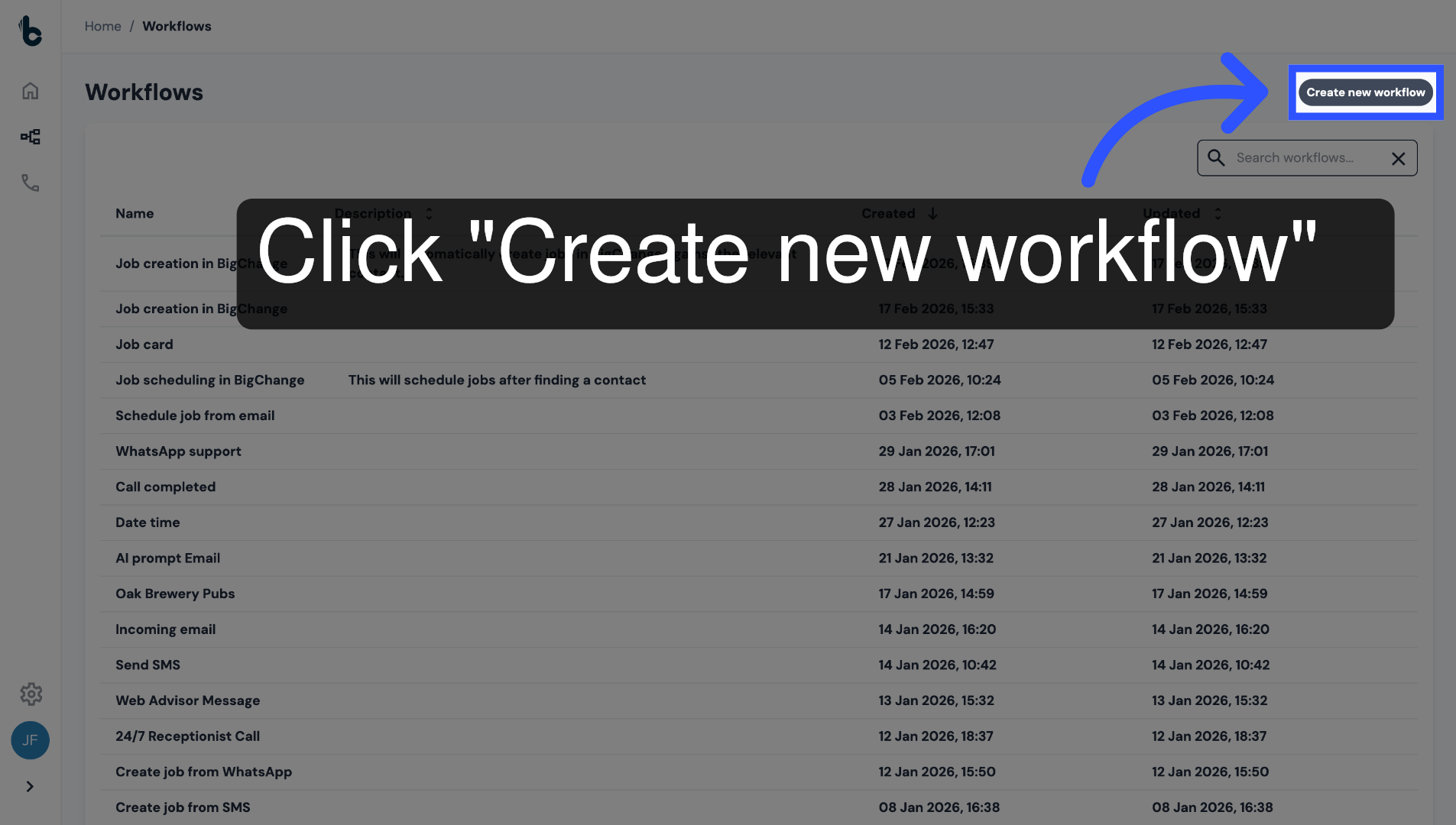
Click Create new workflow.
8. Enter workflow name
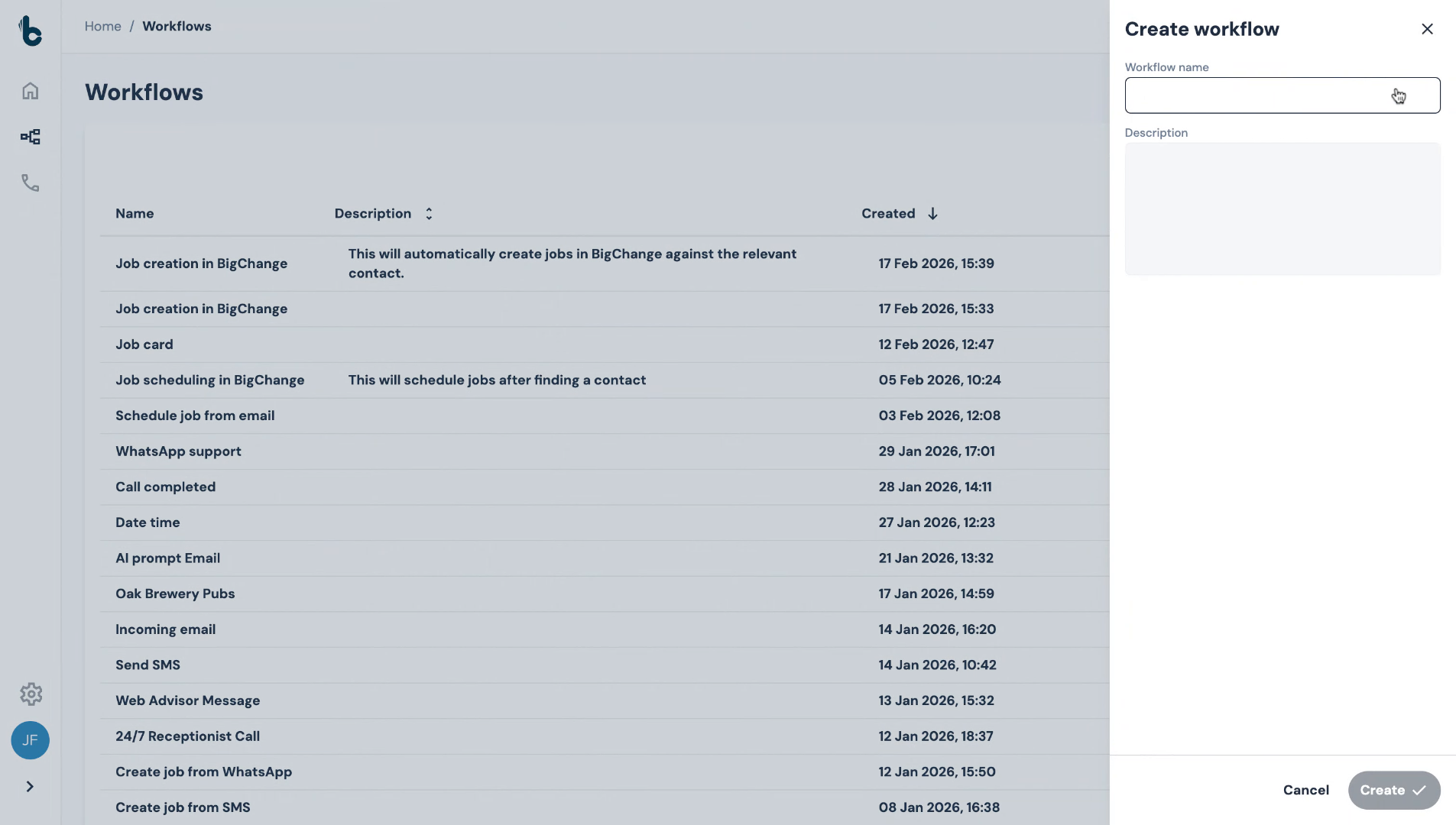
Give the workflow a name, such as Job Card Review.
9. Add optional description
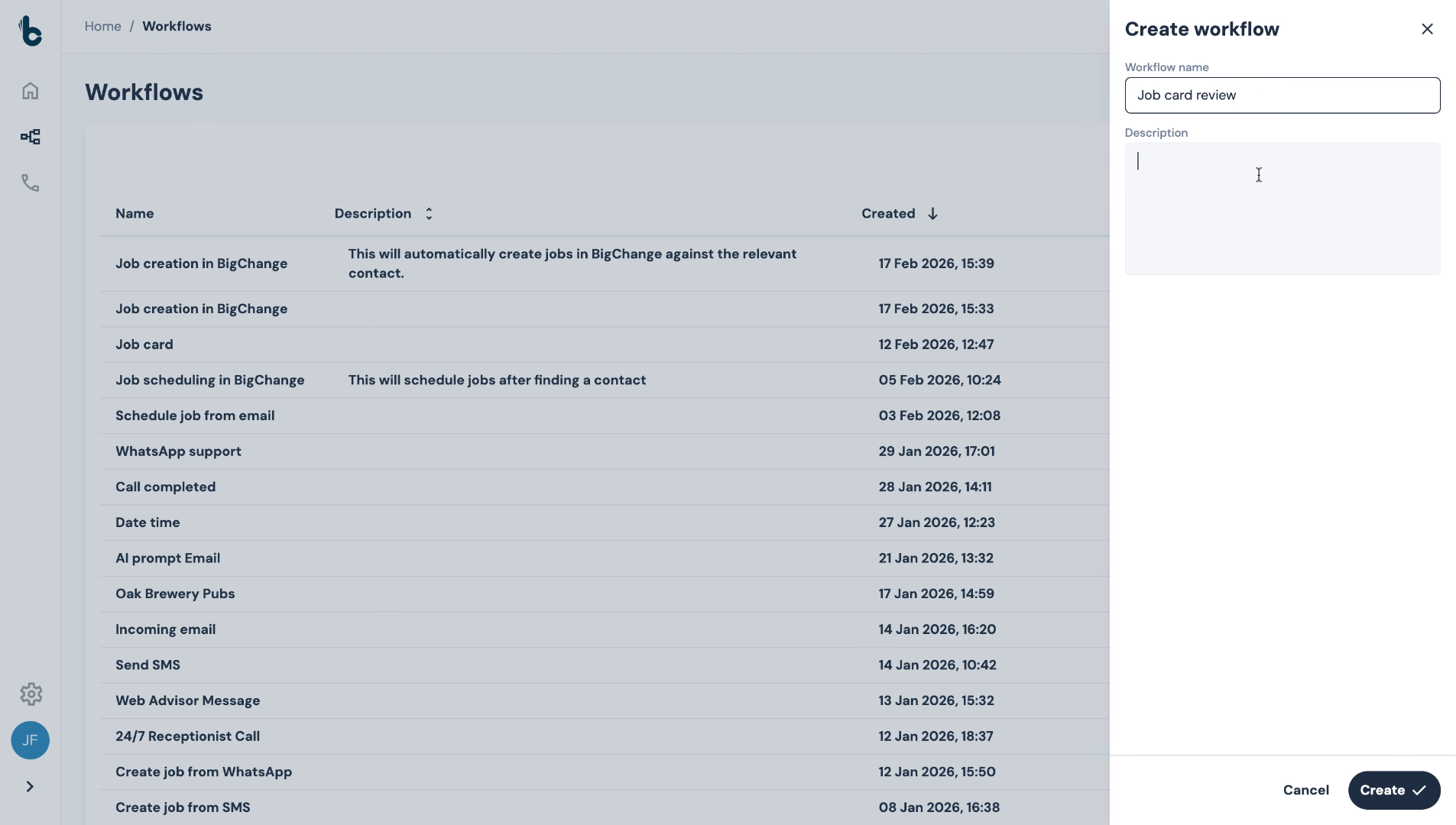
Enter an optional description to provide additional context or instructions.
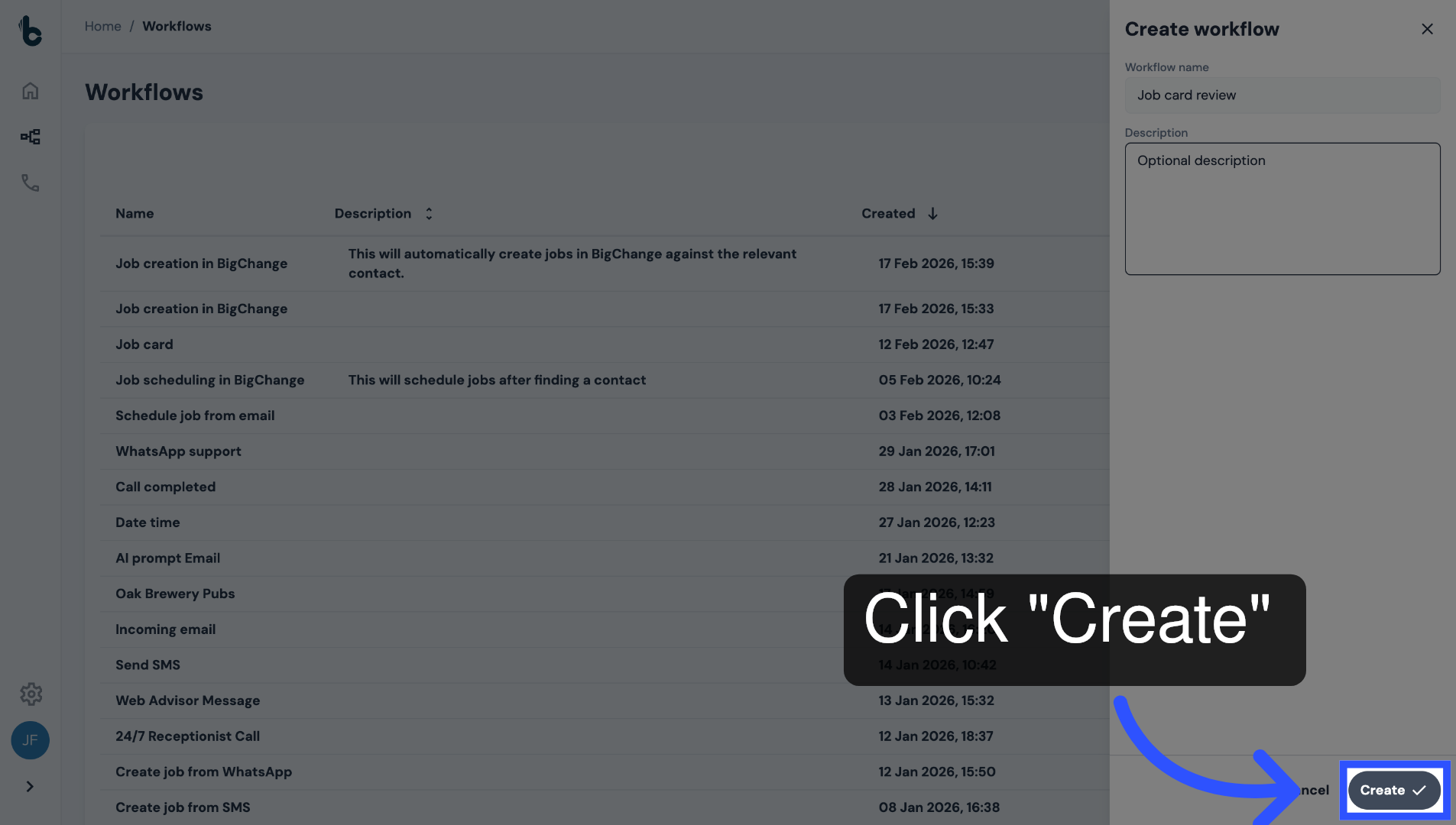
10. Click Create
Click Create to open the Workflow Editor and begin building the workflow.
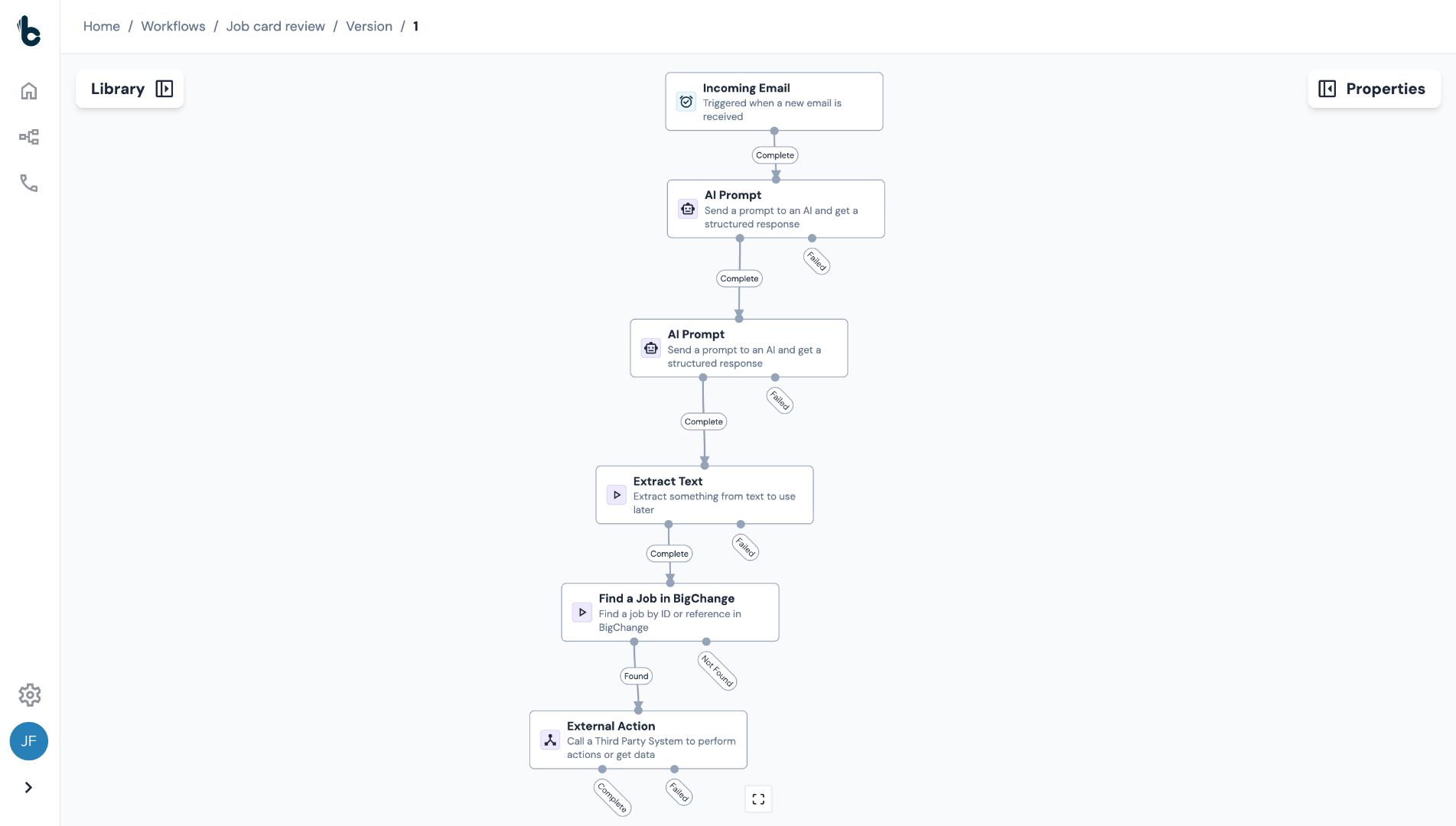
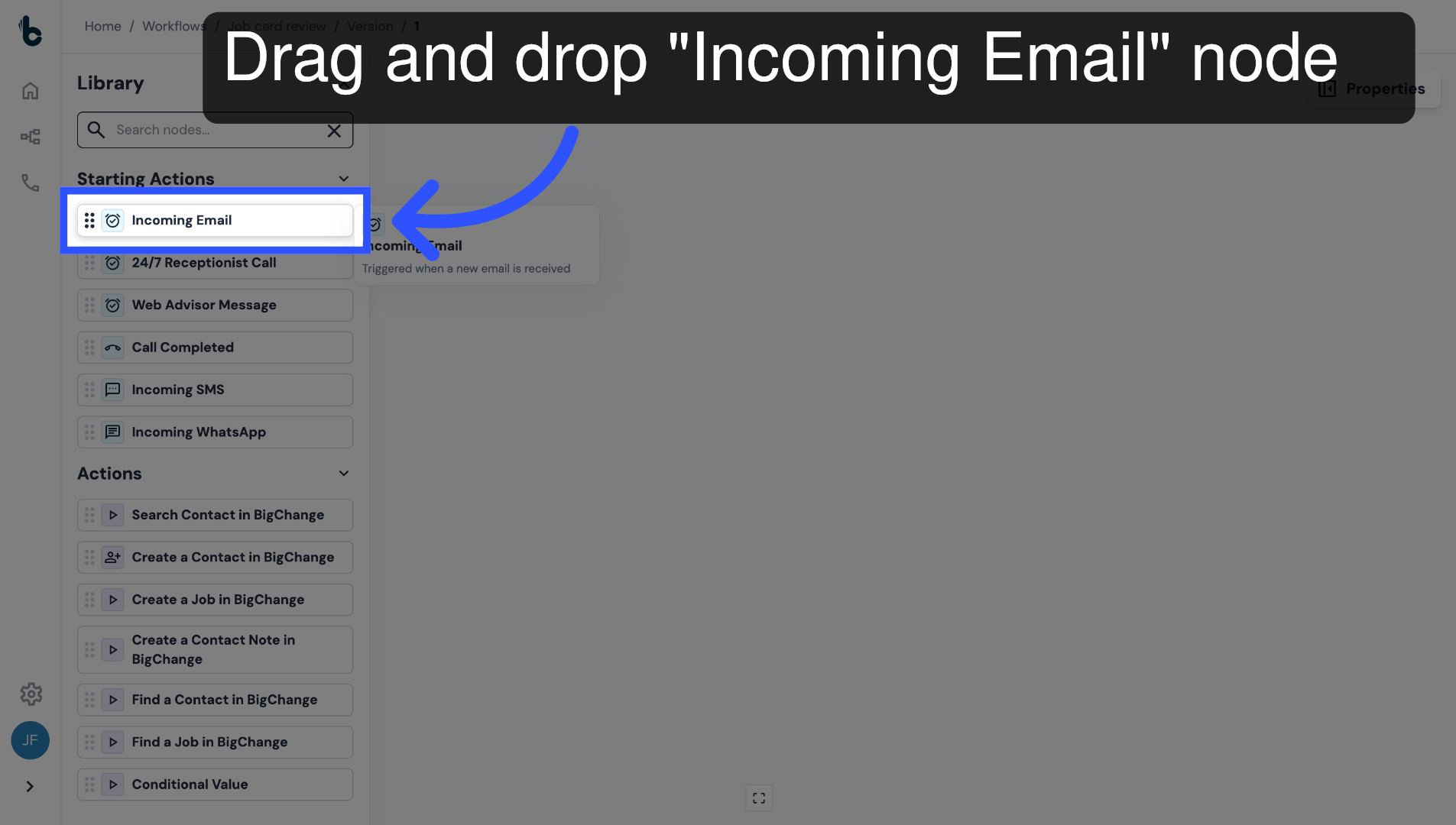
11. Add an Incoming Email Starting action
Drag and drop an Incoming Email Starting action into the empty space.
This will trigger the workflow each time the auto-generated email is received containing a job card as a PDF attachment.
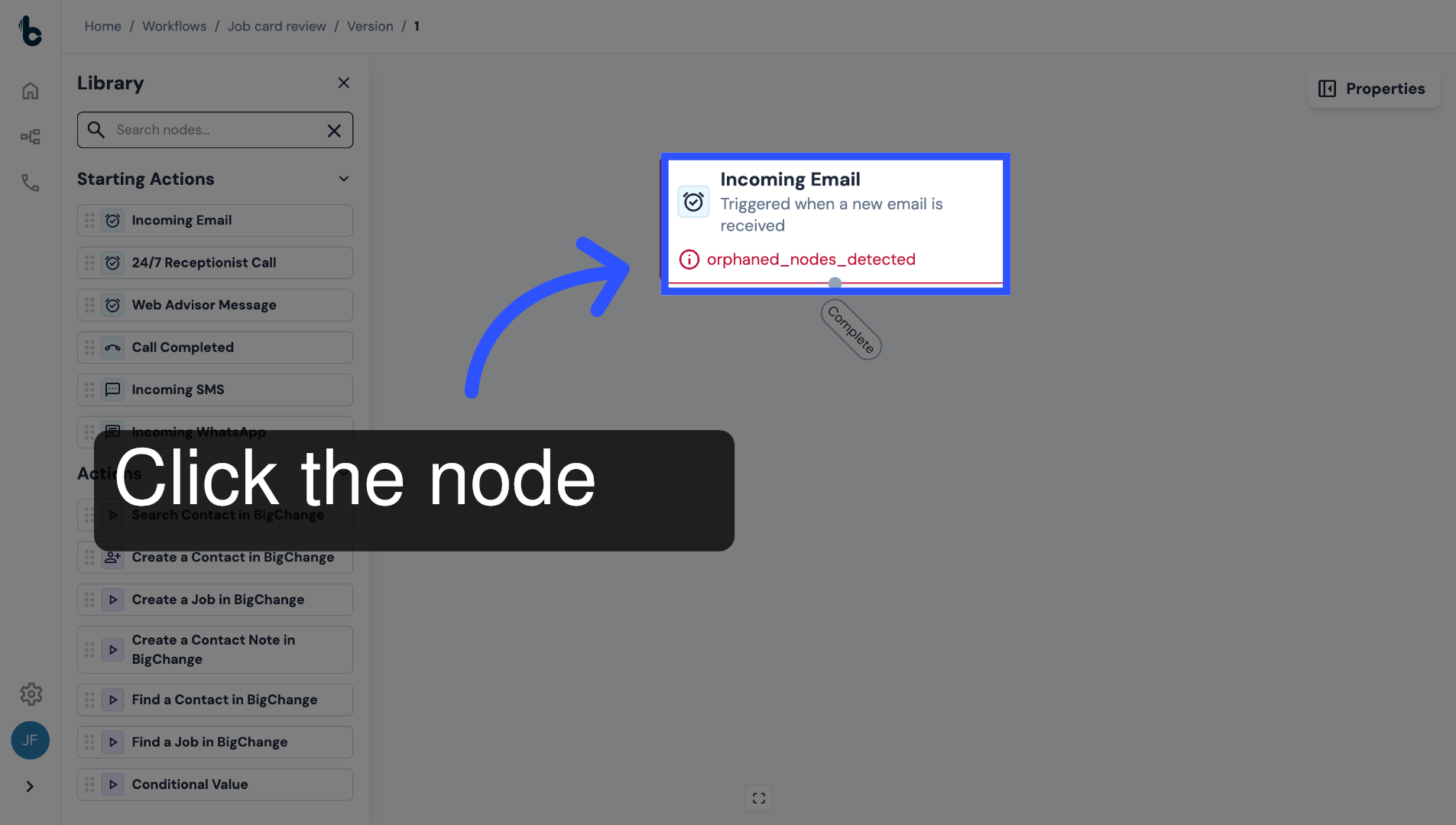
12. Click the node to configure it
Click the node to open the Properties panel.
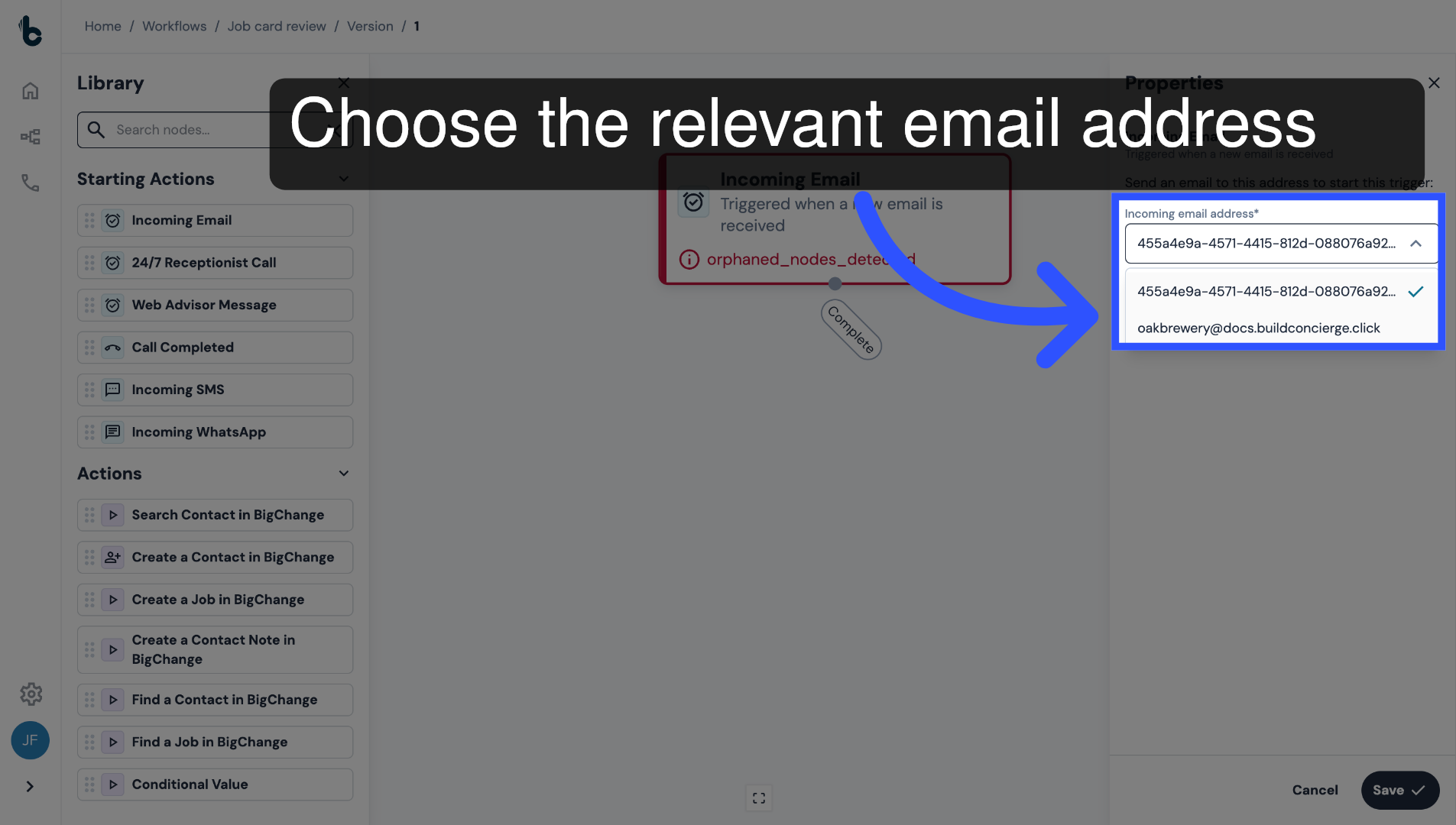
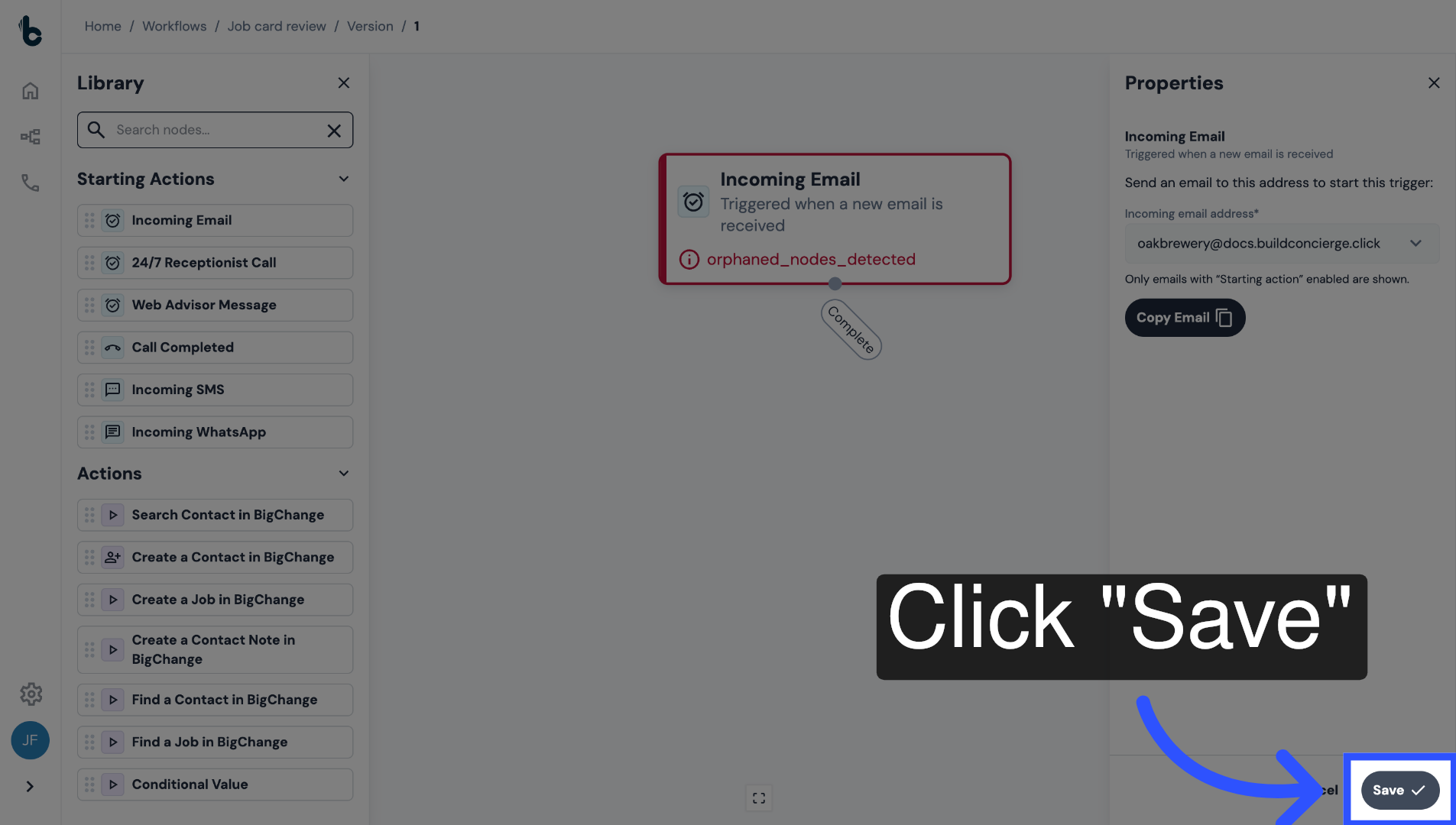
13. Choose relevant email address
Select the email address where job card emails are being received.
14. 📚 Learn more
To learn more about how to add your own inbound email addresses, rather than using the default email address associated to the Incoming Email node, read the article entitled Email Management.
15. Click Save
Click Save.
16. 📚 Learn more
To learn more about the Incoming Email node, read the guide entitled Incoming Email Starting action.
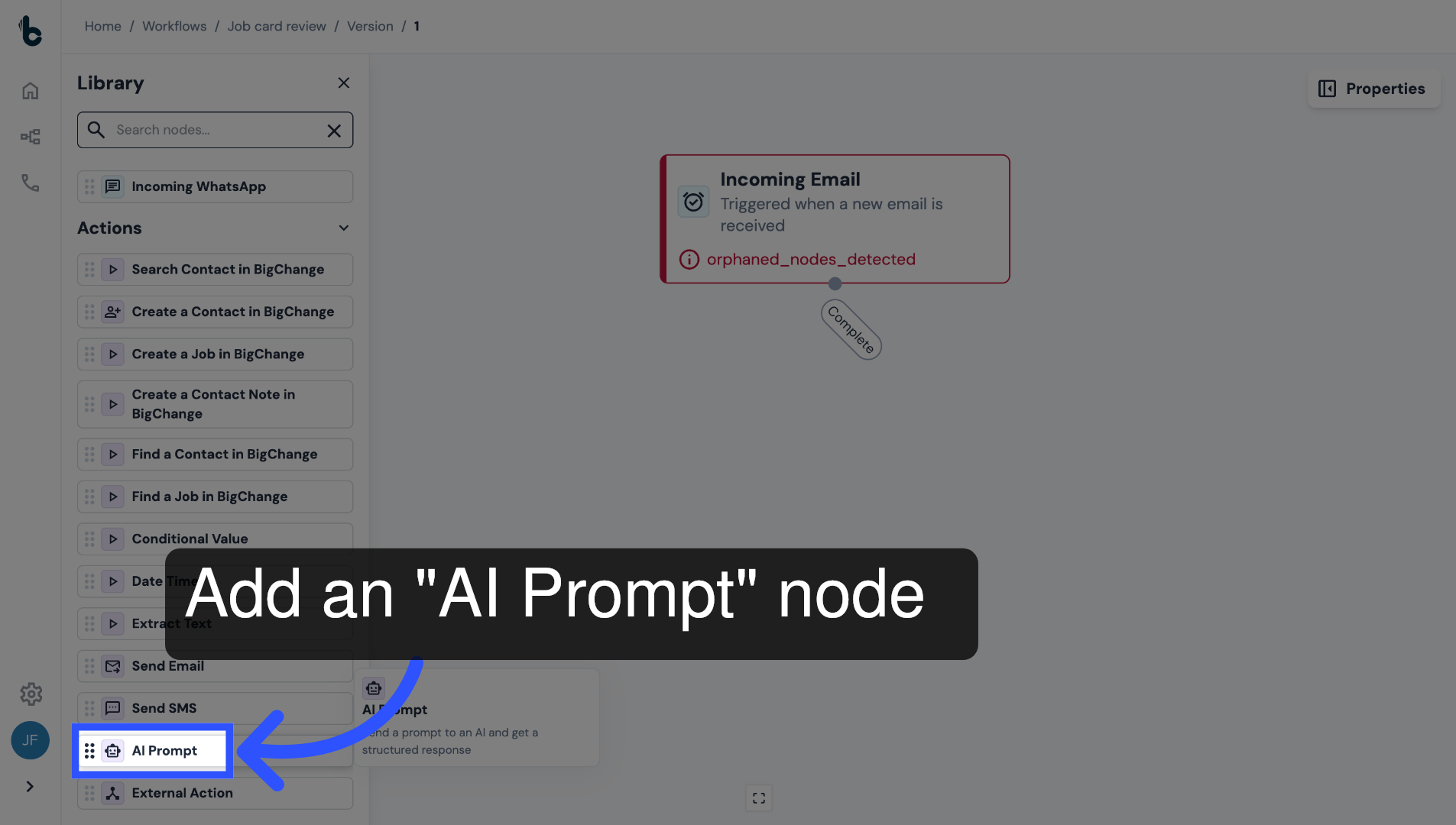
17. Add an AI Prompt node
Add an AI Prompt node.
This will identify which job the job card belongs to by extracting the job reference from the PDF attachment in the incoming email.
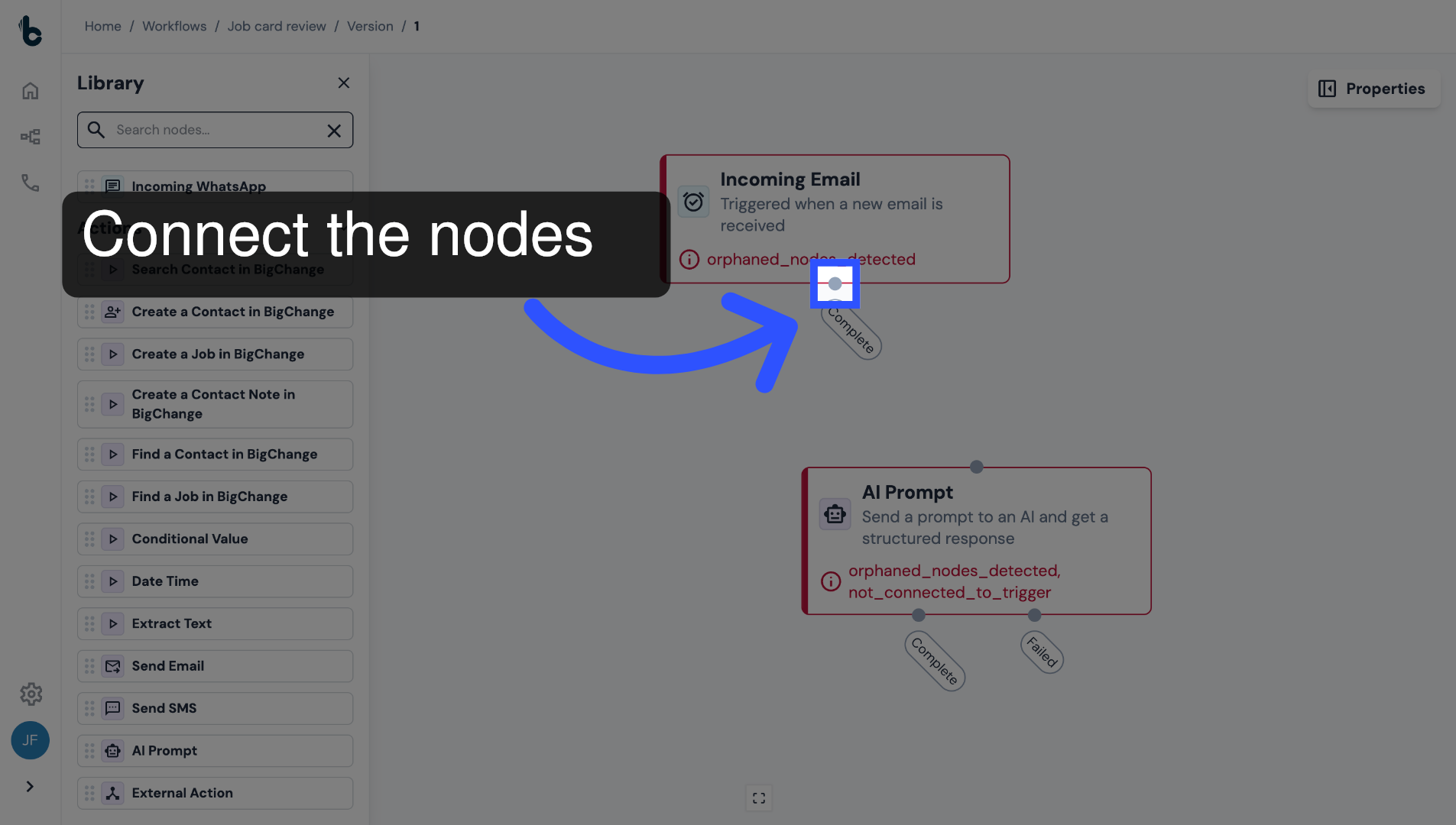
18. Connect the nodes
Connect the AI Prompt node to the Complete branch of the Incoming Email node.
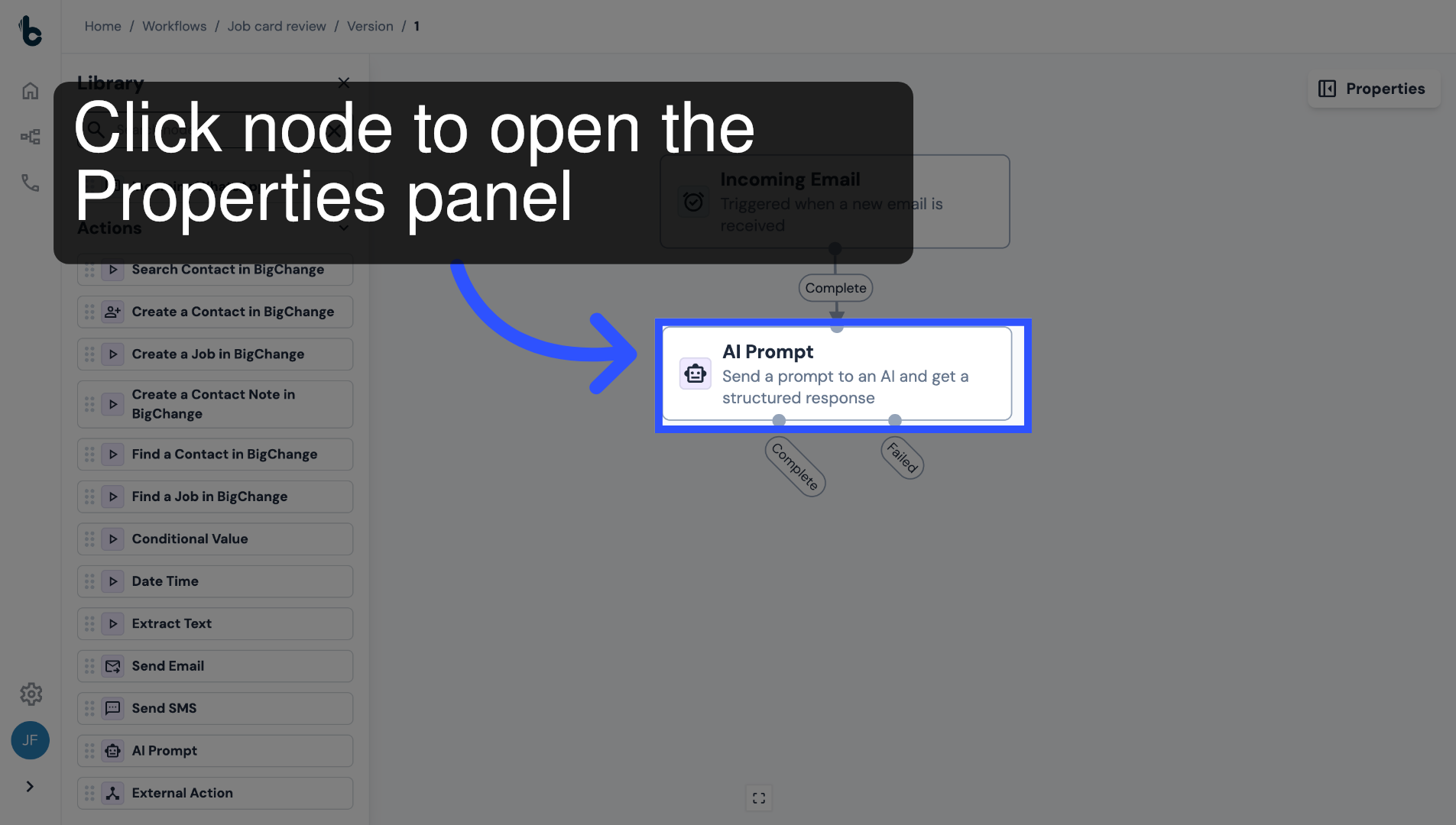
19. Configure the node
Configure the node by clicking on it to open the Properties panel.
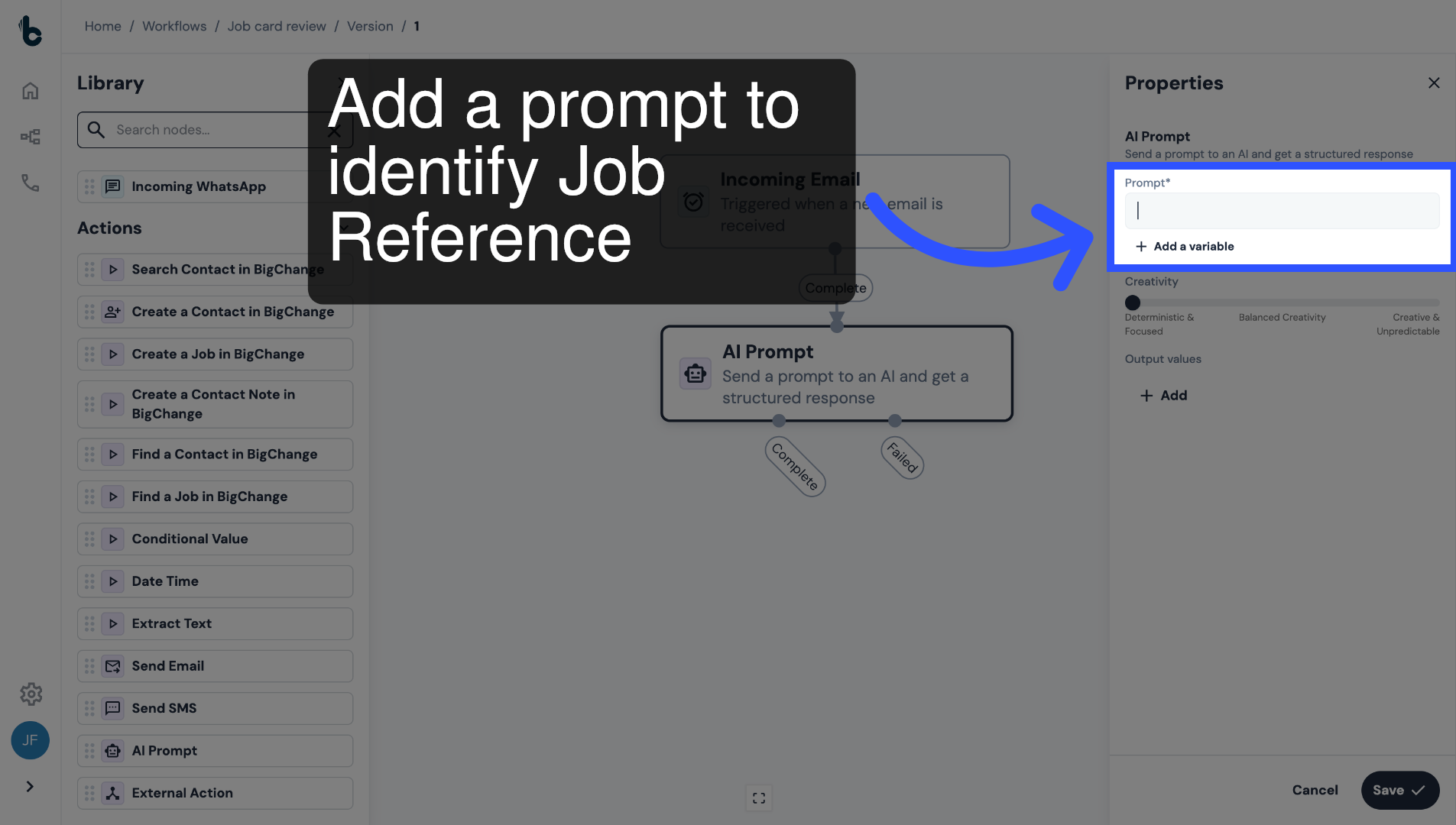
20. Add prompt
Under the Prompt field, write a prompt to return the job reference as an output that can be used as a variable later in the workflow.
21. Choose PDF Text Variable
Make sure to add the variable Text from PDF Attachments into the prompt.
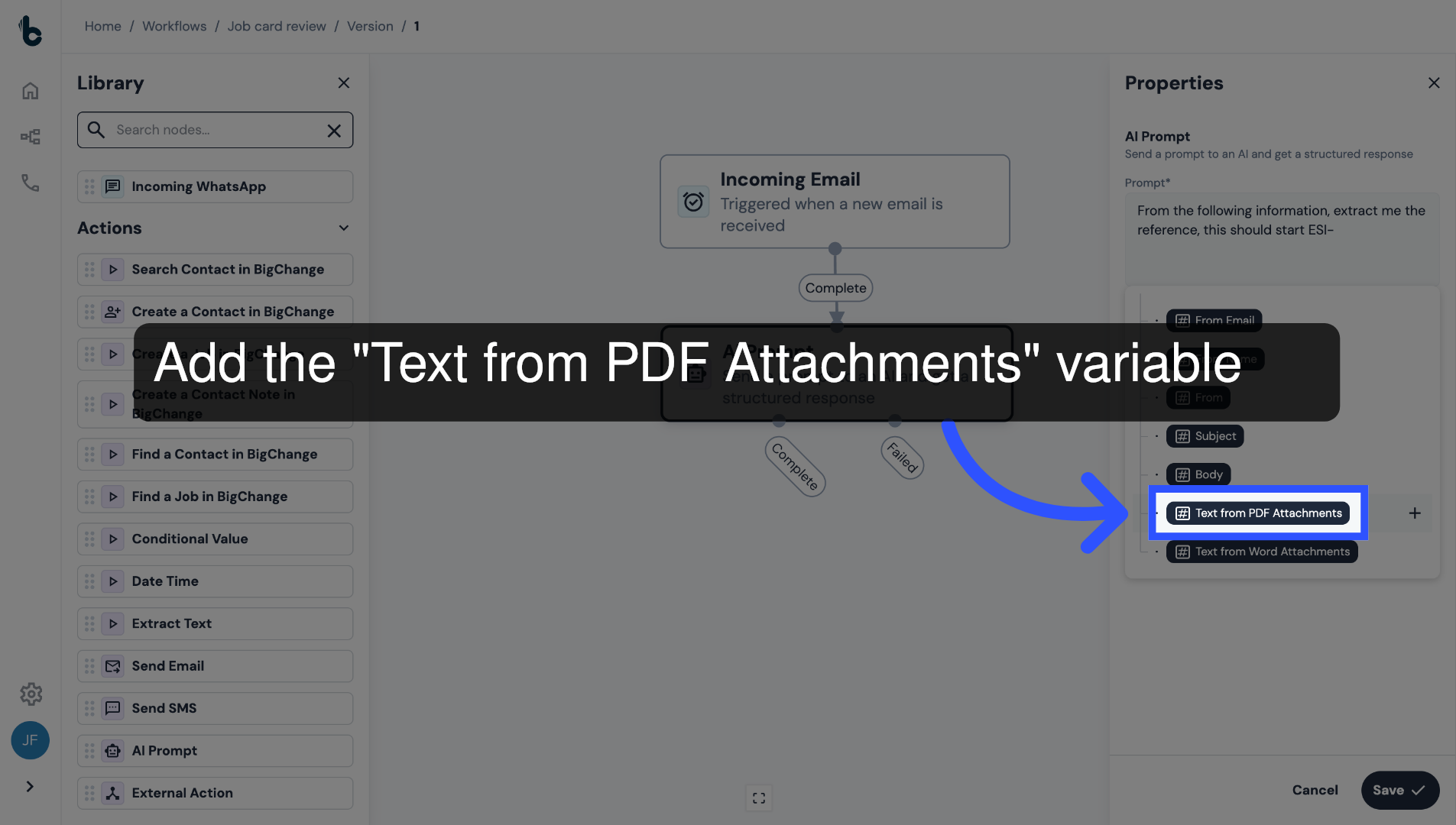
22. 💡 Example prompt
Here is our example prompt, which you can copy and paste into your own workflow:
From the following information, extract me the reference, this should start ESI-
[Text from PDF Attachments]
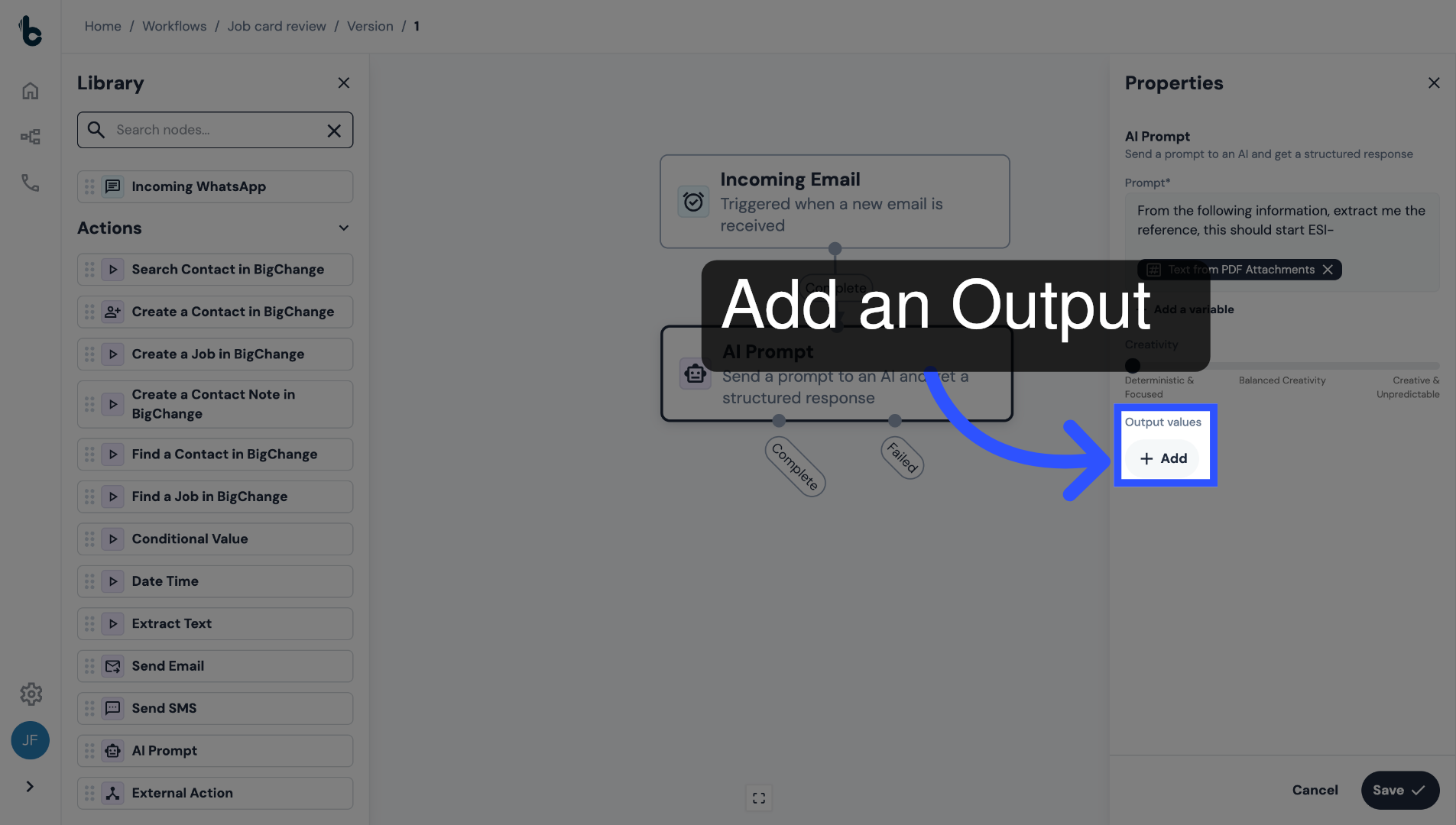
23. Add an Output Value
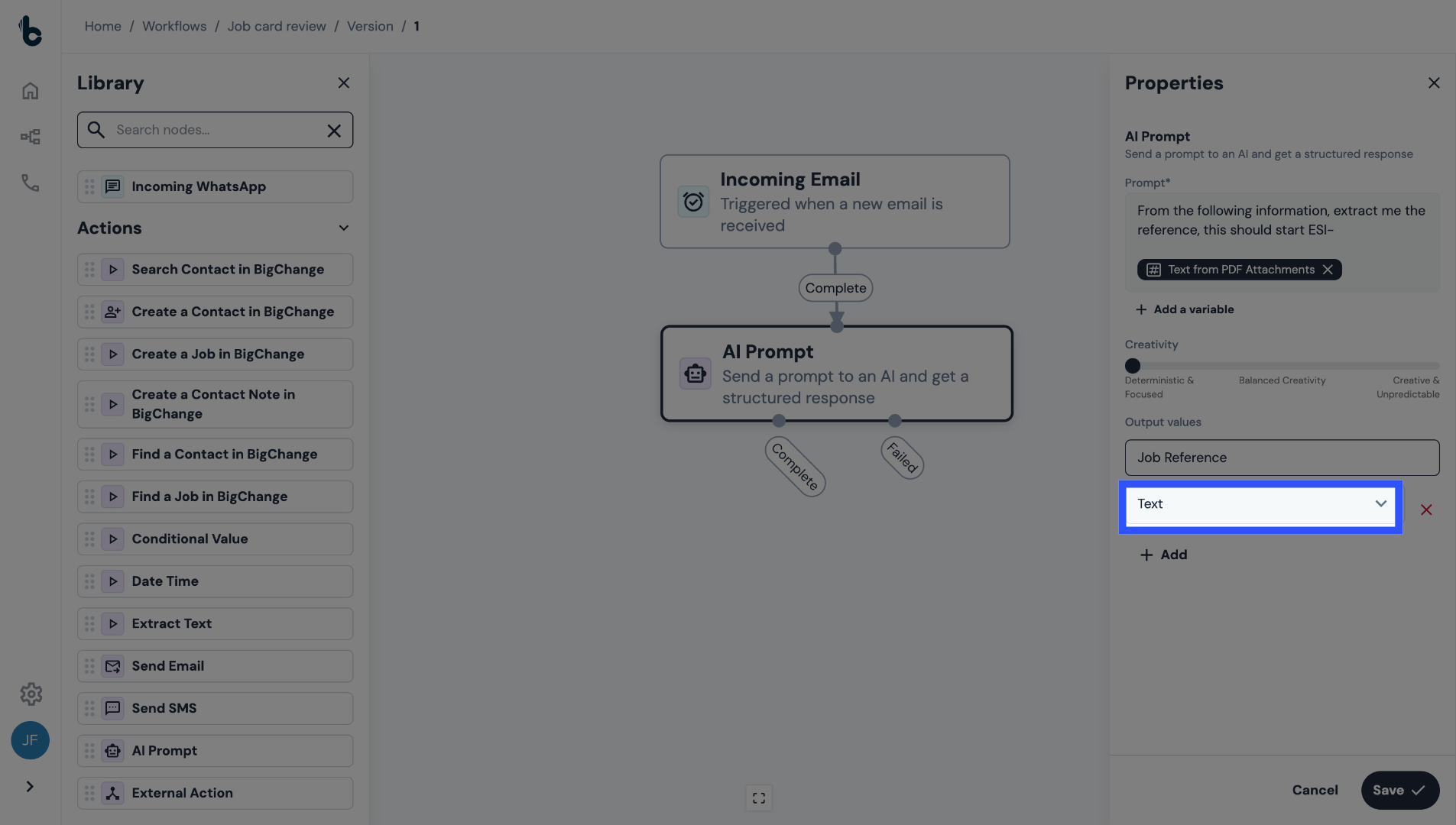
Finally, under the Output values section, click + Add,
24. Name the Output
In the Field Name field, name the output Job Reference.
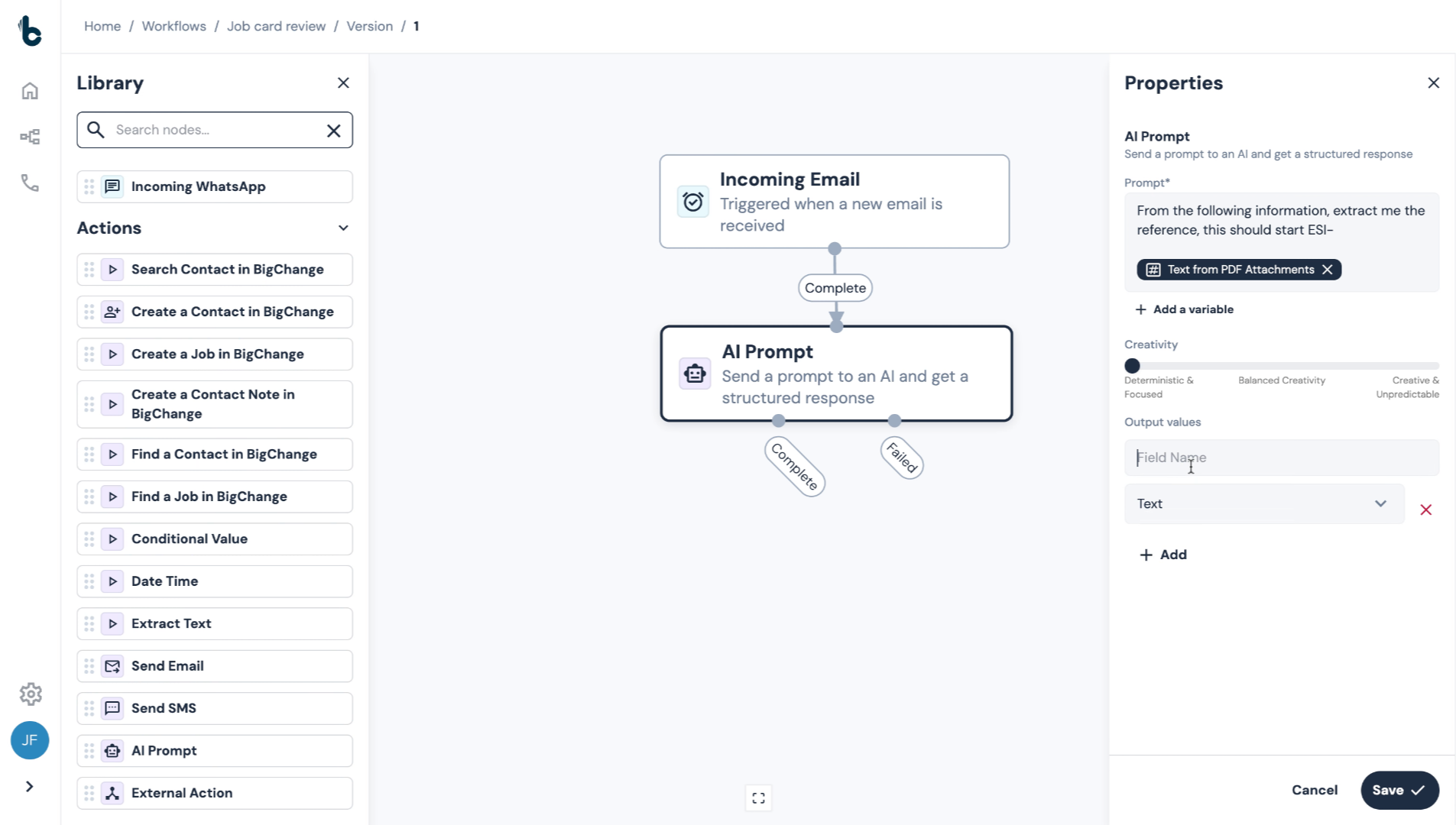
25. Choose the relevant Data Type
In the Data type field, keep the Text option selected unless your job references are numerical.
26. Save the configuration
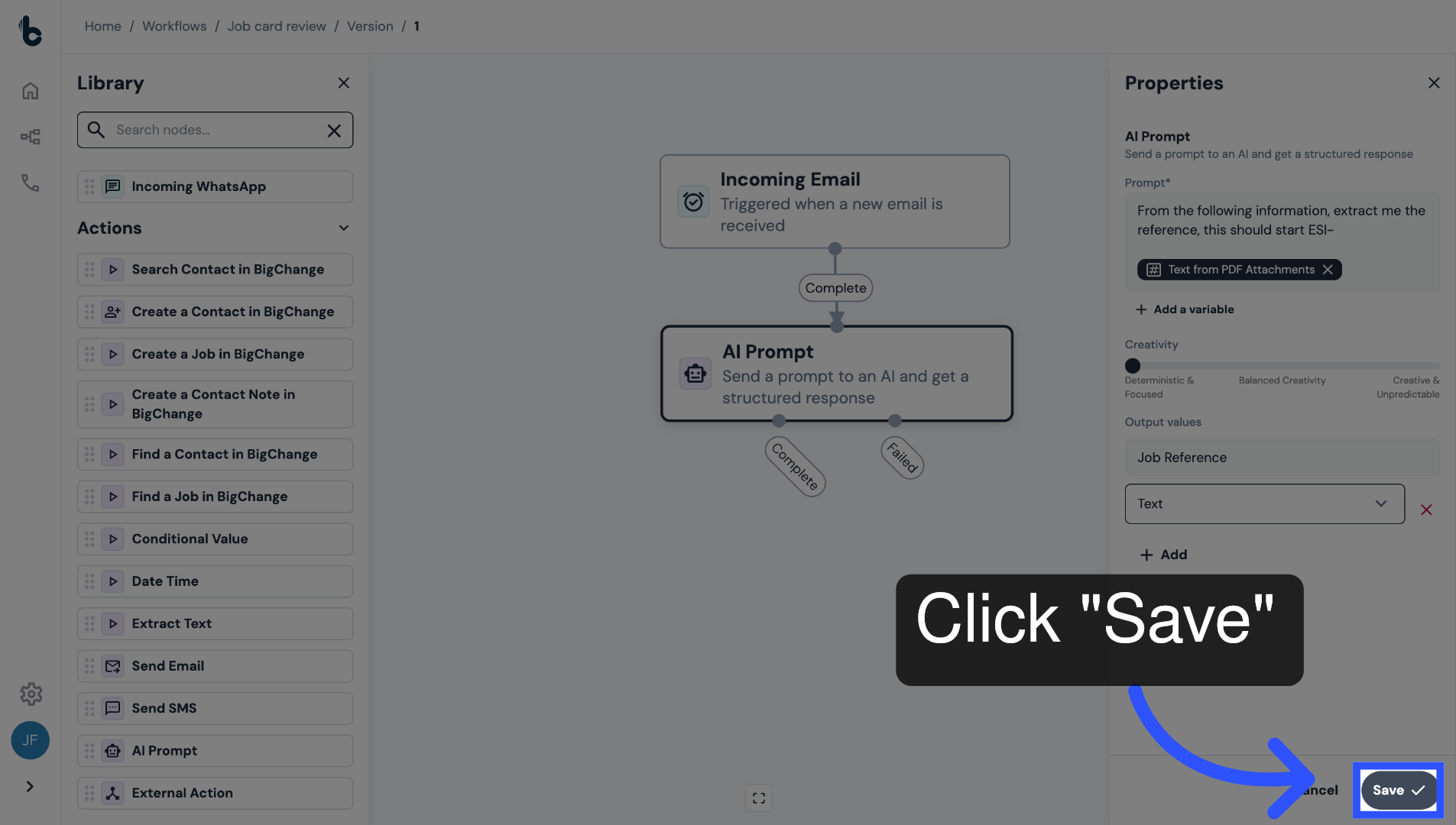
Click Save.
27. 📚 Learn more
You can learn more about the AI Prompt node in the guide entitled AI Prompt action.
28. Add another AI Prompt node
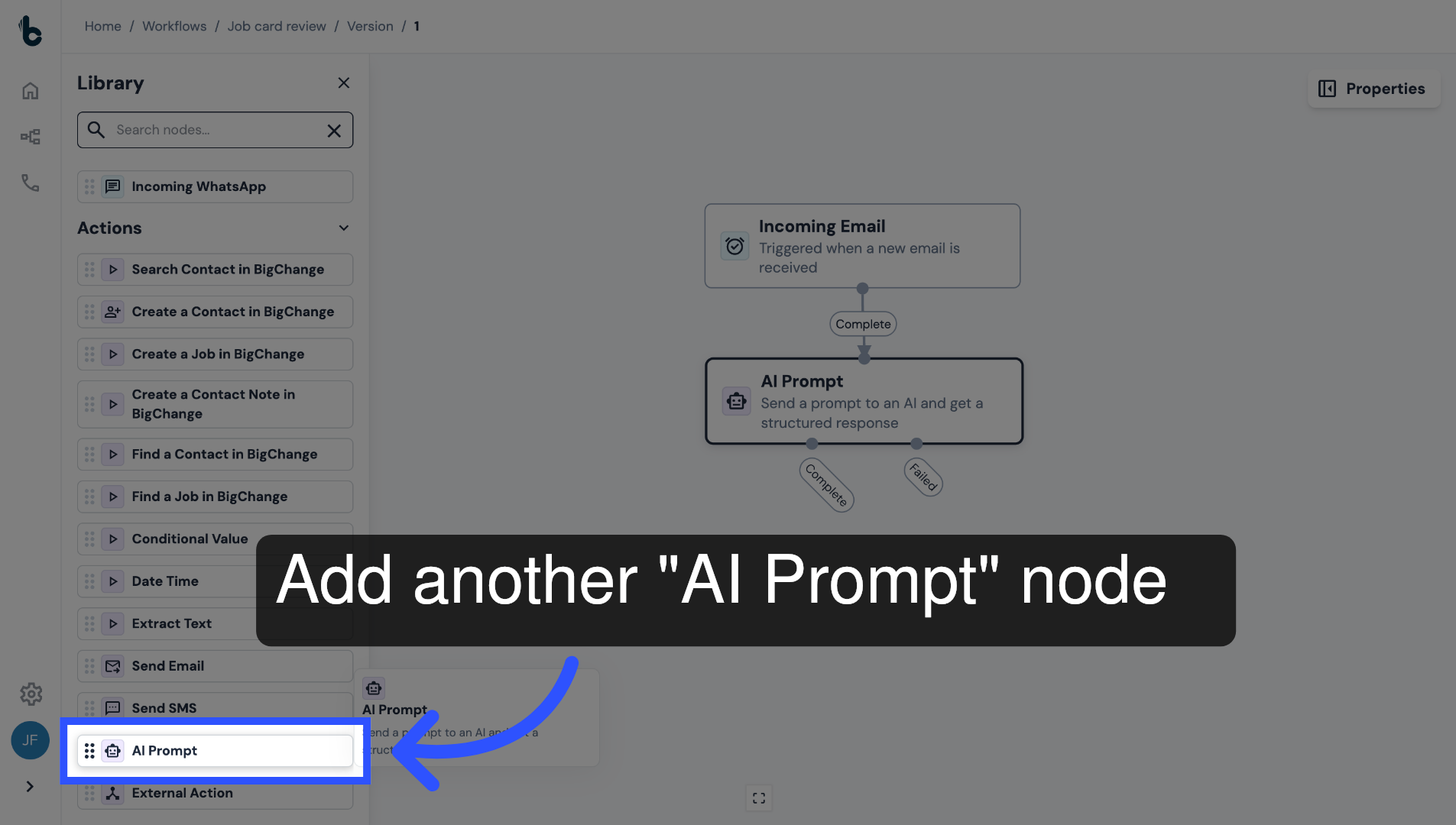
Add another AI Prompt node to your workflow, to review the content of the job card itself.
29. Connect the nodes
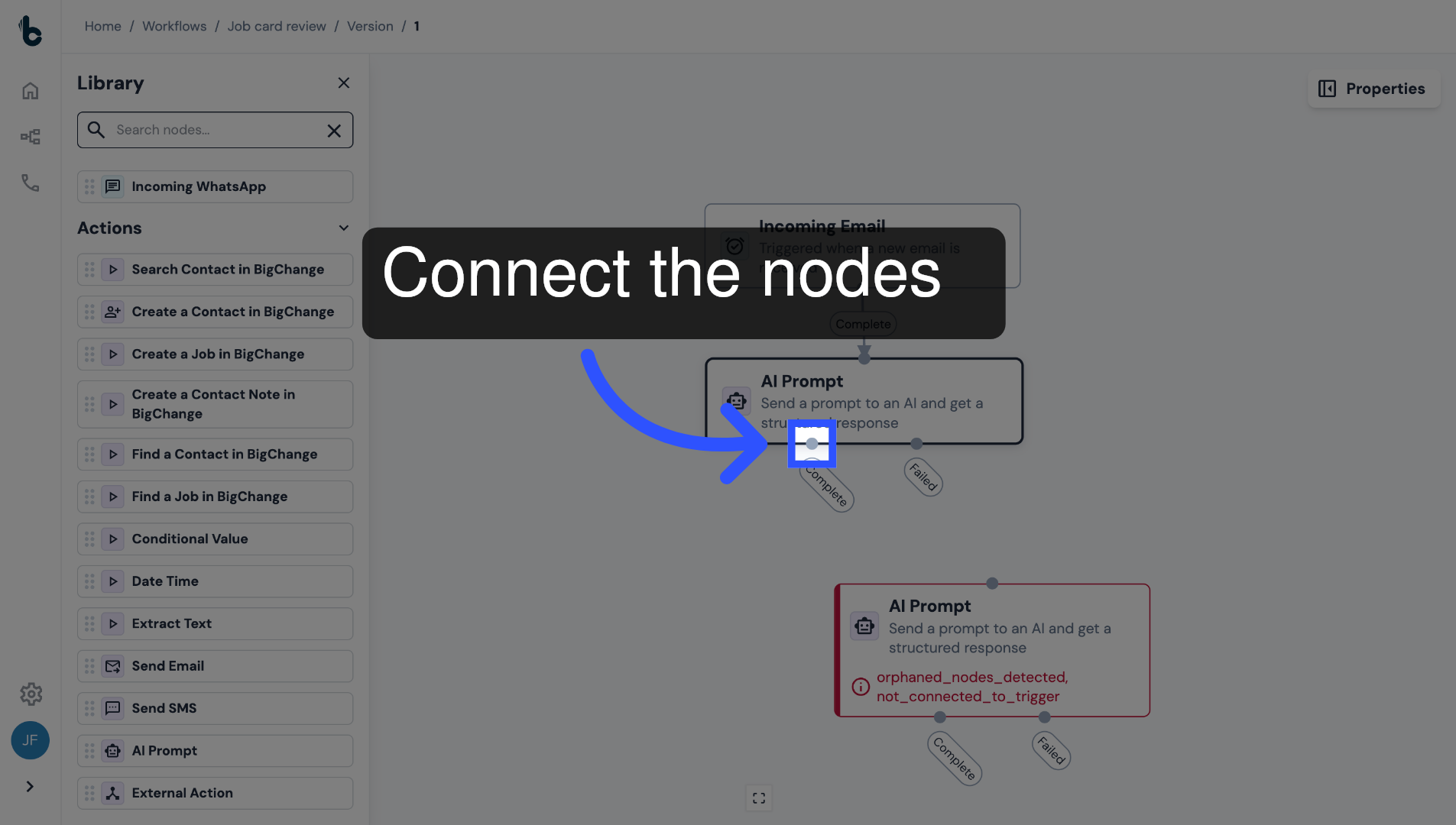
Connect the nodes and open the Properties panel.
30. Add your prompt
In the Prompt field, add a prompt that asks the AI to review the job card in the PDF attachment against defined quality criteria and to return a structured result for each check.
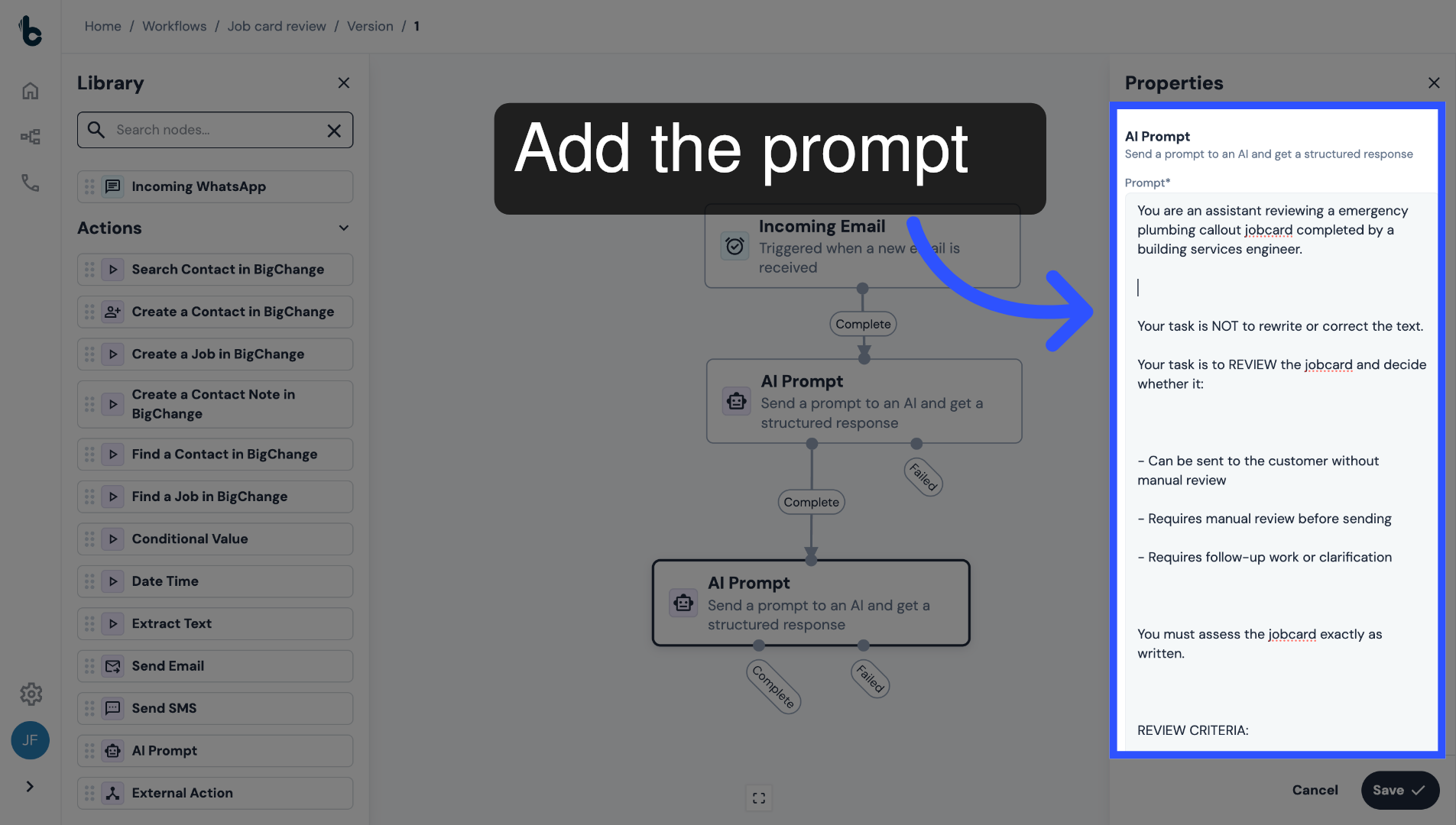
31. 💡 Example prompt
Below is our suggested prompt, which you can copy, paste and edit to fit your needs:
You are an assistant reviewing an electrical safety inspection jobcard completed by a building services engineer.
Your task is NOT to rewrite or correct the text.
Your task is to REVIEW the jobcard and decide whether it:
- Can be sent to the customer without manual review
- Requires manual review before sending
- Requires follow-up work or clarification
You must assess the jobcard exactly as written.
REVIEW CRITERIA:
1. Clarity & Language
- Is the wording clear enough for a customer to understand?
- Does spelling, grammar, or shorthand reduce clarity?
2. Technical Certainty
- Are supply type, earthing, bonding, and protection clearly confirmed?
- Are there statements of uncertainty or assumptions?
3. Safety & Compliance Risk
- Are there indications of potential safety issues?
- Are any potentially serious defects mentioned?
- Are protective measures (e.g. RCDs) incomplete or unclear?
4. Follow-Up Indicators
- Is further investigation required?
- Are remedial works recommended?
- Does the engineer's overall safety judgement include uncertainty?
RULES:
- Do NOT rewrite or correct the jobcard text
- Do NOT invent defects or conclusions
- Base your assessment only on the provided content
- Use professional, neutral language
OUTPUT FORMAT (MANDATORY):
Return the following sections:
1. Review Outcome
- One of:
- "OK to send to customer"
- "Manual review required"
- "Manual review required + follow-up work indicated"
2. Reasons for Review Outcome
- Bullet-point list referencing specific issues found
3. Risk Flags
- Bullet-point list using categories:
- Language / Clarity
- Technical Uncertainty
- Safety / Compliance
- Follow-Up Required
4. Recommended Next Action
- One short paragraph describing what should happen next
(e.g. engineer clarification, remedial quote, supervisor review)
INPUT:
The following text is the completed jobcard. Review it as-is.
[Begin Jobcard]
attachment text
[End Jobcard]
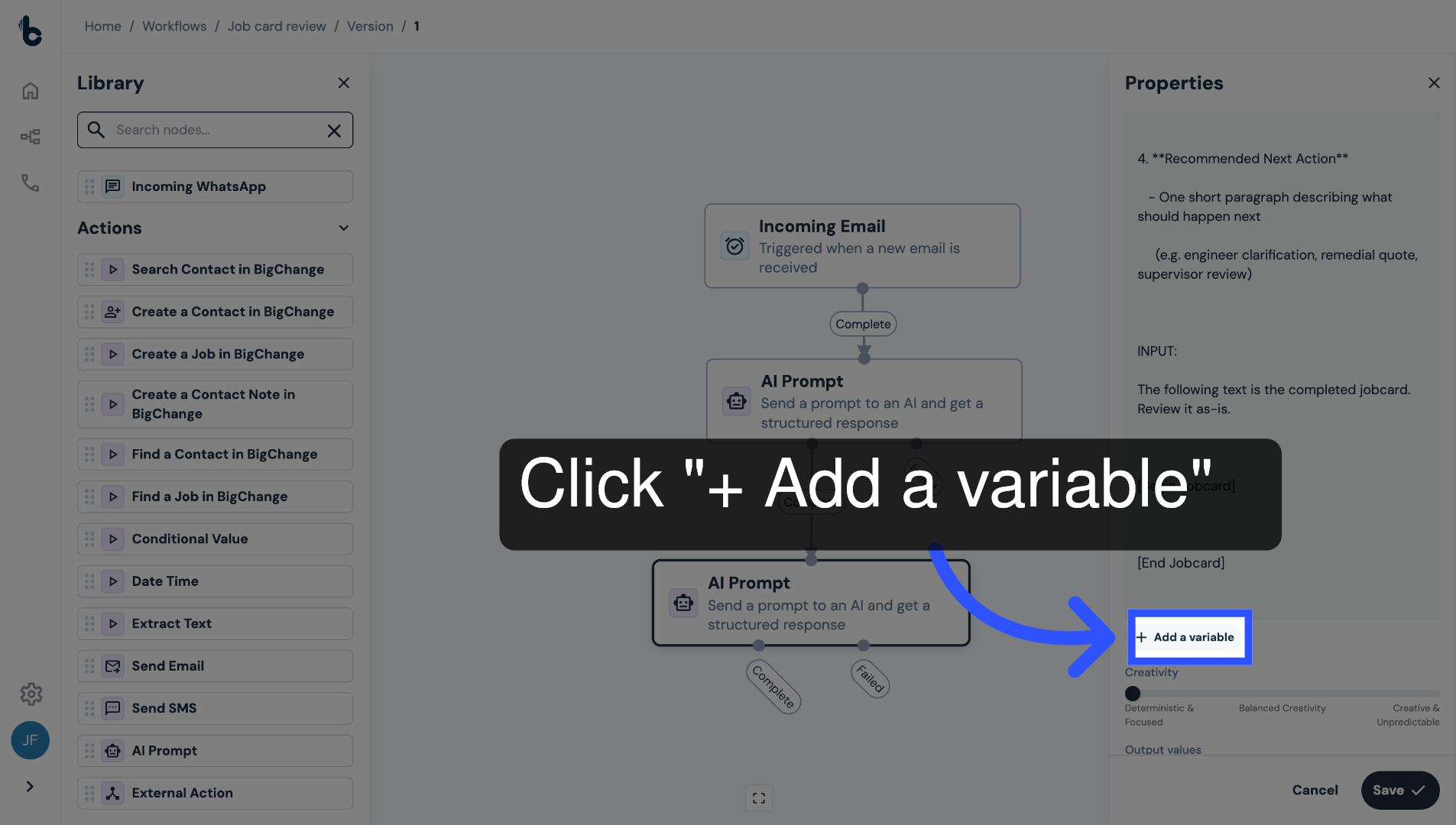
32. Add variable
To add the Text from PDF Attachments variable to the prompt, click + Add a variable.
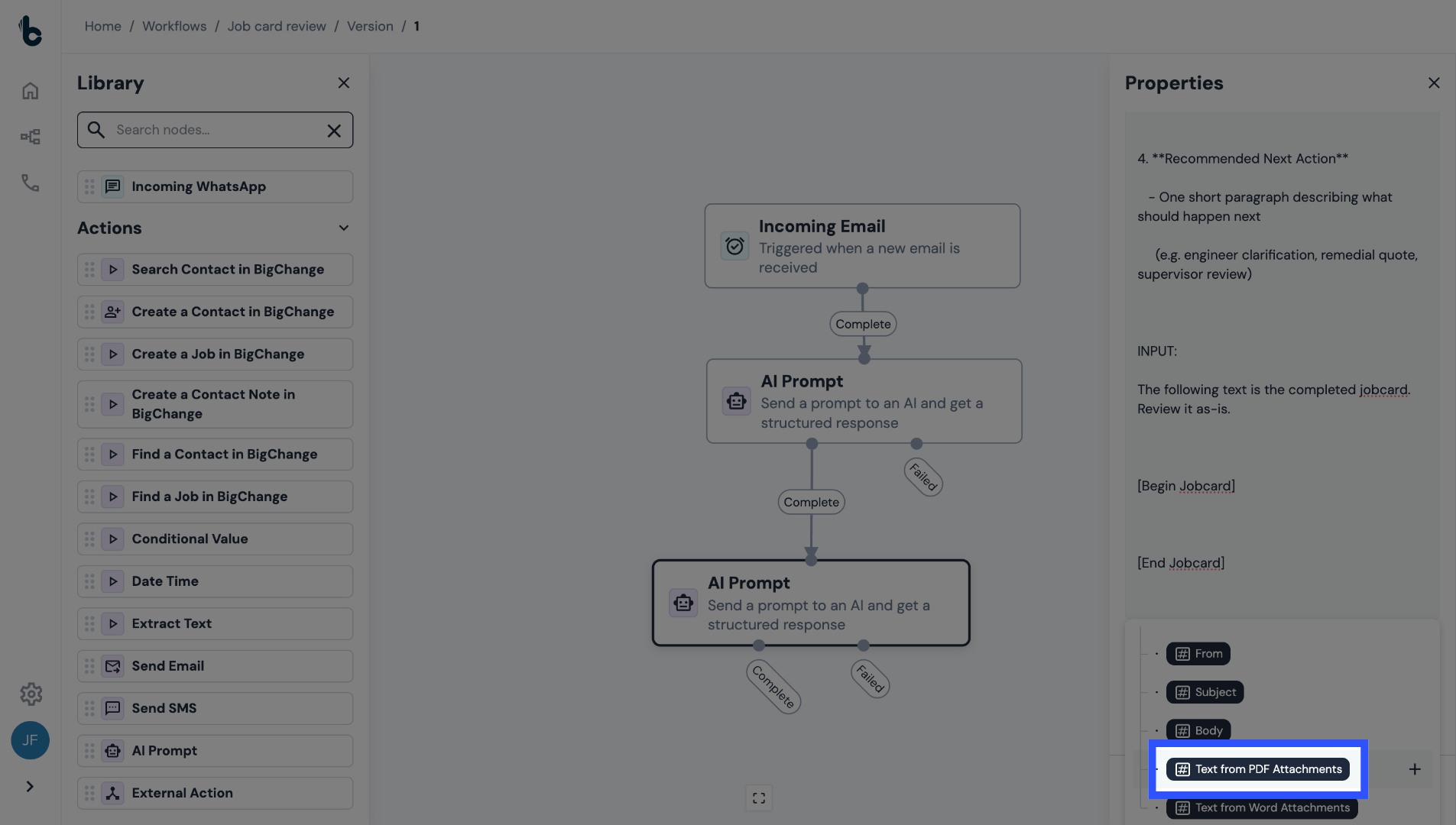
33. Select PDF Text Variable
Then select the Text from PDF attachments output from the Incoming Email node.
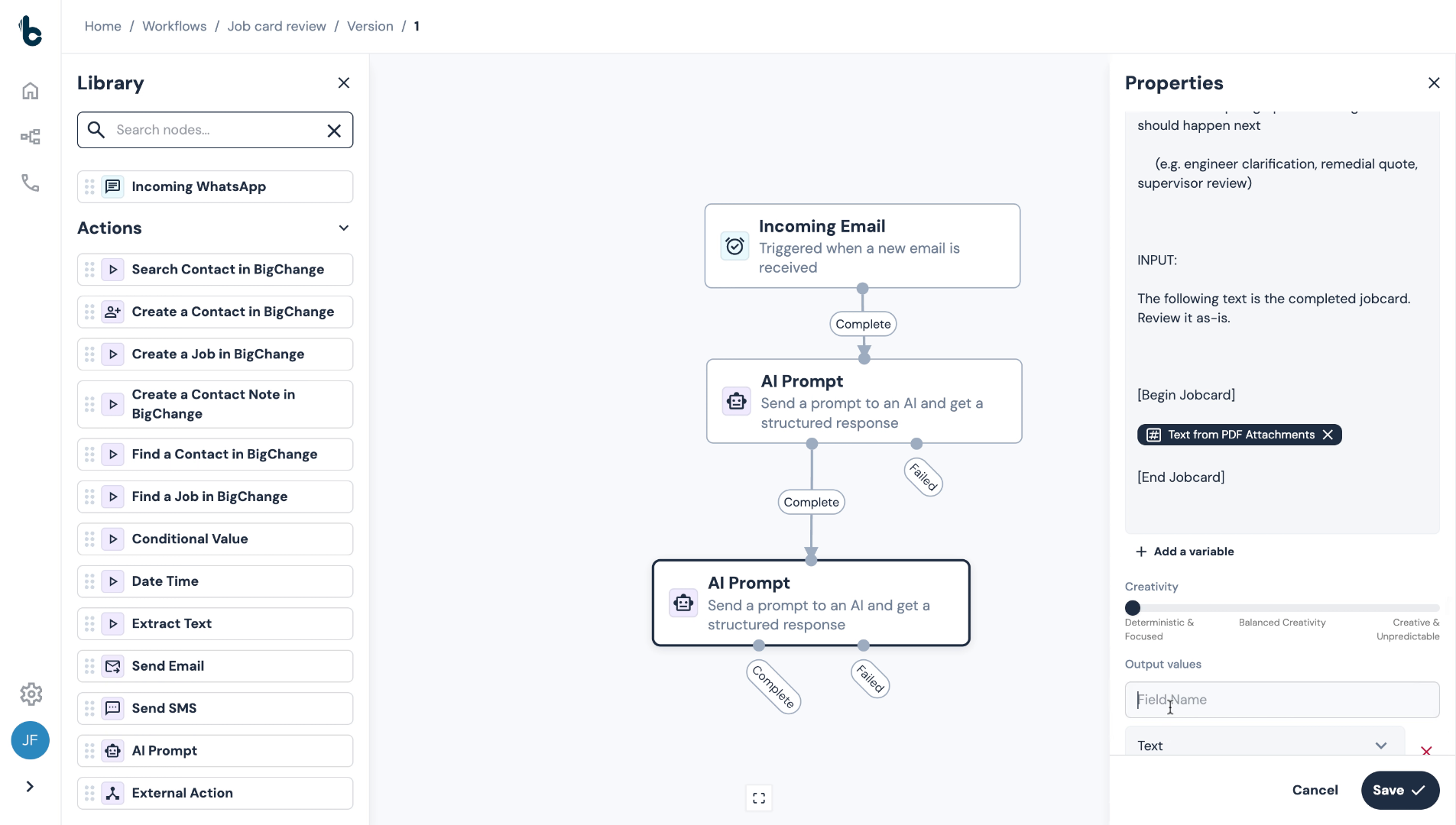
34. Add Outputs
Define the outputs, which will determine whether any follow-up action is needed in relation to the job card.
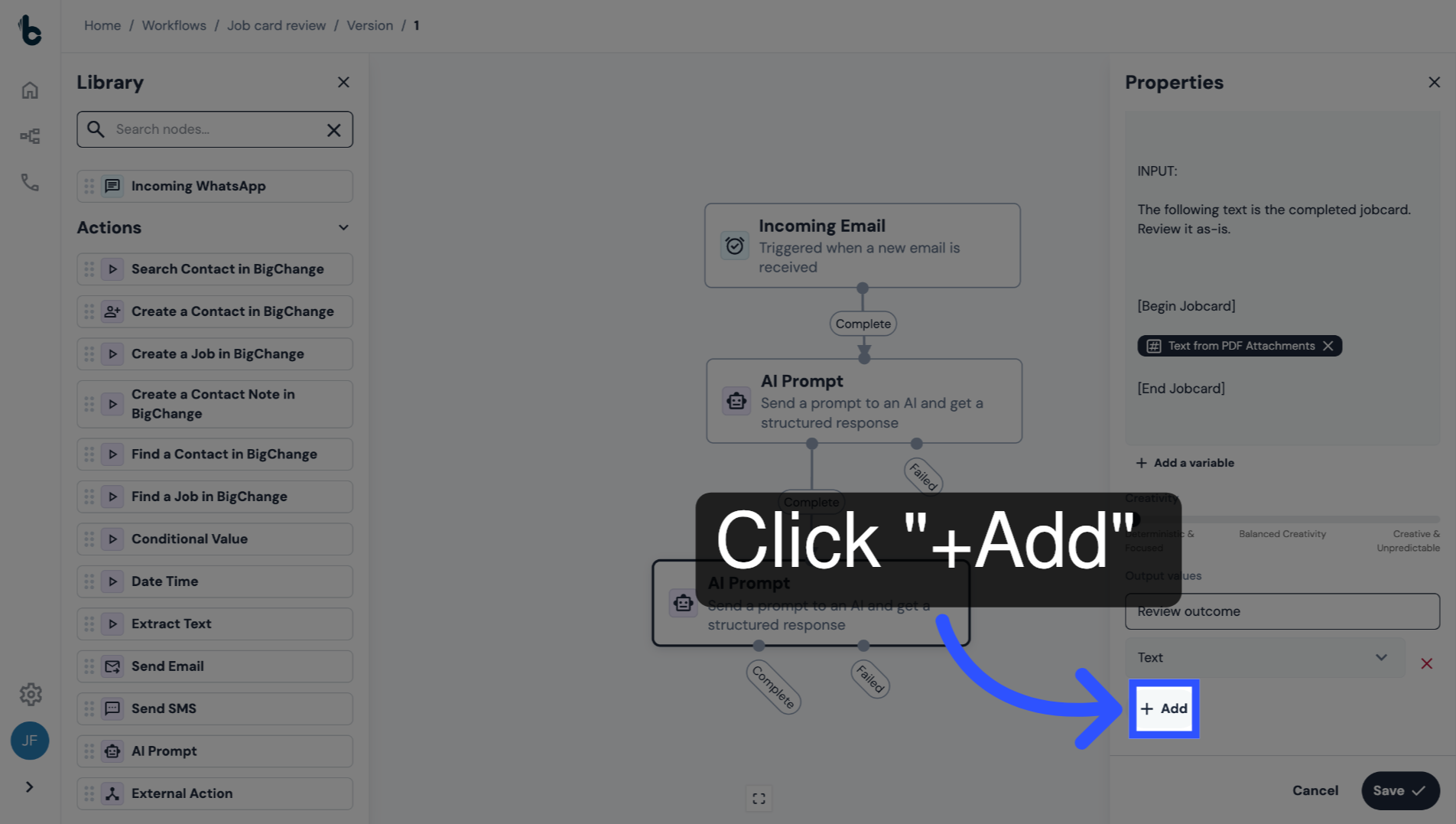
35. Add additional outputs
Click + Add to add additional outputs.
36. Example outputs
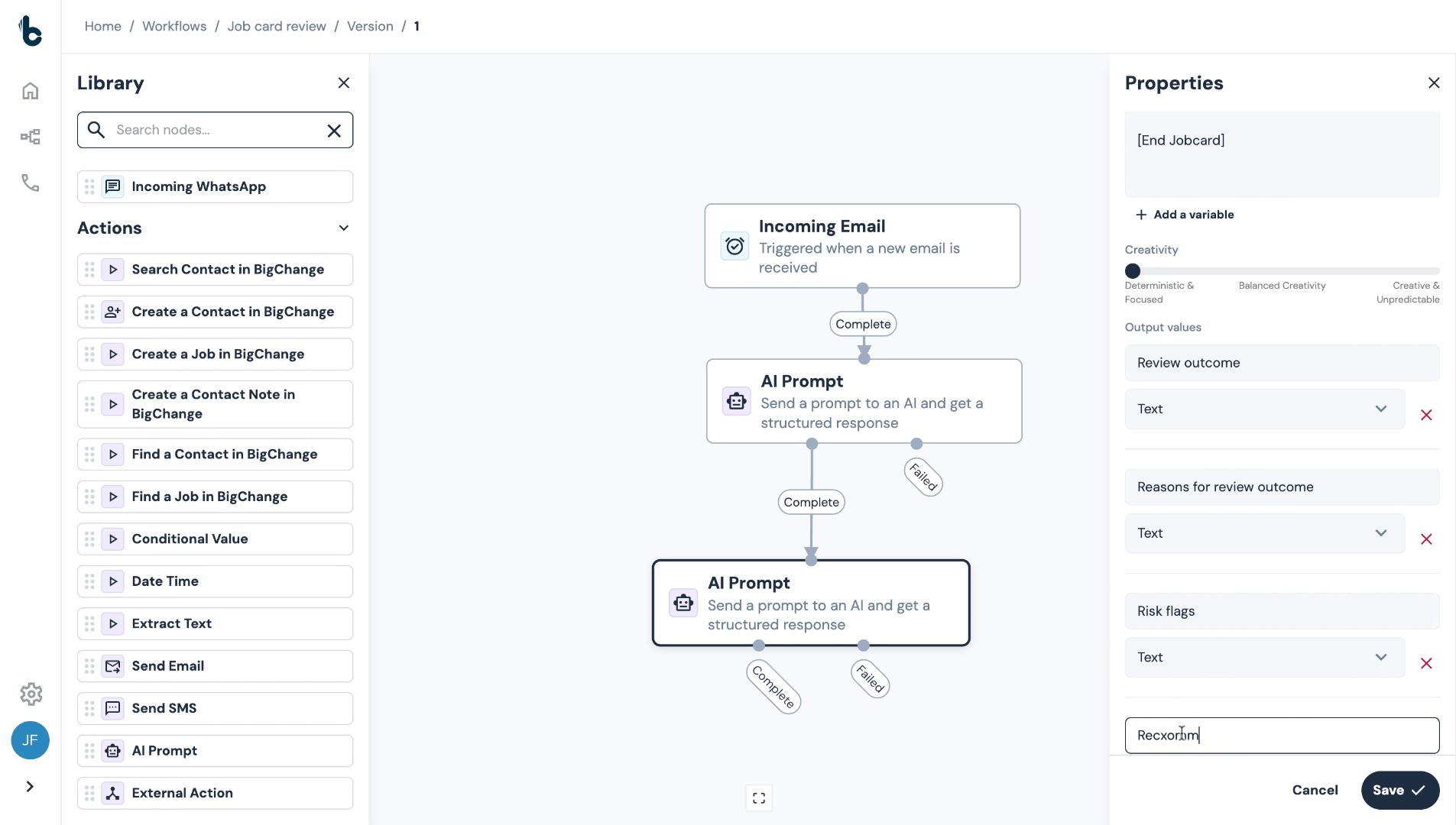
In this example, we added four outputs:
Review outcome
Reason for review outcome
Risk flags
Recommended next action
37. Save the configuration
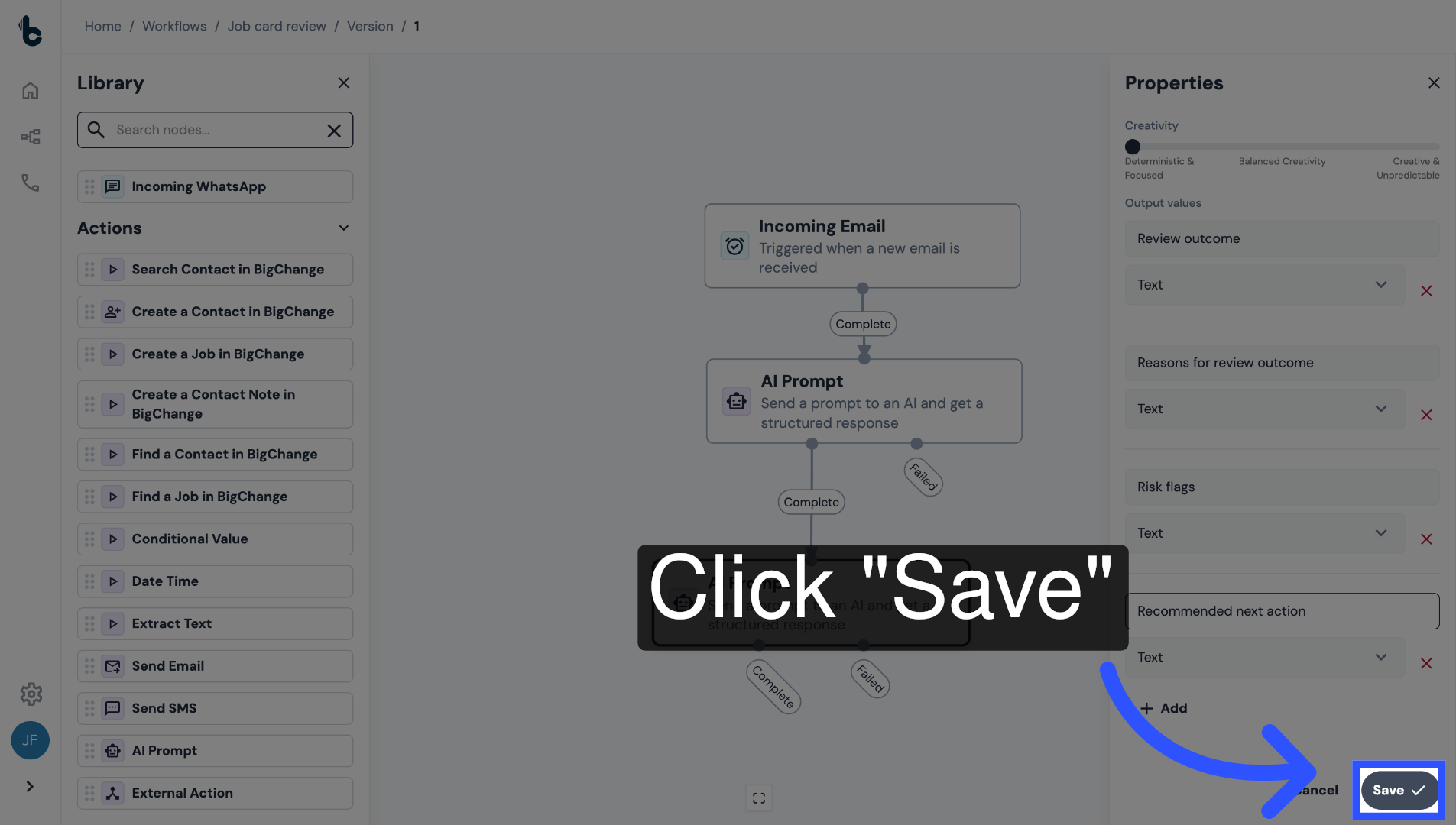
Click Save.
38. Extracting manual review output
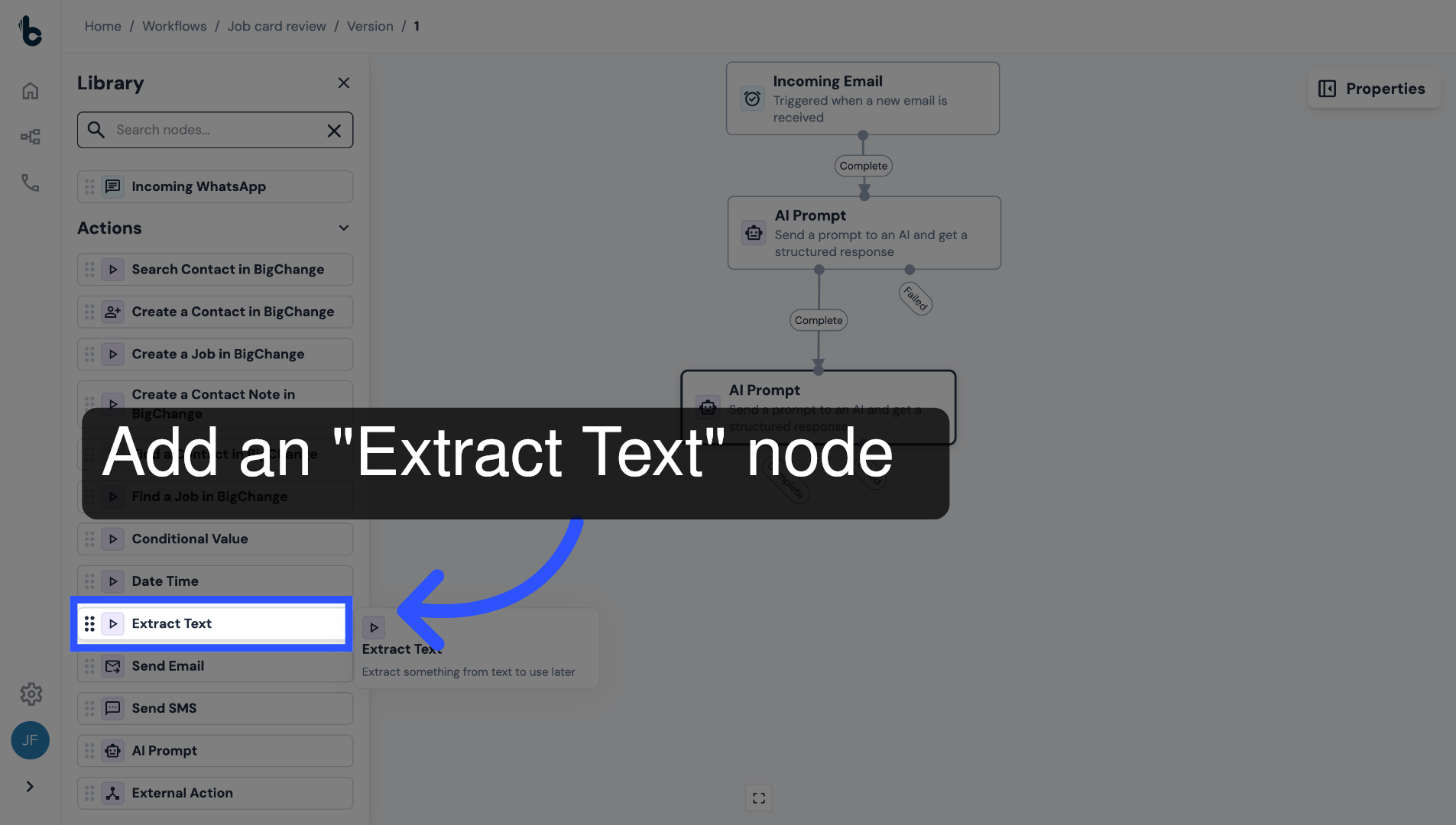
Add an Extract Text node, which will check for the manual review value in the Review Outcome output.
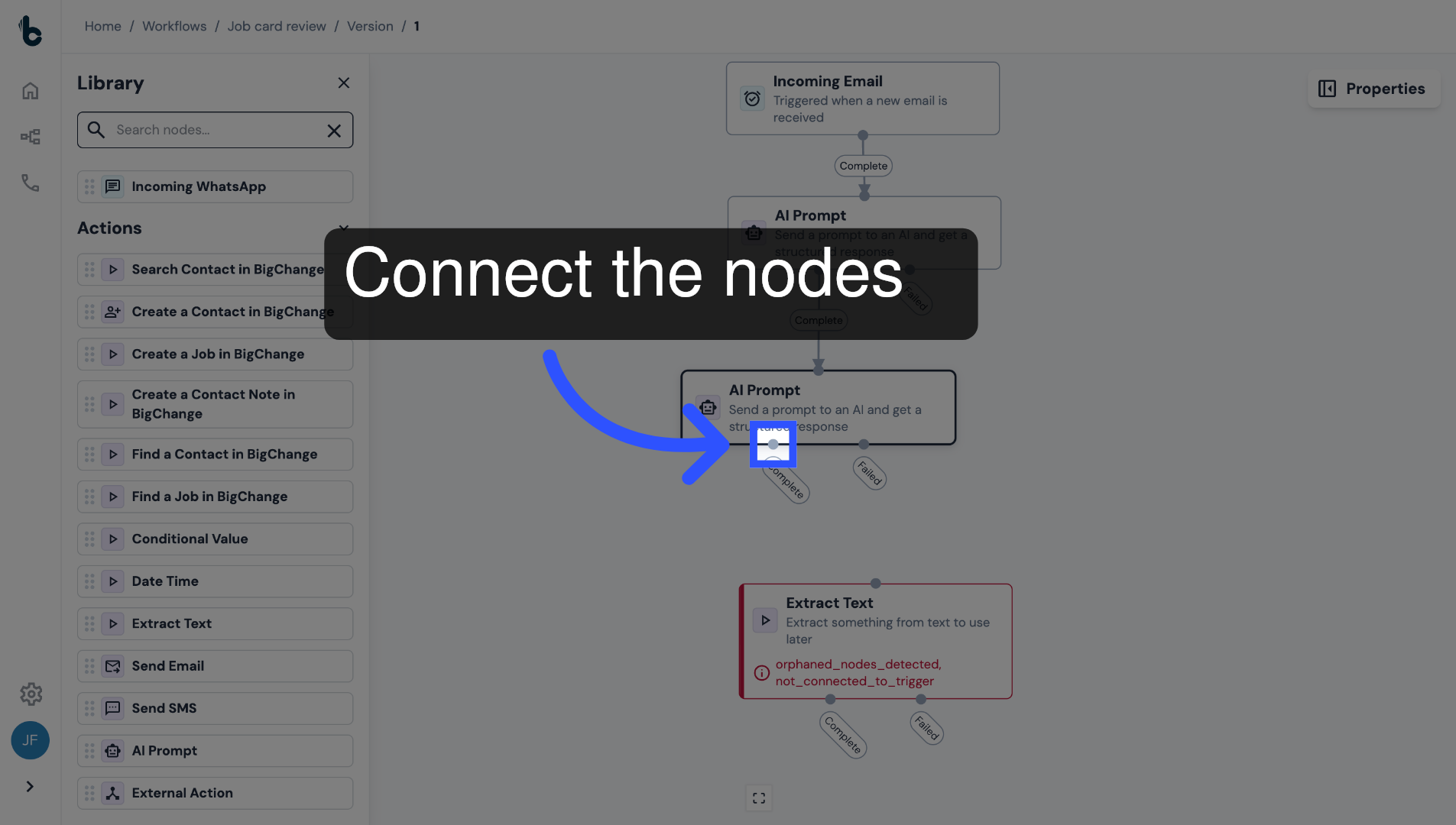
39. Connect nodes
Connect the Extract Text node to the Complete branch of the AI Prompt node.
40. Configure the node
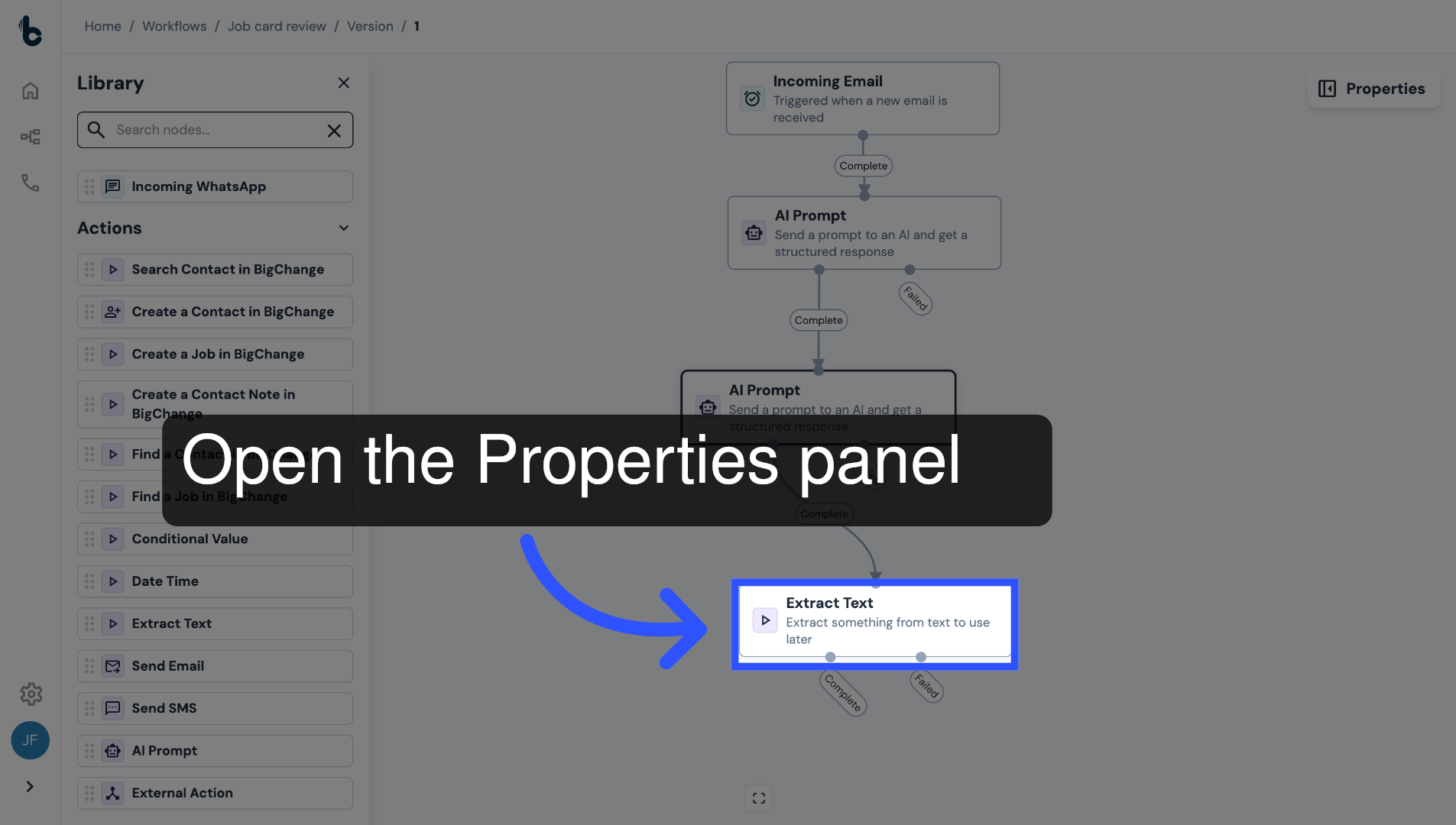
Click the node to open the Properties panel.
41. Text to extract from field
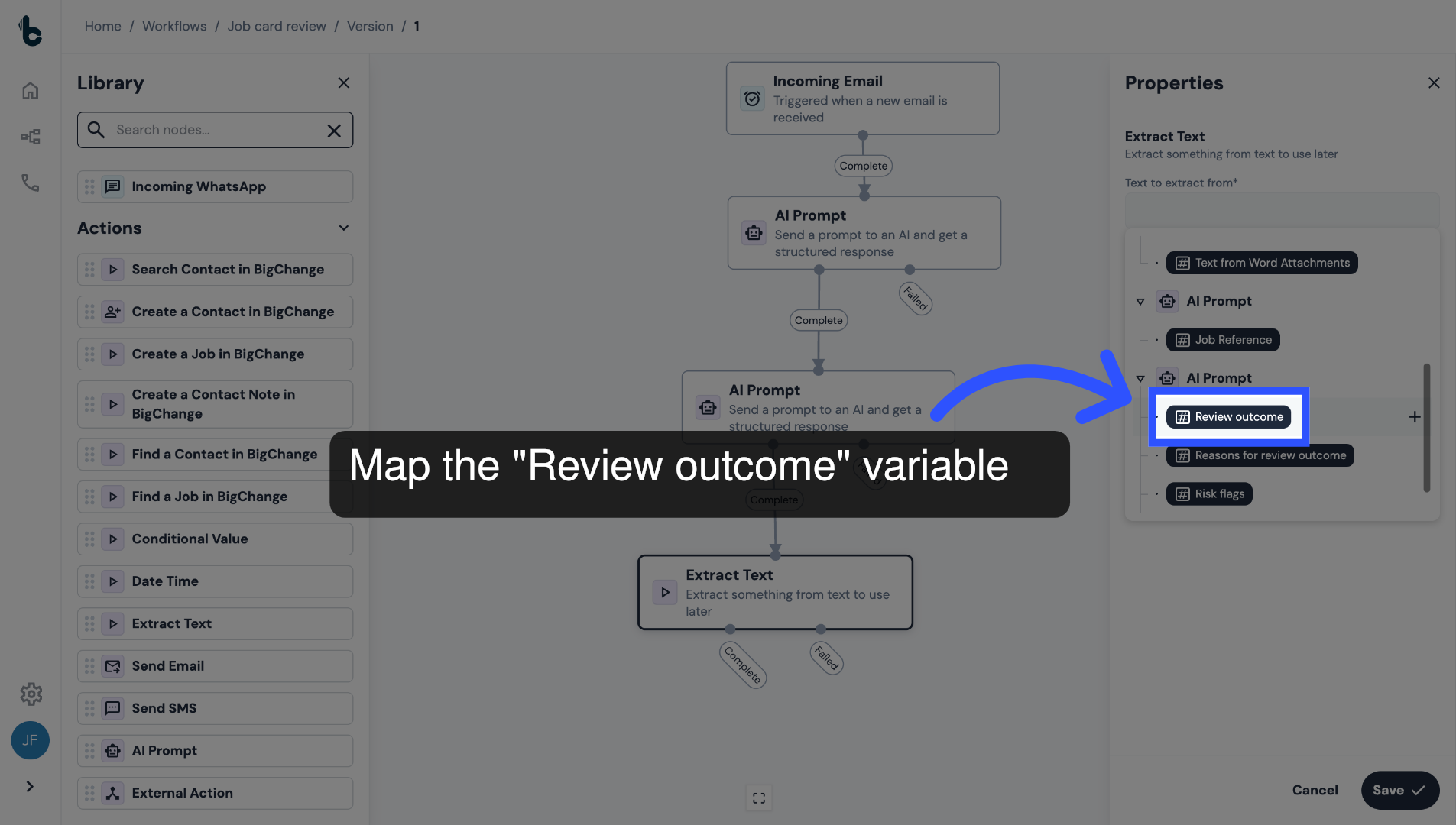
Map the Review outcome variable into the Text to extract from field.
42. Add Regular Expression
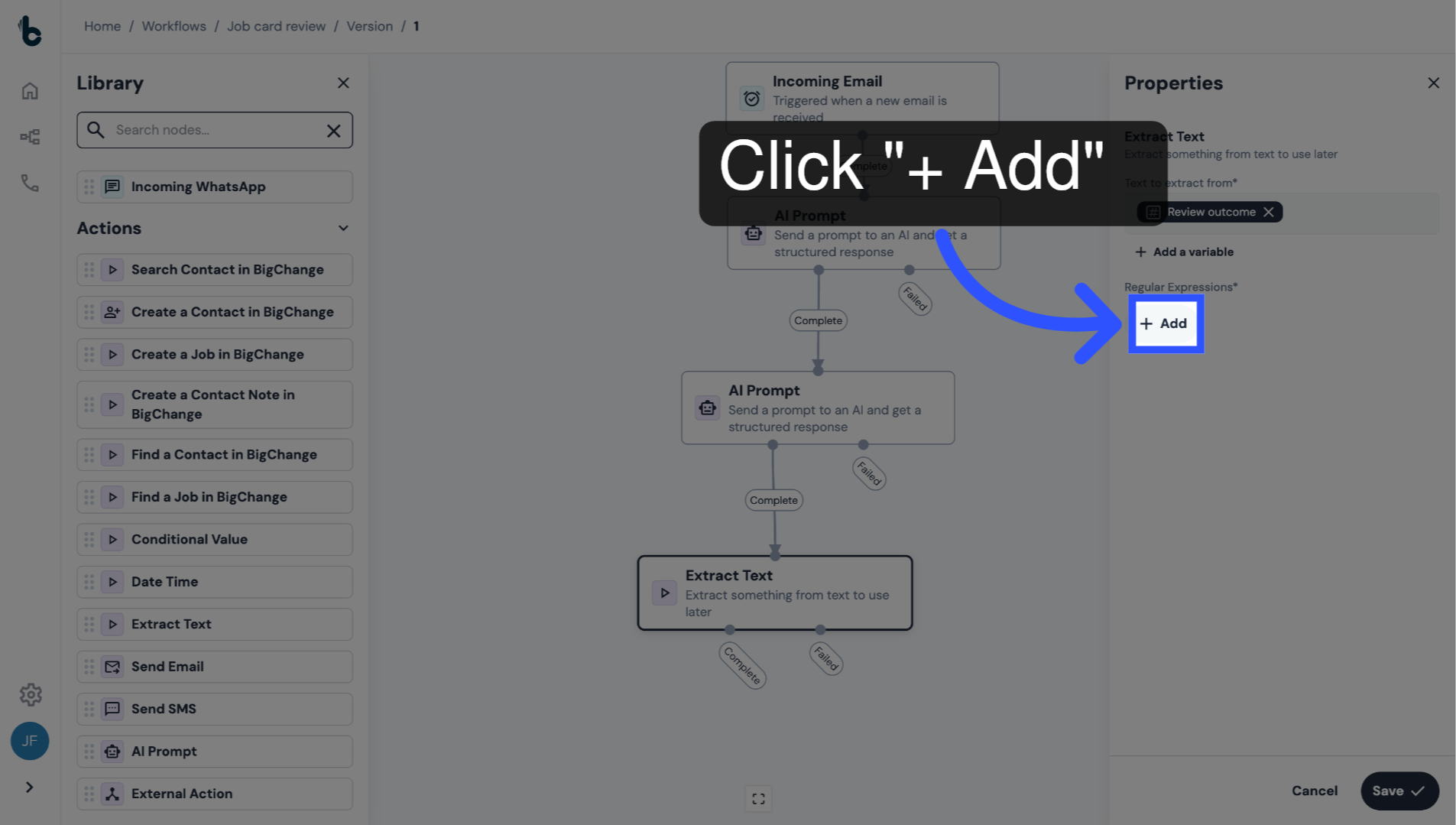
Click + Add to add a regular expression to extract the manual review outcome.
43. Name the output
Name the output Review Outcome.
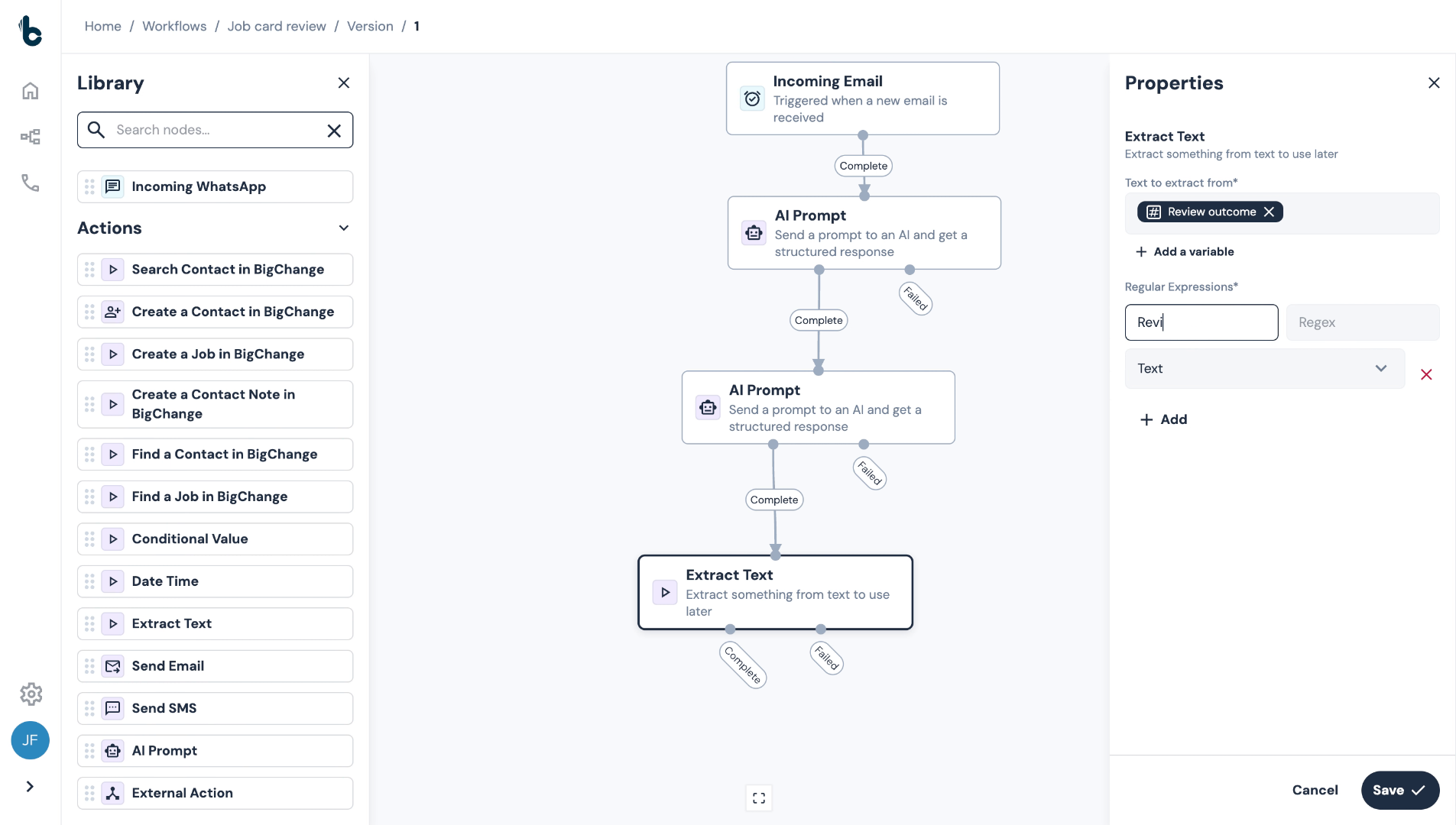
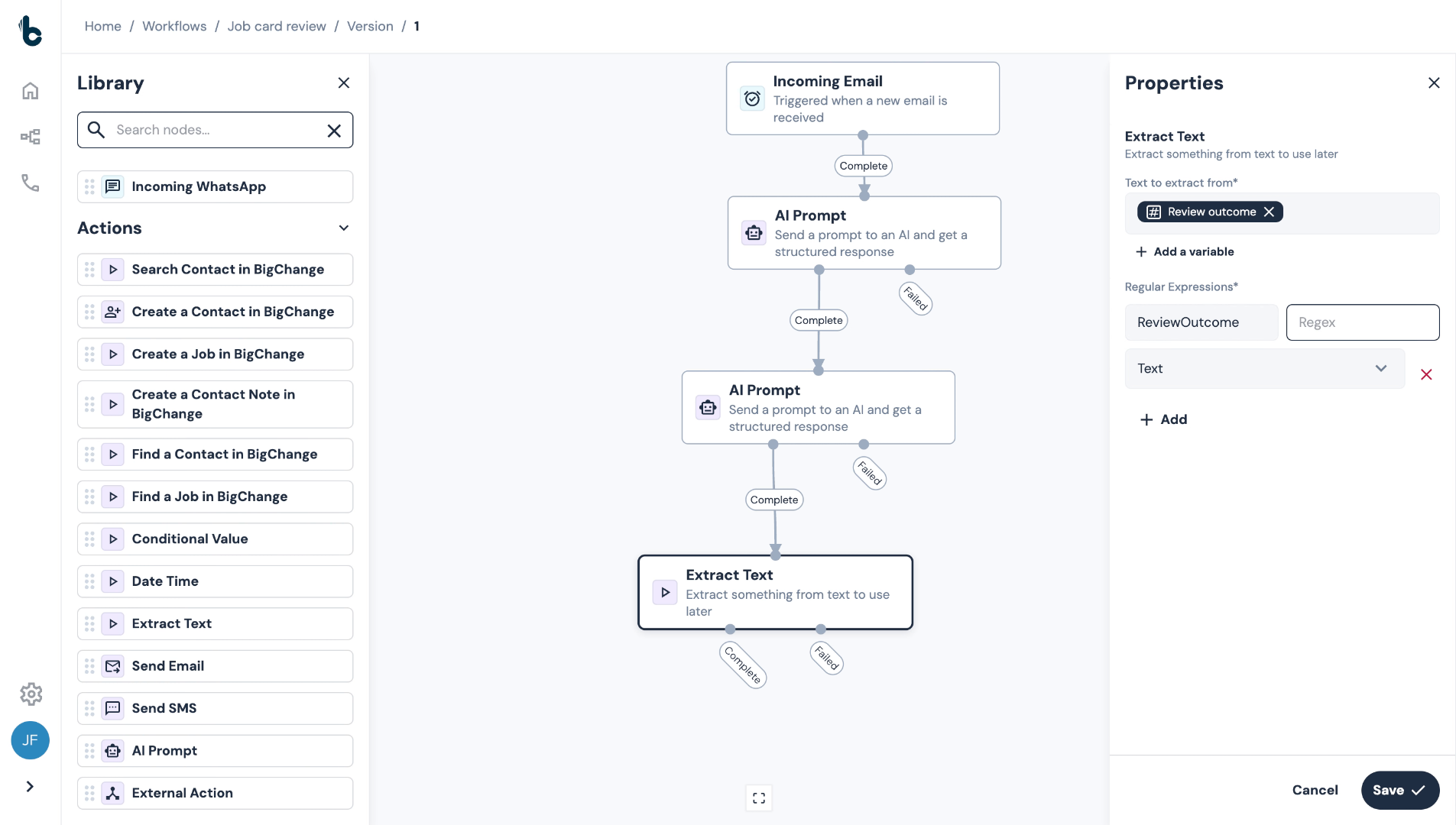
44. Enter Regex Pattern
Enter the Regex which will extract the manual review required output from the Review outcome output.
Since the output from the AI Prompt is manual review required, the regex to use is:
(manual review required).
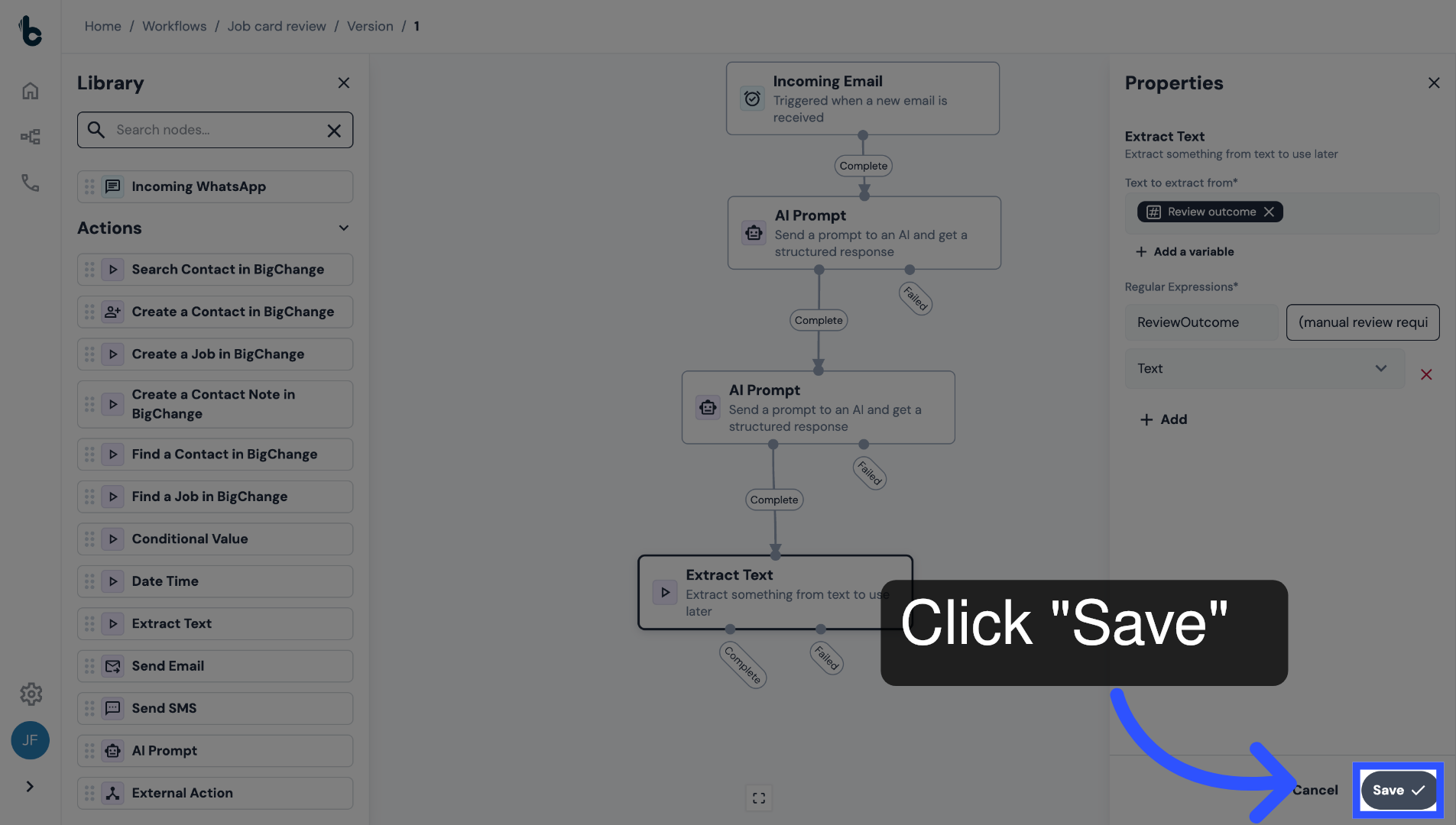
45. Save the configuration
Click Save.
From here, if the phrase is found, meaning that manual review of a job card is required, the workflow will continue to the next step of the workflow to find the job in BigChange.
If it isn't found, the workflow ends with no further action.
46. 📚 Learn more
To learn more about the Extract Text node, read the guide entitled Extract Text action.
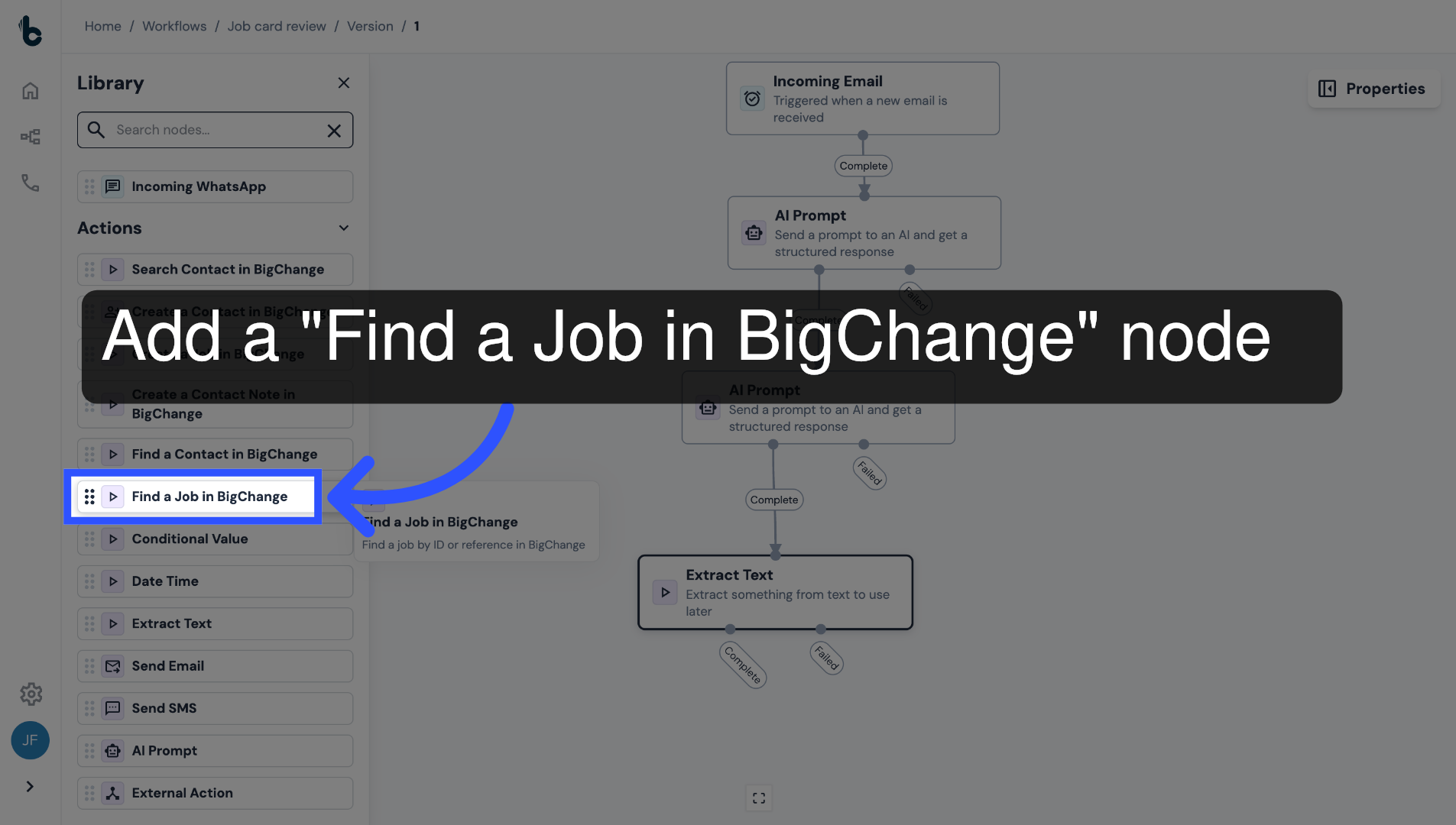
47. Add Find a Job in BigChange
Next, add the Find a Job in BigChange action.
This will look for a job and, if found, will output the Job ID needed to add a flag.
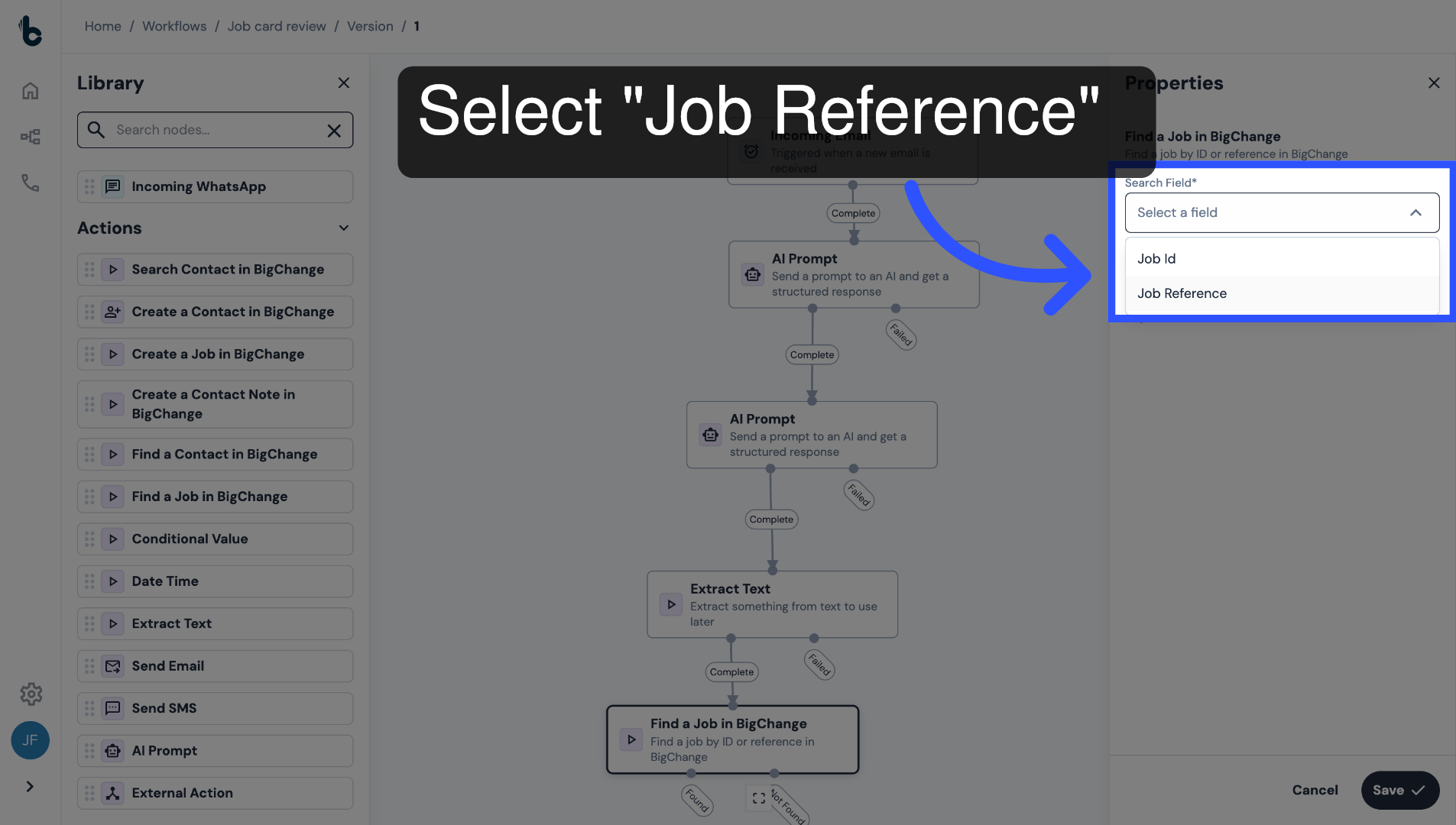
48. Choose the relevant Search field
Select the Job Reference in the Search Field.
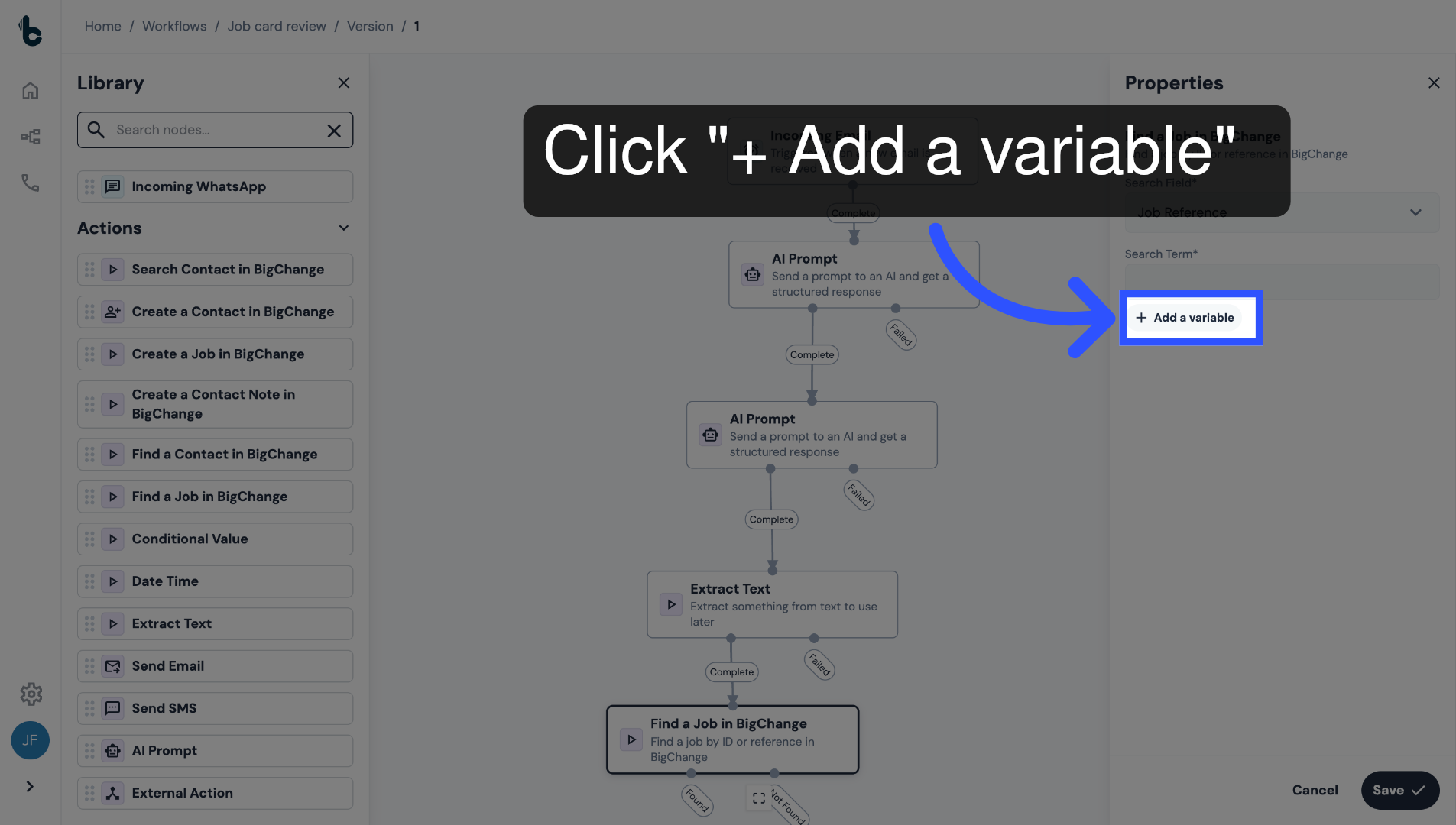
49. Add a Search Term
Click + Add a variable.
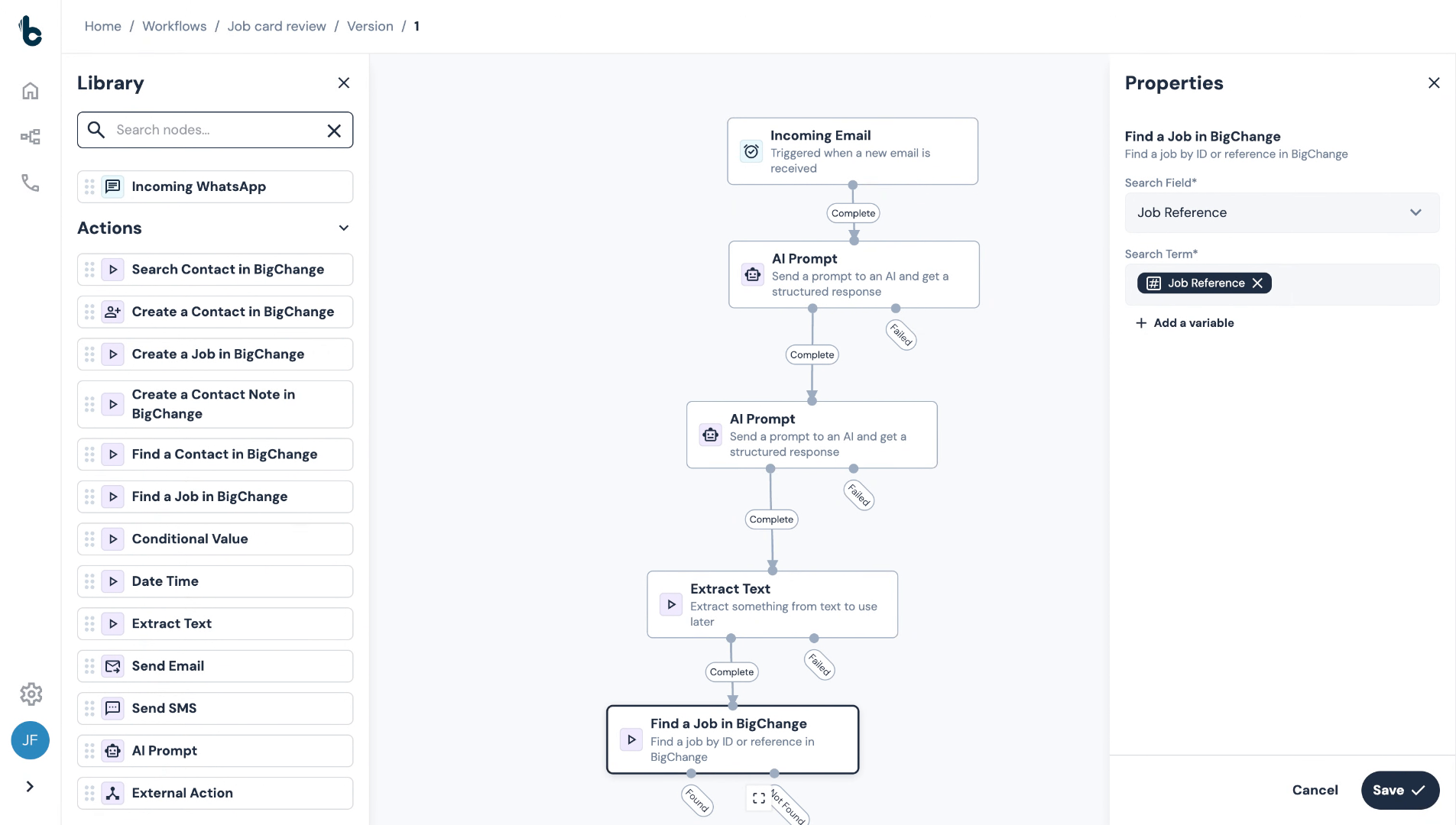
50. Map Job Reference variable
Map the Job Reference variable that was extracted by the first AI Prompt node.
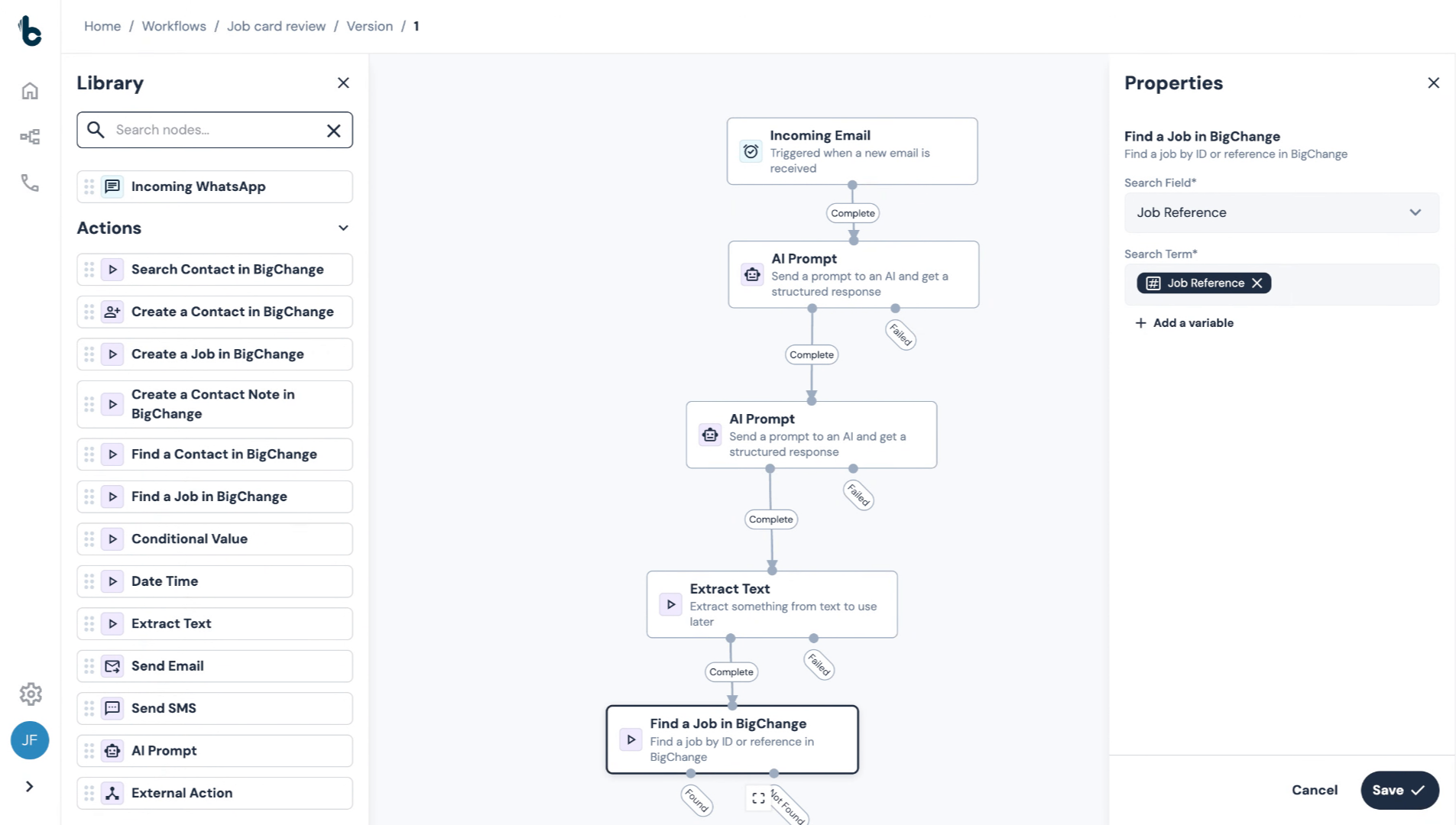
51. Save your configuration
Press Save.
52. 📚 Learn more
To learn more about the Find a Job in BigChange node, read the guide entitled Find a Job in BigChange action.
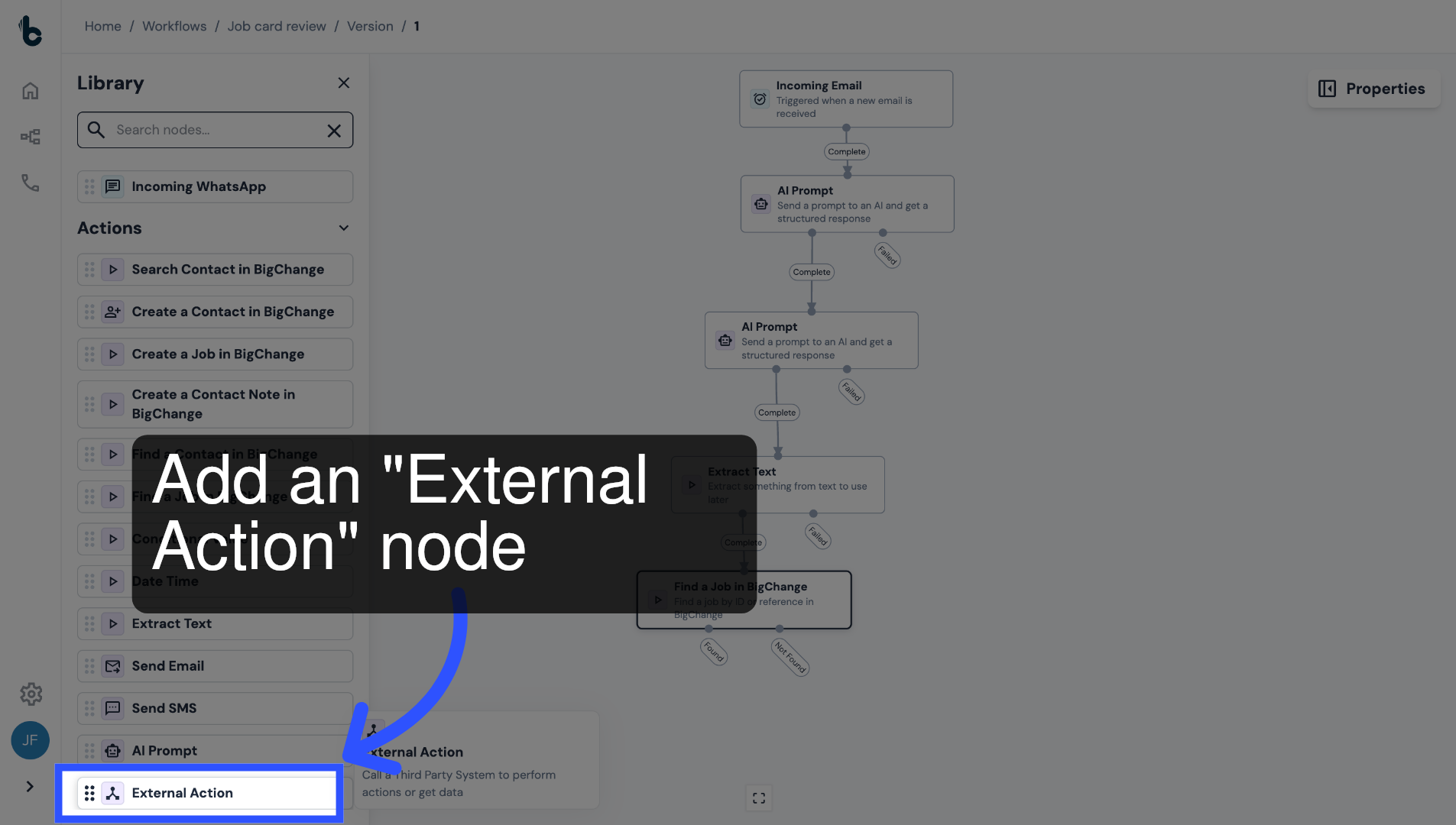
53. Add External Action node
Finally drag and drop an External Action node into the empty space.
This is what will be used to add a flag to a found job.
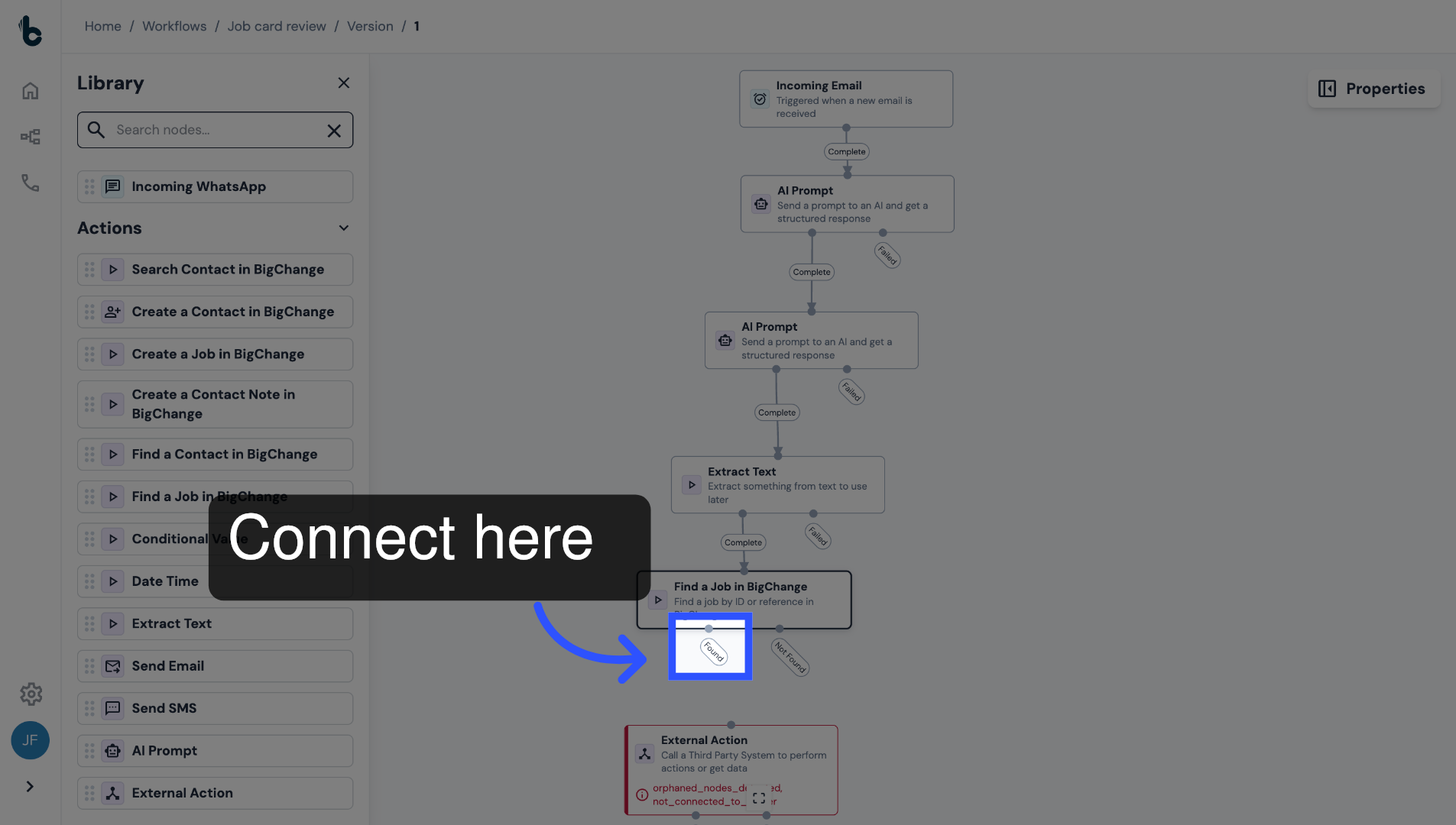
54. Connect the nodes
Connect the External Action node to the Found branch of the Find a Job in BigChange node.
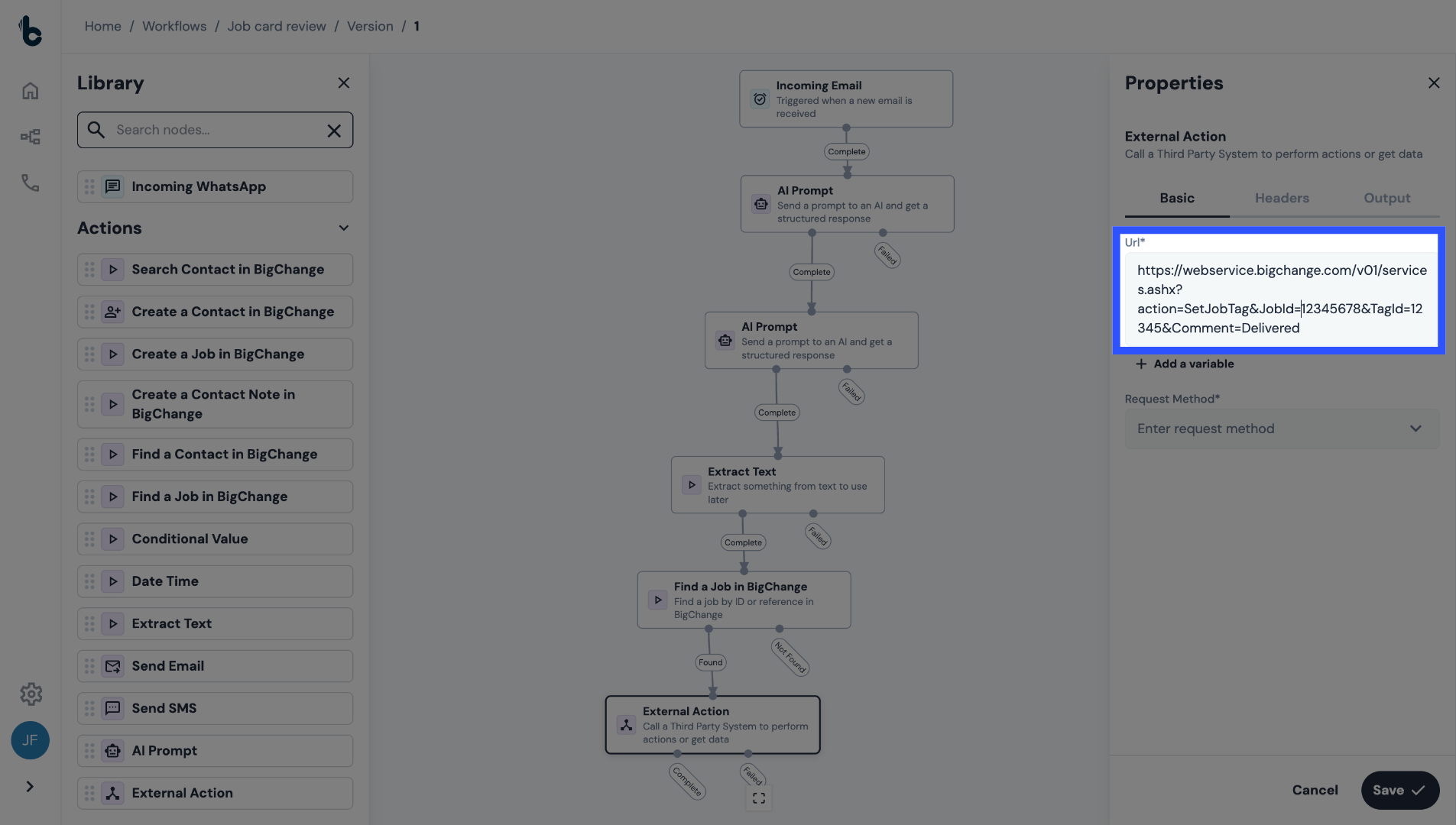
55. Add call into URL field
In the URL field, add the relevant call, which you can find on BigChange API calls page.
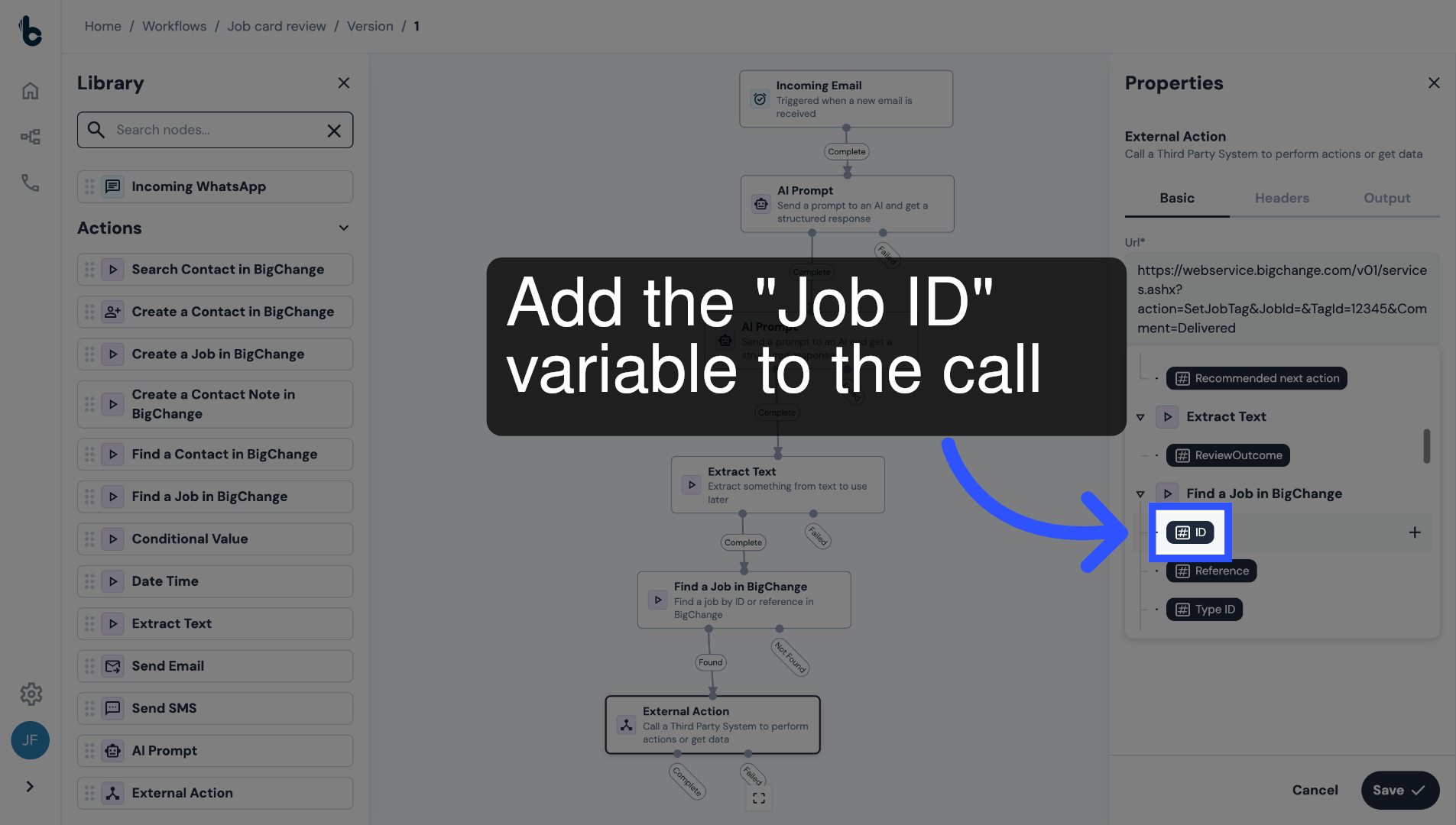
56. Add Job ID variable
As part of the call, add the Job ID variable output by the Find a Job in BigChange node.
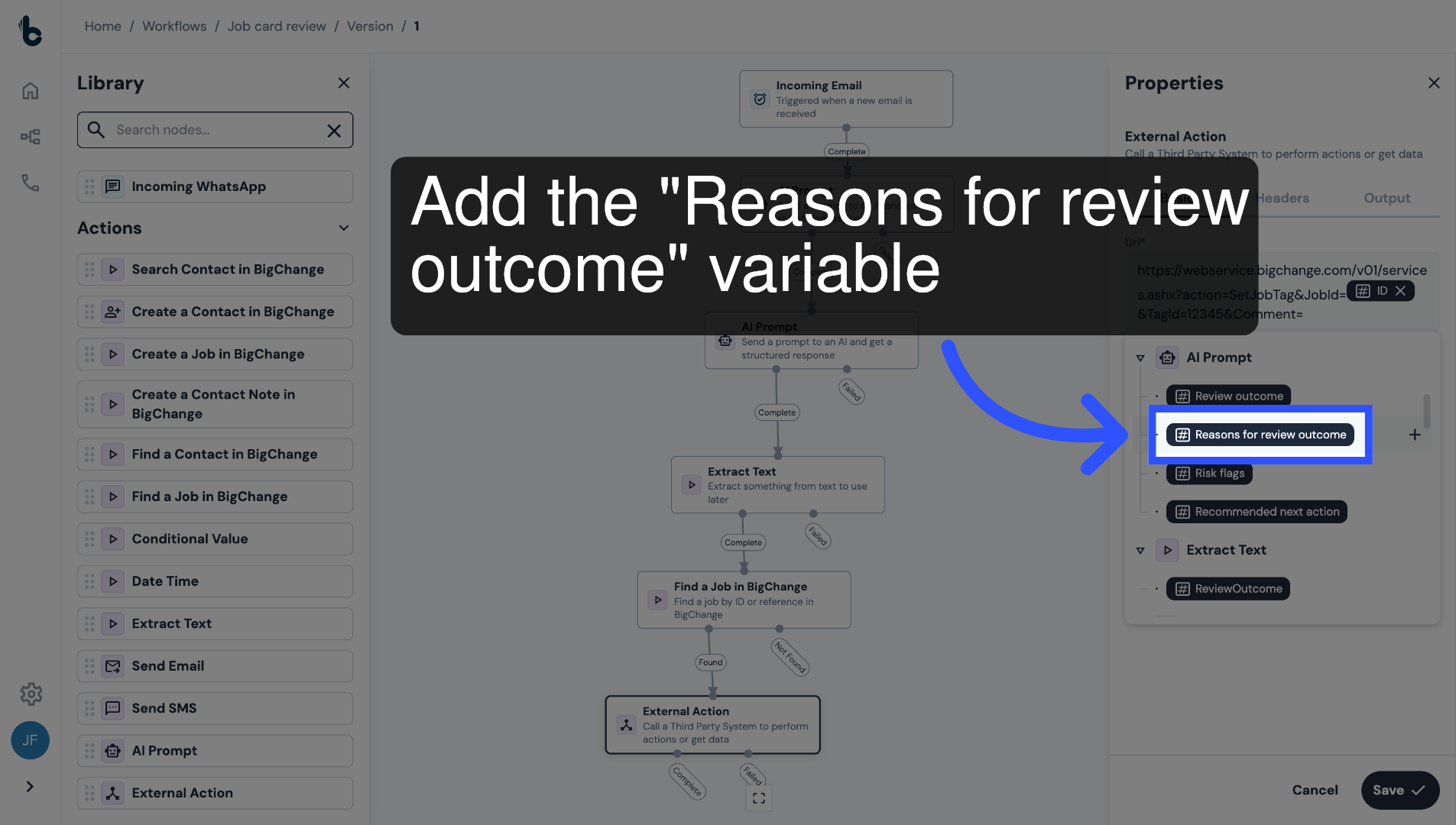
57. Add Reasons for review outcome variable
As part of the call, also add the Reason for review outcome variable, which was defined as an output in the AI prompt node.
When manual review is required, as identified in the workflow, the reasons provided by the AI Prompt node for such outcome will now be added as a flag to the job.
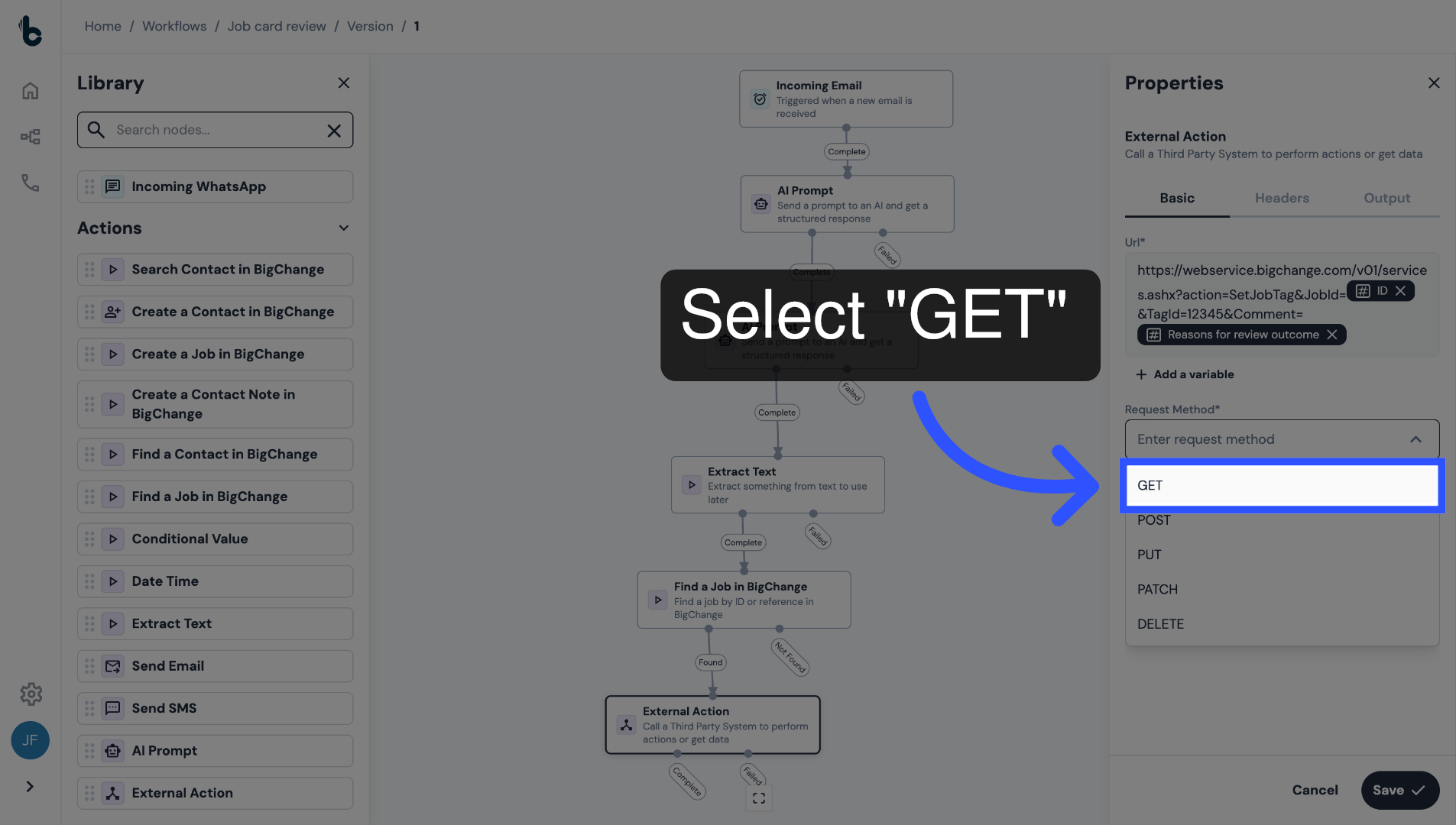
58. Select Request Method
In the Request Method field, select GET.
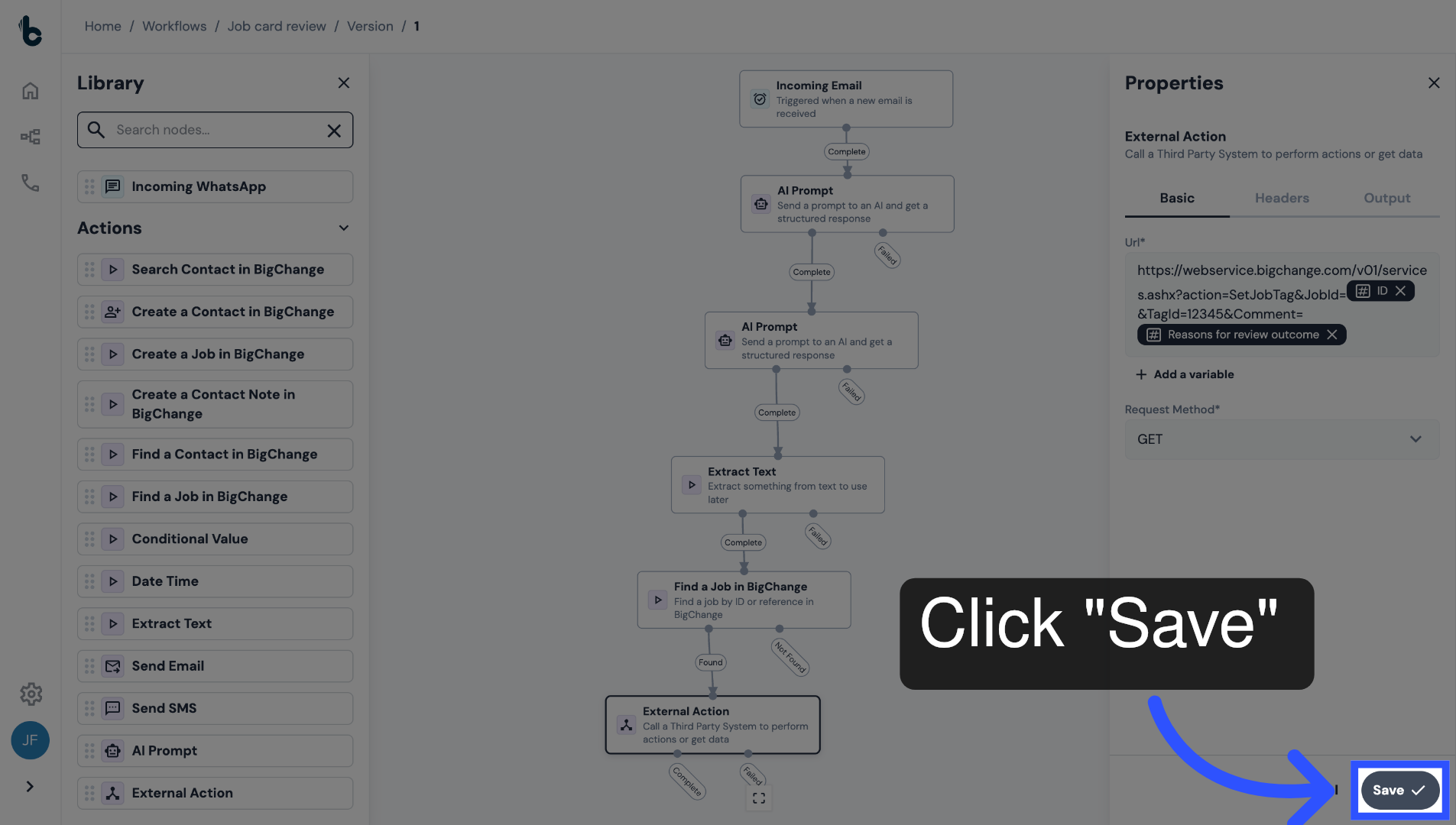
59. Save configuration
Click Save.
60. 📚 Learn more
To learn more about the External Action node, read the guide External Action action.
61. Conclusion
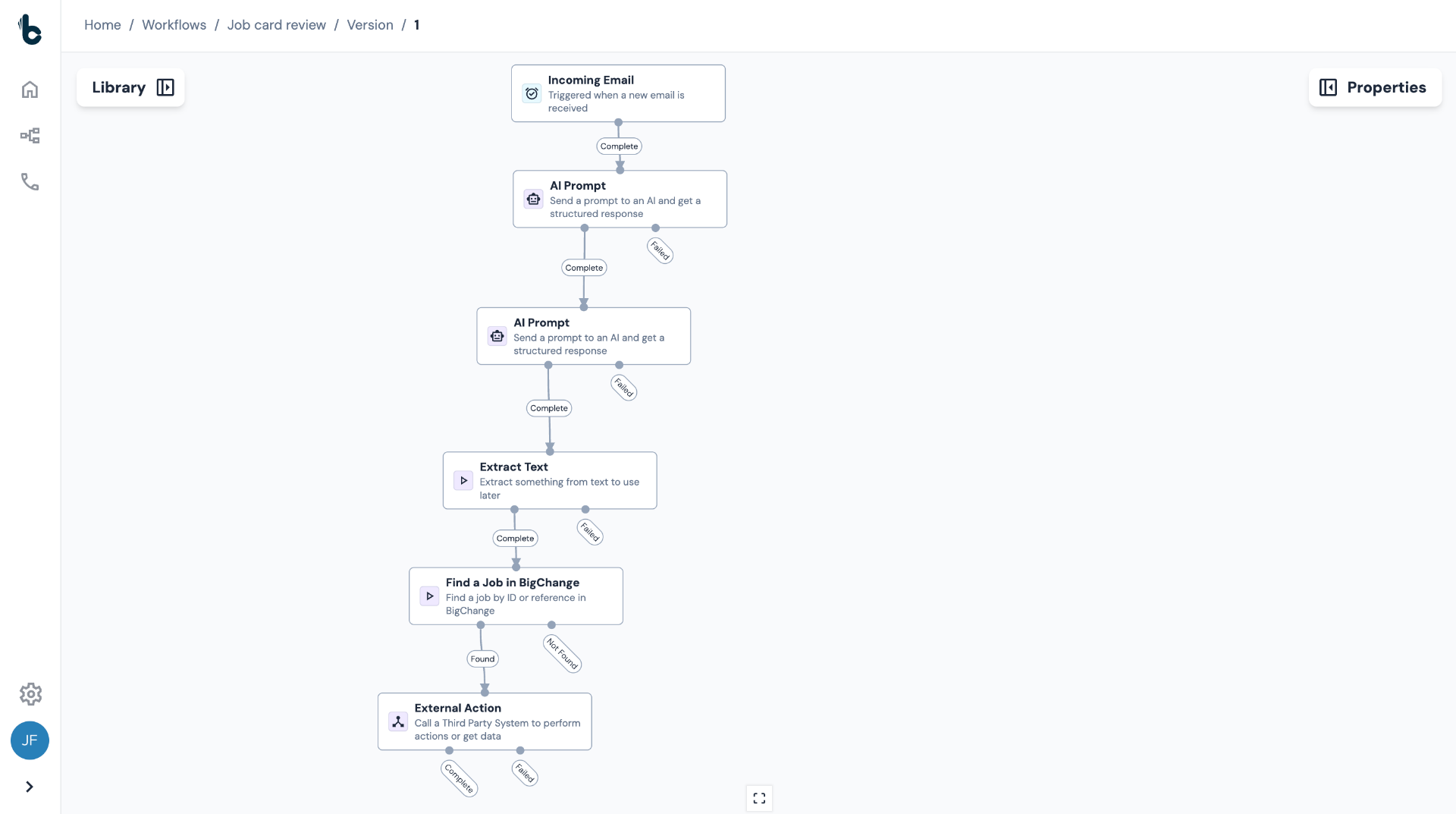
Now with this workflow in place, Martin & Sons no longer need to manually review every completed job card.
Instead, each PDF is automatically read, assessed against defined quality criteria and only flagged in BigChange when follow-up or amendments are required.
Now, it's your turn, try building this workflow yourself and save your team hours of work.