The Send SMS action allows your workflow to automatically send SMS messages directly from within Build Concierge.
You can include this action multiple times within the same workflow.
Configuration
To set up the Send SMS action:
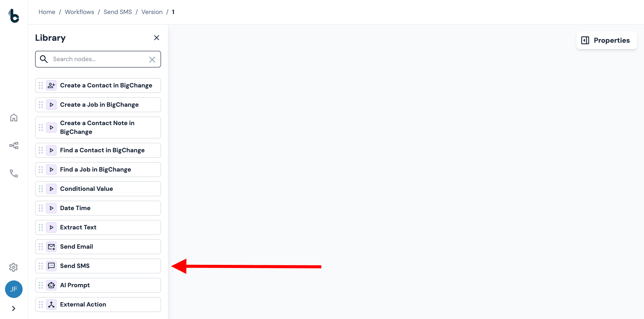
- Drag and drop the node into the Workflow Editor.
- Connect it to a Starting action or another Action node.
Click on the node to open the Properties panel.
Mandatory fields
All fields in the Properties Panel must be populated.
Recipient (To)Determine who you want to send the SMS to. Either:
- Manually enter the recipient’s phone number; or
- Click + Add a variable and select from:
- a default output from an earlier node e.g. the From variable from an Incoming SMS Starting action to reply to the sender of an Incoming SMS; or
- a custom output that you defined earlier in the workflow, e.g. a phone number output that was extracted from an email or web advisor message, using an Extract Text or AI Prompt node.
Body (max 1600 characters)
Write the SMS message that you want to appear in every automated SMS.
You can give the SMS more context by mapping dynamic data using variables from earlier in the workflow.
E.g. if the SMS is a reply to an incoming SMS, and the contact name is saved in Build Concierge against the phone number, the Contact Name variable (from the Incoming SMS node) can be inserted as part of the message body to make it more personal.
Click Save to save your preferences.
Outcome(s)
When the Send SMS action runs, it will return one of two outcomes:
- Complete – the SMS was sent successfully
- Failed – the SMS could not be sent.
.png?width=640&height=290&name=chrome-capture-2026-01-14%20(2).png)
Default variables / Outputs
If the outcome is Complete, no variables are produced for downstream steps
If the outcome is Failed, an Error Message variable will be available to use in later nodes.
Common use cases
Common examples of why you might add this action are to:
- Send an acknowledgment of a customer’s request;
- Send a confirmation SMS when a job is created;
- Send an SMS after a customer has interacted with the Concierge Advisor summarising follow-up information.
Example use case: SMS confirmation in response to customer request
Smith & Co want to reply via SMS to customer requests received through SMS confirming receipt and handling time.
They would add a simple workflow where the Incoming SMS starting action was connected to the Send SMS action node..png?width=670&height=590&name=chrome-capture-2026-01-14%20(1).png)
To configure the Send SMS node:
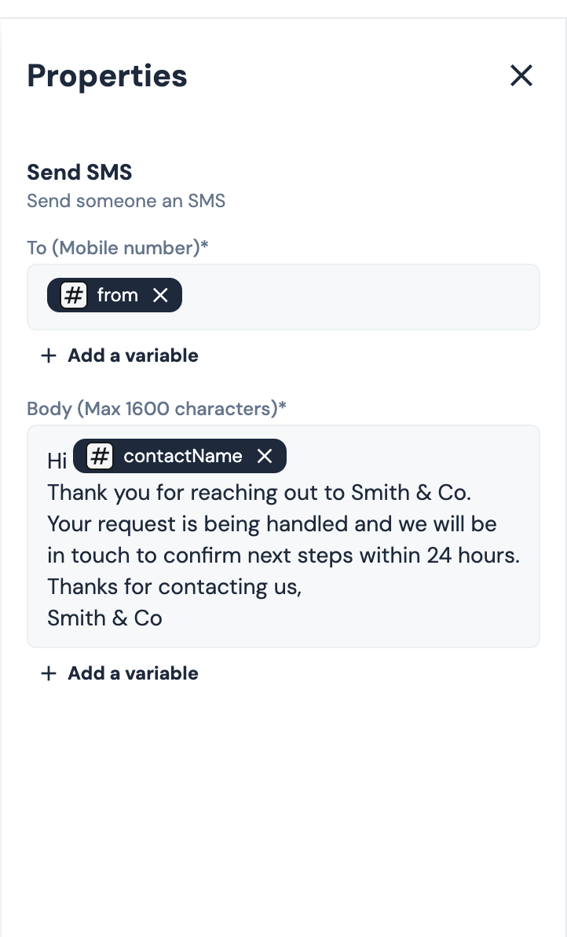
- Recipient - mapped with the From variable coming from the Incoming SMS node to reply to the customer who sent the SMS.
- Body - includes a message that acknowledges receipt of the incoming SMS and may include variables such as the customer's name using the Contact name variable.