
The Search Contact in BigChange action allows your workflow to automatically search BigChange to determine if a contact already exists.
It compares the search terms you define in your workflow, with the Contact name, Email address and Phone number stored in your BigChange contacts.
It helps prevent duplicates and to automate the creation of jobs for existing contacts.
Configuration
To set up the Search Contact in BigChange node:
- Add the node to your workflow, ensuring it is connected to a starting action or another action node.
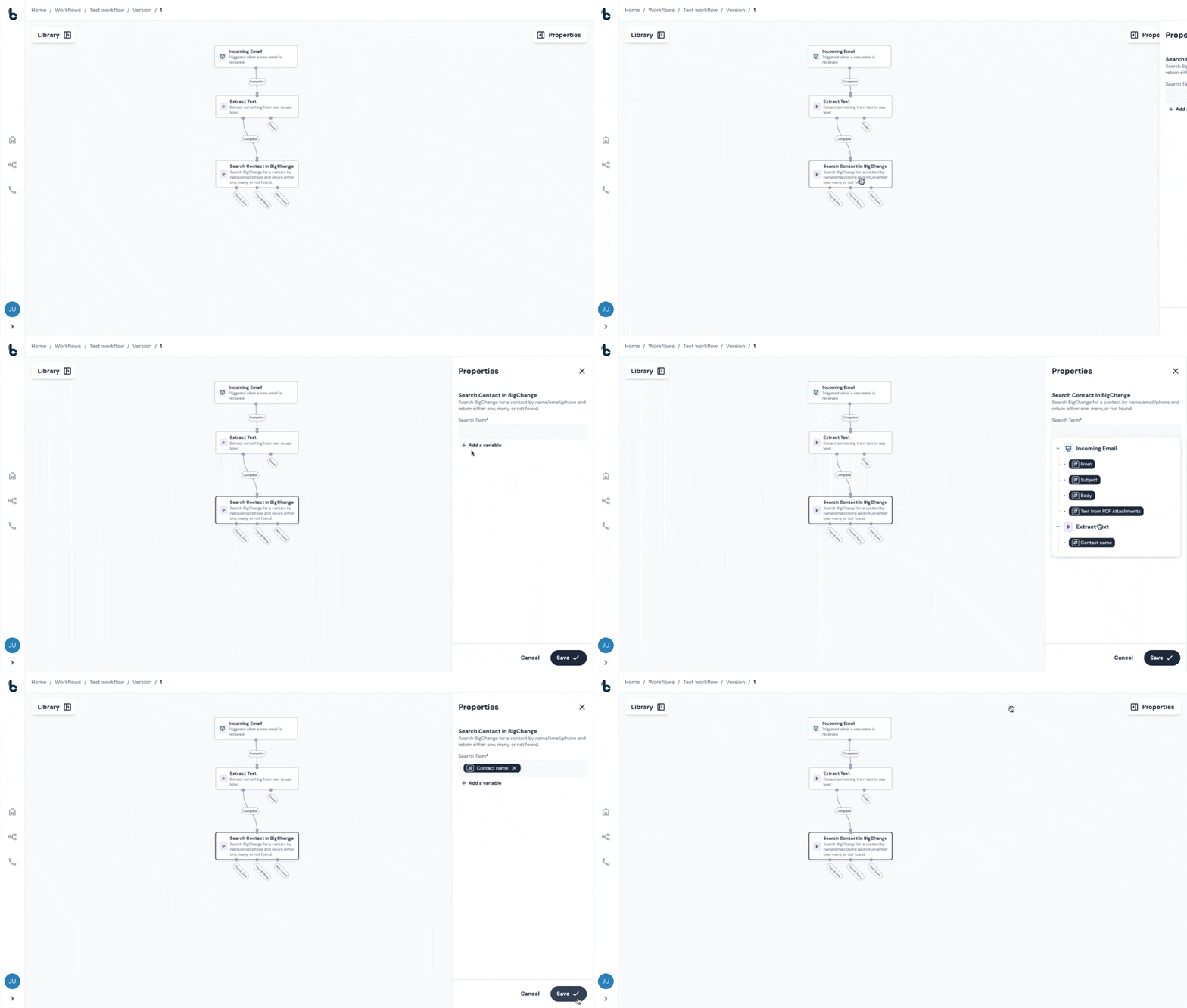
- Click on the node to open the Properties panel.
- Click into the Search Term field and select the workflow data you want to check against your BigChange contacts by adding variables from the dropdown list.
📚 Learn more bout variables in this article.
Common Search Terms
Search Terms are defined as variables from your workflow.
This data will then be compared to the following data points in your BigChange contacts list:
- Contact name
- Email address
- Phone number
💡 Tip
Variables which will be used to check against the Contact data in BigChange will be defined earlier in the workflow. A common example would be to use the Extract Text node to create custom variables using Regex from a structured text email.
Fallback Search Terms
Fallback Search Terms allow you to define additional search terms to try automatically if the primary search returns no contacts or multiple contacts.
How it works
When the workflow runs and reaches the Search Contact action, it first tries the primary search term. If exactly one contact is found, the workflow proceeds immediately with that result.
If the primary search returns no contacts or multiple contacts, the node will try each fallback search term in order, one at a time. Each fallback term follows the same logic — if one contact is found, the action outputs that result and the workflow moves to the next step. If none or many are found, it moves on to the next fallback term.
Once all fallback search terms have been exhausted without finding a single match, the workflow proceeds down the appropriate outcome branch (Found Many or Not Found) based on the final result.
Configuring Fallback Search Terms
- In the Properties panel, locate the Fallback Search Terms section beneath the primary Search Term field.
- Click Add and enter your fallback search term using variables from the dropdown list.
- Repeat to add further fallbacks — up to 10 fallback search terms can be configured.
💡 Tip
Fallback search terms are tried in the order you define them. Place your most reliable or specific terms earlier in the list to maximise the chance of finding a single match quickly.
Outcomes
Once the node runs, there are four possible outcomes:
- Found one – A single matching contact was found in BigChange. You can now pass this contact into the next steps of your workflow.
- Found many – Multiple matches were found. You may want to add logic to handle this, such as filtering further or flagging for manual review.
-
Not found – No matching contact was found. You might choose to create a new contact or route the workflow differently from here.
- Failed - The node failed to run.
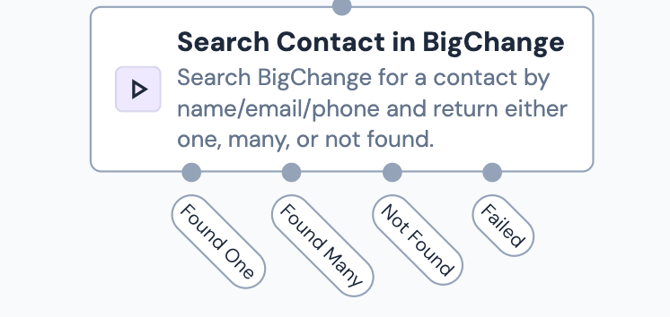
These outcomes can be used to create conditional branches in your workflow, ensuring the right action is taken every time.
Default Variables
The default variables provided by this node depends on the outcome of the node.
-
Found One
If one contact was found in BigChange, the following default variables are available to be used later in your workflow:
ID - The ID in BigChange of the contact that was found
Group ID - The ID of the Group which the contact belongs to in BigChange
Name - The name of the contact in BigChange
Phone - The phone number assigned to the contact in BigChange
Email - The email address assigned to the contact in BigChange
Street - The street name assigned to the contact in BigChange
Town - The town assigned of the contact found in BigChange
Postcode - The postcode assigned of the contact found in BigChange
Country - The country assigned of the contact found in BigChange
-
Found many
If multiple contacts are found when searching in BigChange there is only one variable which is available for use further down the workflow:
Contacts - The IDs of the found contacts in BigChange.
-
Not found
When no contacts are found in BigChange, no variables are output to be used further down the workflow.
-
Failed
As with any failed node, the variable that is output is:
Reason for failure - The reason the node failed.
Find a Contact in BigChange vs. Search for a Contact in BigChange
Here’s a brief explanation of when to use the Find a Contact in BigChange action as opposed to the Search for a Contact in BigChange action.
- If your workflow uses structured data, i.e. contact references and contact IDs which are defined in BigChange, the Find a Contact in BigChange node will be the right node for your workflow. It will allow you to locate the right contact before creating a new contact, assigning jobs or taking any other actions for that contact.
- If your workflow does not include contact references and contact IDs, and relies on more unstructured data such as Contact name, Email and Phone, the Search for a Contact in BigChange node will be more suitable to look for existing contacts before creating new ones.
⚠️ Note
The Find a Contact in BigChange node has only two outcomes: Found or Not found. The Search for a Contact node will also identify if multiple contacts containing the defined search terms are found in BigChange.