
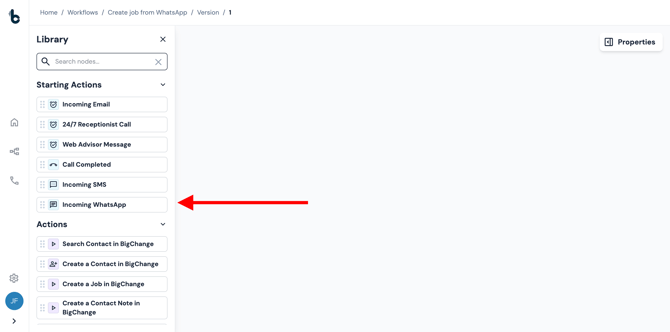
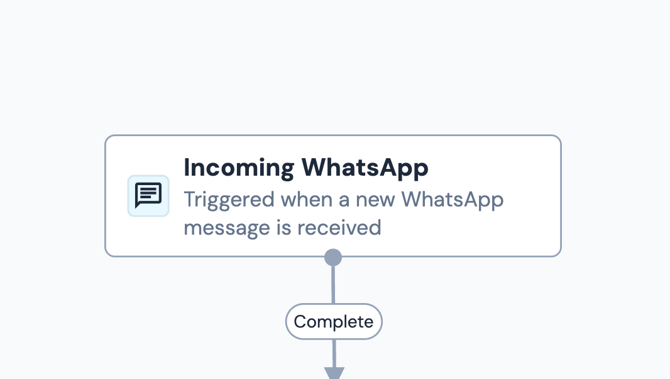
The Incoming WhatsApp Starting action is used when you want your workflow to be triggered automatically whenever a new WhatsApp message is received.
This is useful for responding to customers in real time, extracting information from WhatsApp messages, or routing WhatsApp conversations into automated workflows.
Configuration
There is no configuration needed to set up the Incoming WhatsApp starting action. Simply:
- Open the Workflow Editor.
-
Drag and drop the node to the Workflow Editor empty space.
- Add an Action node and connect it to the Incoming WhatsApp Starting action node.
.gif?width=670&height=332&name=chrome-capture-2026-01-12%20(1).gif)
The workflow will now trigger each time a new WhatsApp message is received by the phone number setup in your Concierge Support for WhatsApp.
Once triggered, you can use the data coming from the WhatsApp message to power downstream actions such as AI analysis, notifications to relevant stakeholders, automated replies or job creation or contact creation in another tool.
Outcome(s)
As with all Starting action nodes, this node has only one outcome, which is Complete.
Default variables/Outputs
The Incoming WhatsApp Starting action provides several outputs that can be used as variables later in your workflow:
.gif?width=670&height=332&name=chrome-capture-2026-01-12%20(2).gif)
-
From – The phone number that sent the WhatsApp.
-
To – The phone number that received the WhatsApp.
-
Body – The content of the message.
-
Timestamp – The date and time the WhatsApp message was received.
-
Contact Name – The name of the contact (if the contact is already stored in Build Concierge).
-
Contact Address – The contact’s address (if the contact is already stored in Build Concierge).
-
Contact Type – The type of contact (usually a person, but it could also be a business or another segment type).
-
Contact Methods – Available contact methods (phone number, email address, number for SMS, number for WhatsApp).
-
Contact Imported From – The source the contact was imported from (this will not return a value if the contact was created in Build Concierge. If the contact comes from BigChange, this would show here).
Example uses
Some typical use cases for this node are:
-
Automatically reply to customer WhatsApp messages using an Extract Text node and a Send Email node.
-
Extract job request information from the message to book a job in BigChange or another tool.
-
Route urgent support messages to the right team instantly.
💡 Tip
You can combine the Incoming WhatsApp starting action with an AI Prompt node to classify intent, extract structured data, or detect sentiment before taking action.