
Want a workflow to fire the moment an external system sends data your way? The External Event Starting action generates a secure, unique webhook URL that any third-party platform can call to kick off your workflow automatically, passing the incoming data straight into your workflow as variables.
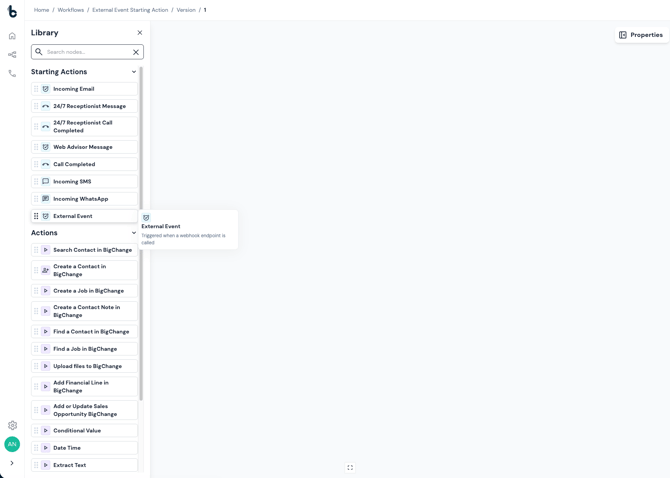
Configuration
To set up the External Event Starting action:
- Add the node to your workflow.
- Click on the node to open the Properties panel where you can configure the node.
In the Properties panel you will find a unique webhook URL, already generated for you, in the format:
https://adonis-api.prod.buildconcierge.com/webhooks/workflows/[UniqueID]
This URL is read-only. Copy it and provide it to the external system that will be sending the webhook.
⚠️ Note The URL is unique to this workflow. Treat it like a password — anyone with access to it can trigger the workflow.
Authentication
You can optionally require incoming requests to authenticate before the workflow is triggered. Use the Authentication field to choose between:
- None — No authentication required. Any request to the URL will trigger the workflow.
- Basic — Requires an HTTP Basic Auth username and password.
- Bearer — Requires a Bearer token in the
Authorizationheader.
⚠️ Note Before configuring Basic or Bearer authentication, it's good idea to store the relevant credentials as secrets in the Secrets Management area and reference these in the properties panel, this ensures sensitive information is not shown in the logs.
📚 Learn more about how to set up secrets in Secrets Management in this article.
-
Basic authentication
When Basic is selected, enter a username in the Username field and select a pre-saved secret from the Password dropdown. For example, you might store a secret called
MY_WEBHOOK_PASSWORD. -
Bearer authentication
When Bearer is selected, select a pre-saved secret from the Token dropdown. For example, you might store a secret called
MY_API_BEARER_TOKEN.
Outcomes
As with all Starting actions, the only outcome is Complete.
Default variables
When the External Event node receives a request, two variables are automatically available for use in later steps of your workflow:
- Body — The full JSON body of the incoming request.
- Query — Any query string parameters included in the webhook URL.
Custom output variables
You can also extract specific values from the request body and expose them as named variables, making them easier to work with in downstream nodes.
To add a custom output variable, click + Add in the Properties panel. You will see three fields:
- Name — The variable name to use in later workflow steps.
- Value — The dot notation path used to extract the value from the request body.
- Type — The data type, such as Text, Number, or Phone.
⚠️ Note The Type must match the requirements of any downstream nodes. For example, if passing a value to the Phone Number field of a Create a Contact node in BigChange, the variable must be set to type Phone.
Using dot notation
Dot notation lets you navigate into the JSON body of the incoming request to extract a specific value. The path depends on the structure of the payload sent by the external system.
For example, if the incoming body looks like this:
{
  "job": {
    "reference": "JOB-00123",
    "status": "new"
  }
}
To extract the job reference, set the Value field to:
job.reference
⚠️ Note Dot notation is case-sensitive. If multiple values match the same path, all of them will be stored in the variable. You can configure as many custom outputs as you need for a single External Event node.
Example uses
Some typical use cases for the External Event Starting action are:
- Trigger a workflow from a BigChange automation — use BigChange's outbound webhook feature to fire a workflow in Build Concierge when a job is created or updated, then process the payload to send a customer notification or route the job automatically.
- Receive a Simpro webhook — when a quote or job changes status in Simpro, send the payload to Build Concierge to kick off a follow-up workflow, such as creating a task or notifying a team.
- Connect any platform that supports outbound webhooks — if a system can send an HTTP POST, it can trigger a Build Concierge workflow.
💡 Tip You can combine the External Event Starting action with an AI Prompt or Extract Text node to parse the incoming payload, classify its content, or extract structured fields before taking action.