
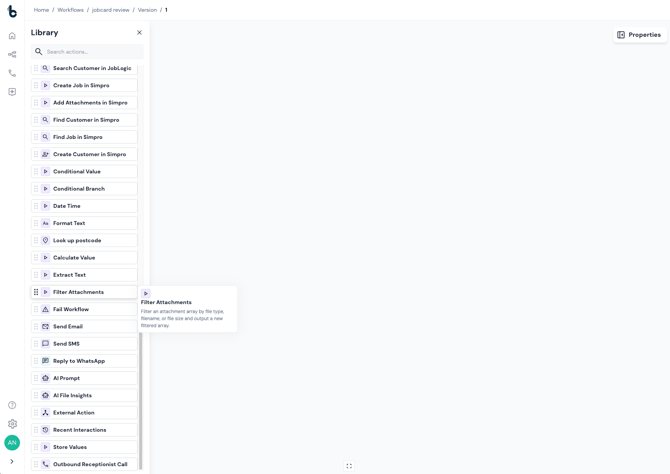
The Filter Attachments action filters an attachment list by file type, file name or file size, and outputs a new filtered list. Use it to leave out files you don’t need, such as logos in email signatures, or to send different files to different actions.
Typical uses
- Remove small signature images before sending files to an AI File Insights action.
- Upload photos to a job, but send only invoices to AI analysis.
- Attach only PDFs to an email sent by a Send Email action.
Configuration
To set up the Filter Attachments action:
- Add the node to your workflow, ensuring it is connected to a starting action or another action node.
- Click on the node to open the Properties panel.
- Optionally, change the Display Name. When you use several Filter Attachments actions in one workflow, a clear name such as “PDFs only” makes it easier to pick the right output later.
- In Attachments (required), click + Add a variable and choose the attachments from the Incoming Email trigger.
- Set the Filter criteria. All of them are optional.
Filter criteria
When you set more than one, a file must match all of them to be kept.
| Criteria | Options | How it works |
|---|---|---|
| File type | Images (.jpeg, .jpg, .png, .gif, .tif, .bmp) PDF (.pdf) Word (.doc, .docx) Excel (.xlsx, .xls, .xlsm) |
Tick one or more types. A file is kept if it matches any type you tick. Ticking Images and PDF keeps both. |
| Filename matching | Equals, Contains, Starts with, Ends with, then a Value | Keeps every attachment whose name matches the text. It compares the full file name, including the extension, and ignores capital letters. You can set one filename rule per action. |
| File size | Select a comparison (Less than or Greater than), then Size (KB) | Compares the file’s size in kilobytes. A file exactly equal to the size doesn’t match either comparison. |
Tip: Signature images such as logos are usually small. To leave them out and keep real photos, tick Images and set File size → Greater than a value larger than your signature images. Test with a few real emails to find the right number.
If you set no criteria
The action passes all the attachments through, unchanged. It doesn’t show an error.
Outcomes
- Complete: The filter ran. If no files matched, the list is empty.
- Failed: The action couldn’t run. It returns a Reason for failure variable. Connect this outcome to a Send Email action and include the variable in the body so you know what went wrong.
- Each Filter Attachments action has its own Filtered Files. If you use several in one workflow, they don’t overwrite each other. Each time you choose attachments for a later action, pick the output from the action you want.
- The original list of attachments isn’t changed, so other actions can still use it.
- Run History shows how many files the action received and how many it kept.
Use Filtered Files anywhere an action asks for attachments:
- the Attachments field in Send Email,
- Upload Files to BigChange,
- AI File Insights.
Examples
Example 1: keep only PDFs
Supplier emails contain a PDF work order and logo images. You want only the PDF analysed.
- Incoming Email receives the email.
- Filter Attachments with File type: PDF ticked.
- AI File Insights uses this action’s Filtered Files as its attachments.
Example 2: keep photos, drop signature logos
You want job photos, not the small images in email signatures.
- Incoming Email receives the email.
- Filter Attachments with File type: Images ticked and File size: Greater than a value above your signature image size.
- Upload Files to BigChange uses Filtered Files.
Example 3: send different files to different places
Customer emails contain photos and invoices. You want photos on the job and only invoices analysed.
- Incoming Email receives the email.
- Filter Attachments named “Photos”, with File type: Images ticked. Connect it to Upload Files to BigChange and use its Filtered Files.
- Filter Attachments named “Invoices”, with File type: PDF ticked. Connect it to AI File Insights and use its Filtered Files.