
The Extract Text action removes the need to manually extract key data points from your emails or attachments. It allows you to automatically extract data to be used in later steps of your workflow.
It works by intelligently pulling specific data from an incoming email or PDF attachment using regular expressions (regex) that you define.
This is especially useful when you want to automate processes using key pieces of information, such as job descriptions, dates, reference numbers, or purchase orders.
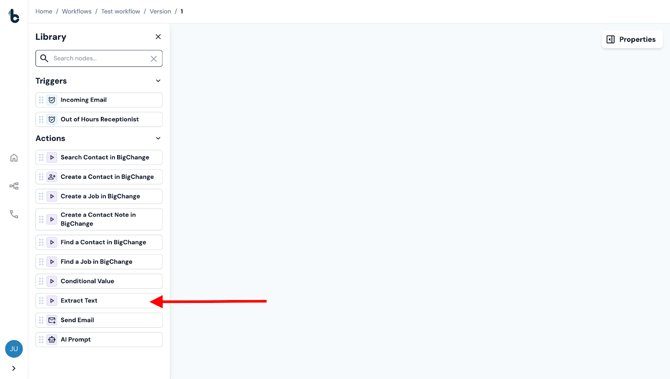
When to Use It
Use the Extract Text node when:
- You receive structured or semi-structured text via email or PDF, for example in an auto-generated email.
- You want to extract consistent patterns like contact names, email addresses or job descriptions.
- You need to use specific values as variables in future nodes (e.g., Create Job, Conditional Value).
💡 Tip
You will most likely add an ‘Extract Text’ action after the ‘Incoming Email’ starting action’.
Configuration
To set up the Extract Text action:
- Add the Extract Text node to your workflow, ensuring it is connected to a starting action or another action node.
- Click on the node to open the Properties panel.
Mandatory fields
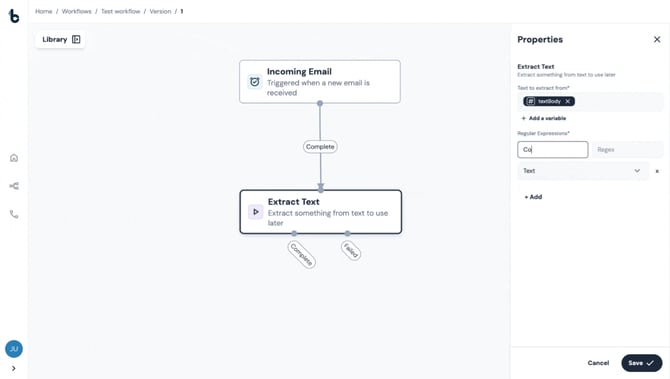
To configure the Extract Text node both the Text to extract from and Regular Expressions fields must be defined.
How to configure:
-
- Insert the source of the data to be extracted in the Text to extract from field,
- Click +Add under the Regular Expressions section to add your first data point to be extracted.
- Name the variable.
- Define the Regex.
- Select the Type of data that is being extracted from the dropdown (Text, Numbers etc.).
-
Once extracted, these values become custom variables available when configuring additional nodes further down the workflow.
Tips for configuring your Extract Text action node successfully
Writing regexes can be challenging.
Here’s some tips for how to configure your Extract Text node successfully each time.
Learn how to write regex or get help
- Learn more about writing Regex at RegexOne.
- Use online tools like regex101.com to test your pattern before adding it to your workflow.
- Make sure to name your extracted fields clearly.
Get plain text from example email to build accurate regexes
If your emails have a lot of formatting, you may want to see the plain text version to help you set up the right regexes.
You can do this using a simple test workflow:
- The workflow would be made of an Incoming Email starting action and a Send Email action.
- Forward the example email you want to get the plain text for to the email address you are using in your Incoming Email starting action.
- Go to the Workflow Overview page for the test workflow.
- In the Run History, click on the run entry related to the run in question.
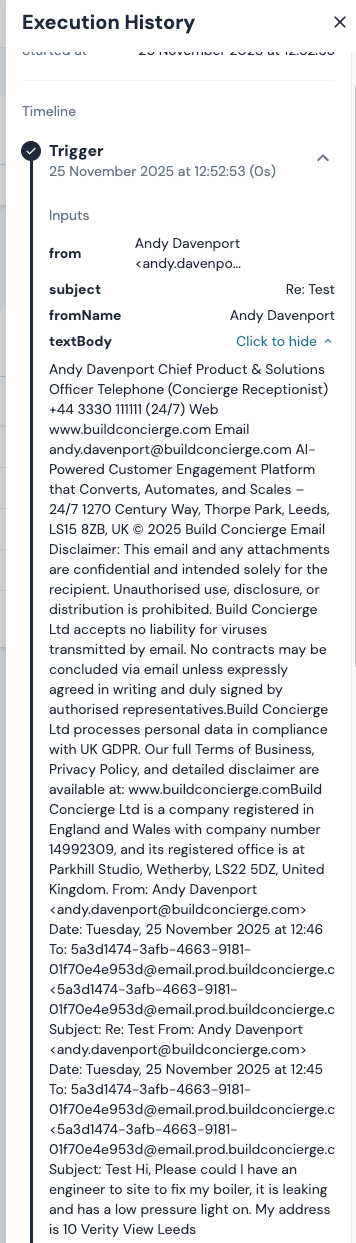
- This will open the Execution History, where you can get the plain text, for example:
Spot errors before going live using a test workflow
Before relying on a workflow where you are defining multiple variables to be extracted with the Extract Text node, we recommend running a test workflow.
This helps you to check that the node is extracting the right information successfully.
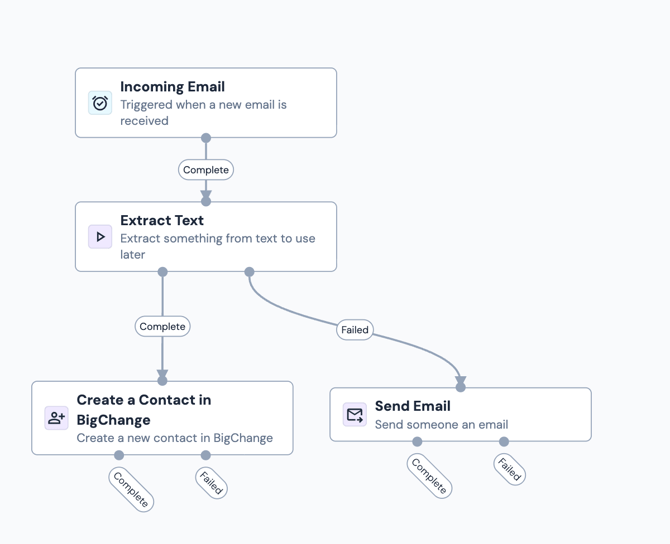
Use the Send Email node to send an email when the Extract Text node fails and include the Reason for failure in the email body.
This will help you to understand which variables are not defined properly and are therefore failing in your Extract Text node.
Outcome
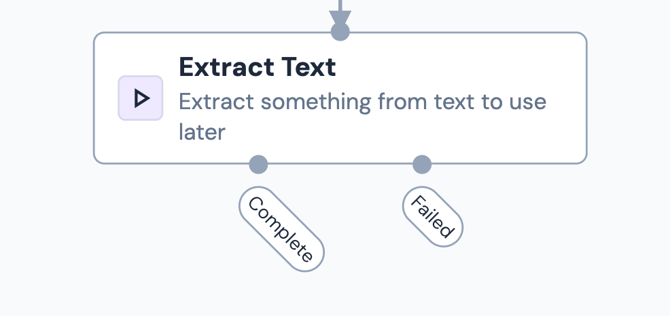
There are two outcomes from an Extract Text node:
- Complete
- Failed
A Complete outcome means that all of the variables defined by the regexes returned matches as defined in the configuration.
If any variables defined in the configuration are not found in the "Text to extract from" location, the node will fail and return an error message which will indicate which variable was not found.
💡Tip
If you are extracting multiple variables with one Extract Text node, make sure that the format of the text you are extracting in the "Text to extract" location is the same every time and that all of the variables that are defined by regular expressions will be found each time. This will help you to avoid failed workflow runs!
Default variables
There are no default variables coming from the Extract Text node since the purpose of the node itself is to define your own custom variables from structured text.
Automating contact creation from new leads
Smith & Co want to automate contact creation in BigChange whenever a new lead arrives via their lead platform or website contact form.
Each inquiry originates from a form and is sent as an auto-generated email containing the key details needed to create the contact:
- Contact Name
- Phone Number
- Address
For example:
“New lead from John Smith. Phone number: 07912 345678. Address: 12 Station Road, London, N1 2AB.”
The data is structured since it originates as form submission data which is populated into an auto-generated email.
The Extract Text node with regex patterns can therefore be connected to an Incoming Email starting action to capture the data required, without including HTML tags or unwanted characters.
To setup the Extract Text node to extract the Contact name, you'd populate the fields as such:
- Source: Email body
- Label: Contact Name
- Regex: (?<=from\s).+?(?=\.) (matches the full name following “from”)
.png?width=498&height=691&name=chrome-capture-2026-01-19%20(1).png)
The same would be repeated to extract the Phone Number and Address, adjusting the regex patterns accordingly.
These variables would then be mapped into the relevant fields (Contact name, Phone Number, Address) in the Create Contact in BigChange node. This will create a new contact with the relevant details automatically in BigChange each time a new lead comes in.
.gif?width=670&height=380&name=chrome-capture-2026-01-19%20(1).gif)
These same values can also be reused in later workflow steps, for example, auto-populating fields when creating a job in BigChange.