The External Action node allows you to connect your workflows to third-party systems by making API calls. This enables you to send data out of Build Concierge, retrieve information from external platforms, and use that data in later steps of your workflow.
⚠️ Note
Before adding an External Action node to a workflow, you must first configure any required secrets in the Secrets Management area.
📚 Learn more about how to set up secrets in Secrets Management in this article.

Configuration
To set up the External Action node:
- Add the node to your workflow and connect it to a previous step in the workflow (a Starting action or Action node).
- Click the External Action node to open the Properties panel.
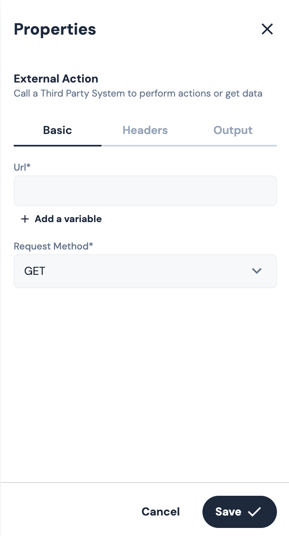
The External Action Properties panel is split into three tabs:
- Basic
- Headers
- Output
Each tab controls a different aspect of the API request.
Basic tab
The Basic tab defines the core details of the API request.
Mandatory fields
By default, you’ll see two fields in the Basic tab:
- URL
- Request Method
Both of these fields must be configured.
URL
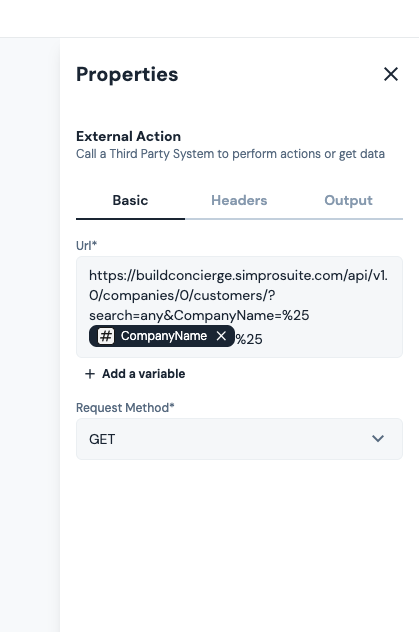
Enter the API endpoint URL in the URL field. Depending on the API, this may include parameters.
For example, searching for a contact in BigChange may require passing a Search Term.
You can insert workflow variables from earlier steps to dynamically change the API call.
Request Method
Use the Request Method dropdown to select how the request should be made. The available options are:
- GET
- POST
- PUT
- PATCH
- DELETE
This must match the method expected by the third-party system.
⚠️ Note
Always refer to the external system’s API documentation to confirm.
In the example of searching for a contact in BigChange, the request method for searching for a contact would be GET.
Below is an example of how you’d configure the External Action node to dynamically search for a Company in Simpro:
Request Body
If the Request Method is set to POST, PUT, or PATCH, an additional Request Body field will appear.
Enter the request body in JSON format. As with the URL field, you can insert workflow variables to dynamically populate the request body.
⚠️ Note
Refer to the third-party system documentation to confirm the exact format.
Headers tab
The Headers tab is used to configure additional metadata for the API request, such as content types, API keys, or authentication tokens.
To add a header:
- Click + Add.
- Enter the parameter name in the Enter name field.
- Enter the corresponding value in the Enter value field.
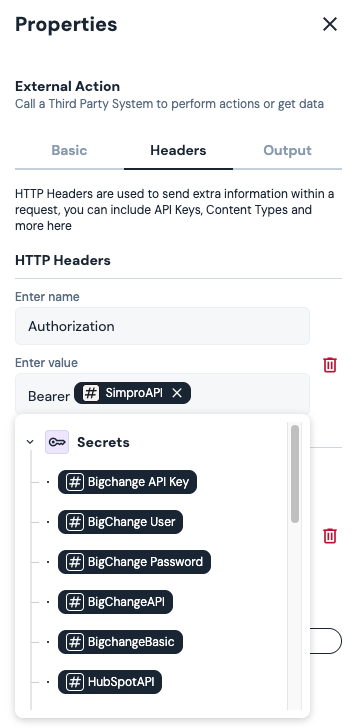
Secrets created in the Secrets Management area can be inserted as variables in the Enter value field, to securely pass sensitive information.
Common example: Authorization header
Many APIs require an Authorization header containing an API key or bearer token.
For example, when communicating with the Simpro Company Search API, the request must include an Authorization header with a valid API key with access to an instance of Simpro.
To set this up:
- Enter Authorization in the Enter name field
⚠️ Note
Spelling and capitalisation matter. You must use US English spelling with a ‘Z’ for Authorization.
- Type Bearer in the Enter value field and then click + Add a variable and select the appropriate secret from the dropdown.
You can add multiple headers as required.
Output tab
The Output tab controls what data is extracted from the API response and made available to later steps in the workflow.
By default, the full response body is stored as a workflow variable.
You can also expose:
- HTTP Status Code
- Status Text
As well as defining custom output variables.
Defining output variables
To define a custom output variable:
- Click + Add. This will reveal three fields:
- Enter name – the variable name to be used in later workflow steps
- Enter value – the dot notation used to extract the value
- Type – the data type (Text, Number, Phone, etc.)
- Enter name – the variable name to be used in later workflow steps
⚠️ Note
The Type must match the requirements of any downstream nodes. For example, when using Create a Contact in BigChange, the Phone Number field requires a variable that is a Phone type.
Using dot notation
Dot notation is used to extract specific values from the JSON response. It will vary depending on the body of the third party system’s API response.
Example 1: Simpro company search response
When calling the Simpro company search API referenced above, the following dot notation would be used:
{

  "ID": 3,

  "CompanyName": "Build Concierge Ltd"

}
To extract the company name, set Enter value to:
.CompanyName
Example 2: BigChange contact list response
The BigChange Contact List endpoint returns the following body:
{

  "Result": [

    {

      "label": "API Creation",

      "id": 49000281

    }

  ]

}

To extract the Contact ID, use:

Result.id
⚠️ Note
Dot notation is case-sensitive. If multiple values match the same path, all values will be stored in the variable. You can configure multiple Outputs for each External Action.
Saving the configuration
Once all three tabs have been configured, click Save to store the External Action configuration.
Other ways to extract data from the response
If dot notation does not return the data you need, the full API response is always stored in a workflow variable called API Response.
This variable can be:
- Passed to an AI Prompt node to extract or interpret information; or
- Passed to an Extract Text node to extract values using regex.
Outcomes
Once the External Action node runs, it will return one of two possible outcomes:
- Complete – The External Action call completed successfully. The workflow will continue to the next connected step (if relevant).
- Failed – The External Action call did not complete, usually due to incorrect configuration.
.png?width=670&height=328&name=chrome-capture-2026-01-28%20(1).png)
Default variables
By default, the External Action node outputs the full API response. If you do not need the entire return, you can define custom outputs in the node’s Output tab during configuration.
Other considerations
You can use multiple External Action nodes in a single workflow to interact with different endpoints just like any other node in the Workflow Builder.
BigChange legacy web service endpoints
When using BigChange legacy web service endpoints, two secrets are required:
- BigChange API key
- The integration username and password which are encoded in Base64. Encoding can be achieved here - https://www.base64encode.org/
- Simply enter the username and password in the following format, replacing the values as appropriate and click Encode: [username]:[password]
- Copy the encoded value and paste it into the Enter value field
- On the Header tab add two headers as follows:
|
Name |
Value |
|
Authorization |
Basic [Encoded User Credentials] |
|
Key |
[BigChange API Key] |
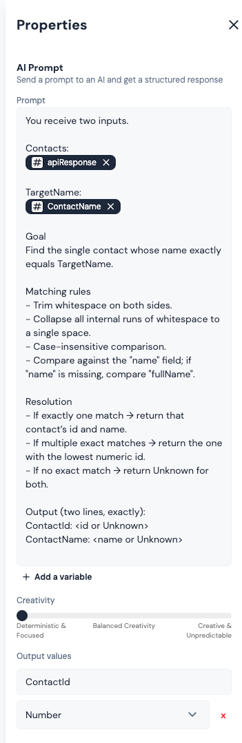
Example use case: Differentiating multiple contacts found in BigChange using External Action and AI Prompt
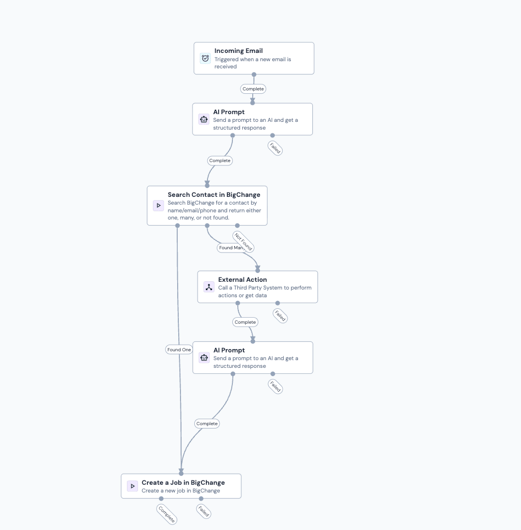
Smith & Co want to search for contacts in BigChange and, where a contact is found, create a job against the found contact based on an emailed work order. To do this, they will use the Search Contacts in BigChange action node to search for contacts based on the name/email or phone number contained in the email.
Where the search returns multiple possible matches via the Found Many branch of the Search Contacts node, an AI Prompt Action can be used to compare the original search term (name/email/phone) with the returned contact. It can therefore pinpoint the correct contact from the list in order to create a job against it.
However, the Found Many outcome on the search action does not actually include the list of the returned contacts. To get this information, an External Action node can be used to call the BigChange contact search API and pass the response to the AI Prompt node.
The workflow would therefore look something like this:
External Action Configuration
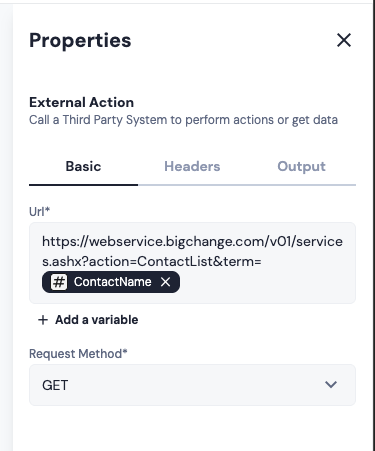
Basic tab
- URL would be set to: ‘https://webservice.bigchange.com/v01/services.ashx?action=ContactList&term=[VariableHoldingSearchTerm]’
⚠️ Note
[VariableHoldingSearchTerm] should be switched in for the variable which was mapped as the Search Term in the Search Contacts node e.g. Contact name. In this example, this would be the variable created as an output from the AI Prompt node.
- Request method should be set to GET
Headers tab
Two headers would be added:
- Authorization:
- In the Enter Name field of the first header, enter Authorization.
- In the Enter value field, insert ‘Bearer [SecretHoldingBigChangeAuth]’, with the placeholder replaced by the preconfigured secret holding the base64 encoded BigChange Username and Password.
- Key:
- In the Enter name field of the second header, insert Key.
- In the Enter Value field, insert the BigChange API Key, which should also be stored as a secret.
As we plan to use the full API response, there is no need to configure the Output tab.
AI Prompt Configuration
In the AI Prompt node we’d enter a prompt like:
‘You receive two inputs.

Contacts:

[apiResponse]

TargetName:

[SearchTerm]

Goal

Find the single contact whose name exactly equals TargetName.

Matching rules

- Trim whitespace on both sides.

- Collapse all internal runs of whitespace to a single space.

- Case-insensitive comparison.

- Compare against the "name" field; if "name" is missing, compare "fullName".

Resolution

- If exactly one match → return that contact’s ID and name.

- If multiple exact matches → return the one with the lowest numeric ID.

- If no exact match → return Unknown for both.

Output (two lines, exactly):

ContactId: <id or Unknown>

ContactName: <name or Unknown>’