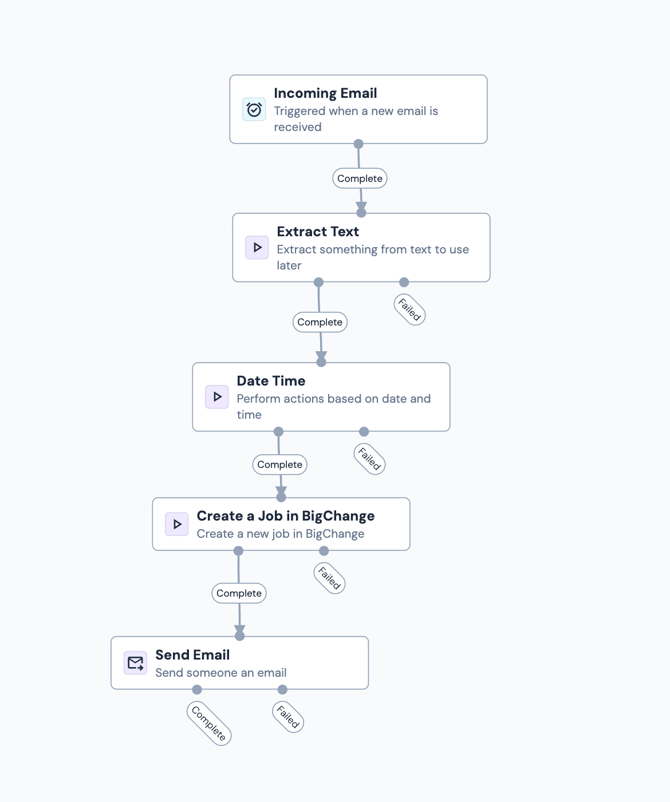
The Date Time action node allows you to perform actions based on dates and times within your workflow.
It is commonly used to calculate SLAs, set deadlines, add or subtract time, or stamp events with the current date.
⚠️ Note
All dates must be in UK format (DD/MM/YYYY), where the day appears before the month.
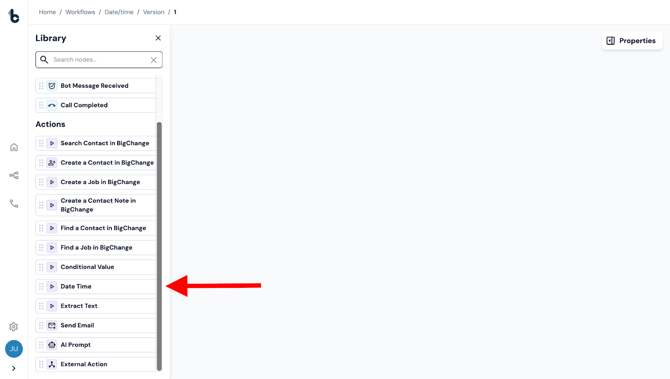
Configuration
To set up the Date Time action:
- Add the node to your workflow, ensuring it is connected to a Starting action or another Action node.
- Click on the node to open the Properties panel.
Mandatory fields
The Operation field is mandatory and this determines the operation you want to perform.
There are 3 operations to choose from:
- Add time to date
- Get current date
- Calculate difference
Depending on your chosen operation, the Properties panel will change to show the relevant fields.
.gif?width=294&height=559&name=chrome-capture-2026-01-27%20(3).gif)
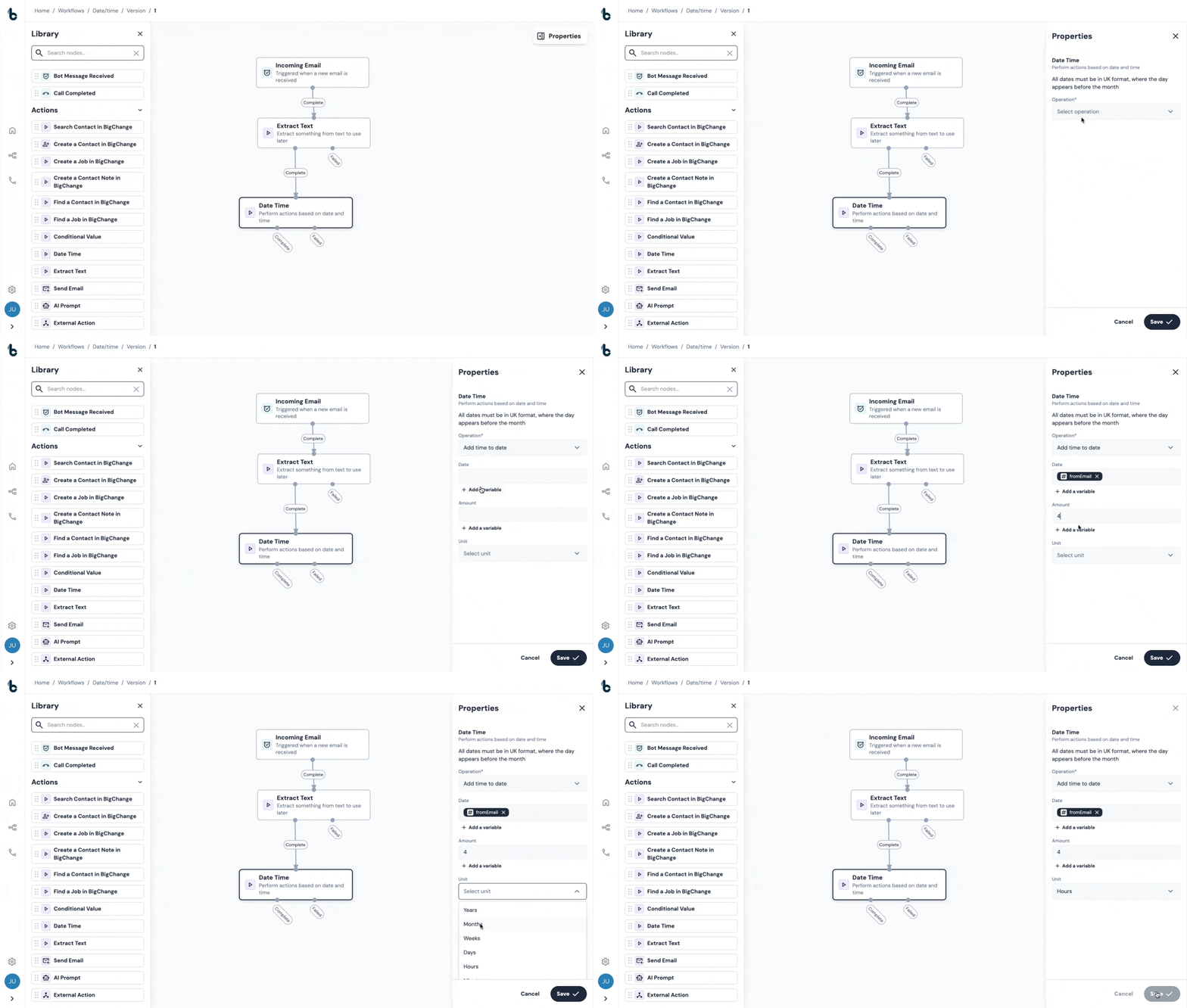
1. Add time to date
Use this when you want to add (or subtract) a specific amount of time to an existing date.
For example:
“Jobs should be scheduled 4 hours after receiving the request.”
To configure this operation:
- In the Operation field, select the Add time to date operation from the dropdown;
- In the Date field, enter the date manually or insert a variable (e.g., the timestamp which has been extracted from an incoming email or the current date/time which has been defined as a variable using another instance of the Date Time node).
- In the Amount field, enter the amount manually or as a variable, i.e. the number you want to add or subtract.
- In the Unit field, choose the unit from the dropdown that represents the unit of time you will be calculating the time being added/subtracted by (seconds, minutes, hours, days, weeks, months, years).
2. Get current date
Use this when you needdate to timestamp an event or compare now to another date.
To configure this operation:
- In the Operation field, choose the Get current date operation.
No other inputs are required. .gif?width=670&height=380&name=chrome-capture-2025-12-04%20(1).gif)
3. Calculate difference
Use this when you need to calculate the time difference between two dates.
For example:
“How long did it take between receiving the email and attending the job?”
To configure this operation:
- In the Operation field, select the Calculate difference operation.
- Type manually or insert a variable into the Date 1 field e.g. incoming email time
- Type manually or insert a variable into the Date 2 field e.g., must attend time, extracted from the email body using an Extract Text node
- Choose the unit (seconds, minutes, hours, days, months, years) in the Unit field.
This is perfect for SLA monitoring or to understand the time between a job request and the time the customer asks for the job to be attended to.

Outcomes
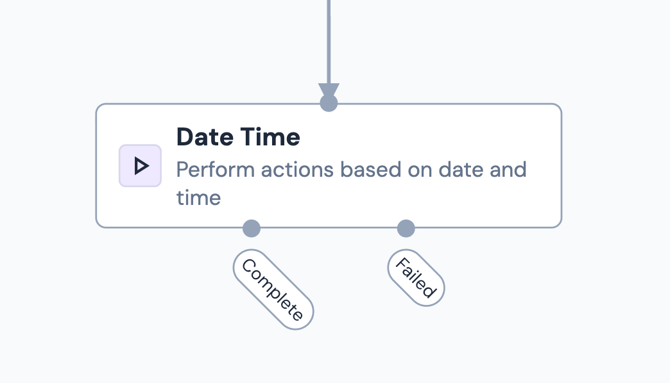
Once the Date Time node runs, it will return one of two possible outcomes:
- Complete – The operation requested completed successfully
- Failed – The operation requested failed.
💡Tip
For error-handling purposes, to understand why the Date Time operation did not complete, connect the Failed branch to a Send Email node. Then, configure the node so that the Reason for Failure variable is included in the Email Body field.
Default variables
The default variables produced by this node depend on the operation which is selected:
- Add time to date - The operation outputs the new date under the variable name of Date.
- Get current date - The operation outputs the current date/time when the workflow runs under the variable name Date.
- Calculate difference - The operation outputs a numerical value that is the calculation of the difference between Date 1 and Date 2 under the variable name, Difference.
Example use case: Automating job scheduling according to SLA
Smith & Co receive an urgent job request email from an existing customer at 12:15pm.
When a job request is marked as urgent, they work towards the SLA that an engineer will attend the site within 4 hours of the email being received.
When automating their job creation workflows using Build Concierge, they can build a workflow that:
- Uses the Incoming Email Starting action to forward urgent jobs to this workflow in Build Concierge.
- Add an Extract Text node to extract the relevant job details.
- Use the Date Time node to extract the time the email was received, and add 4 hours to the time, producing the required attendance time for the creation of the job.
- Use the Create a Job in BigChange action to create a job in BigChange at the relevant time; and
- Add a Send Email action to send an email to the engineering team with the details of the job.