
The Create Job in BigChange action allows your workflow to automatically create a new job in your BigChange account, helping you move seamlessly from customer request to scheduled work.
It works by using details extracted earlier in the workflow, such as from an incoming email, to automatically add a job under a specific contact in BigChange.
Automating this step reduces manual entry and potential mistakes, speeds up your processes, and helps ensure no job requests are missed.
📚 Learn more about how job scheduling in BigChange works in this article.
Configuration
To set up the Create job in BigChange action:
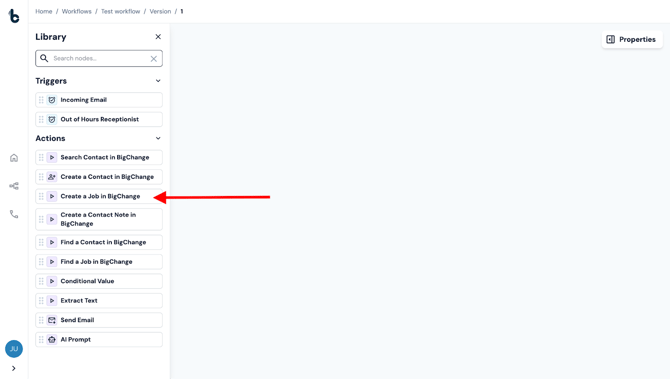
- Add the node to your workflow, ensuring it is connected to a starting action or another action node.
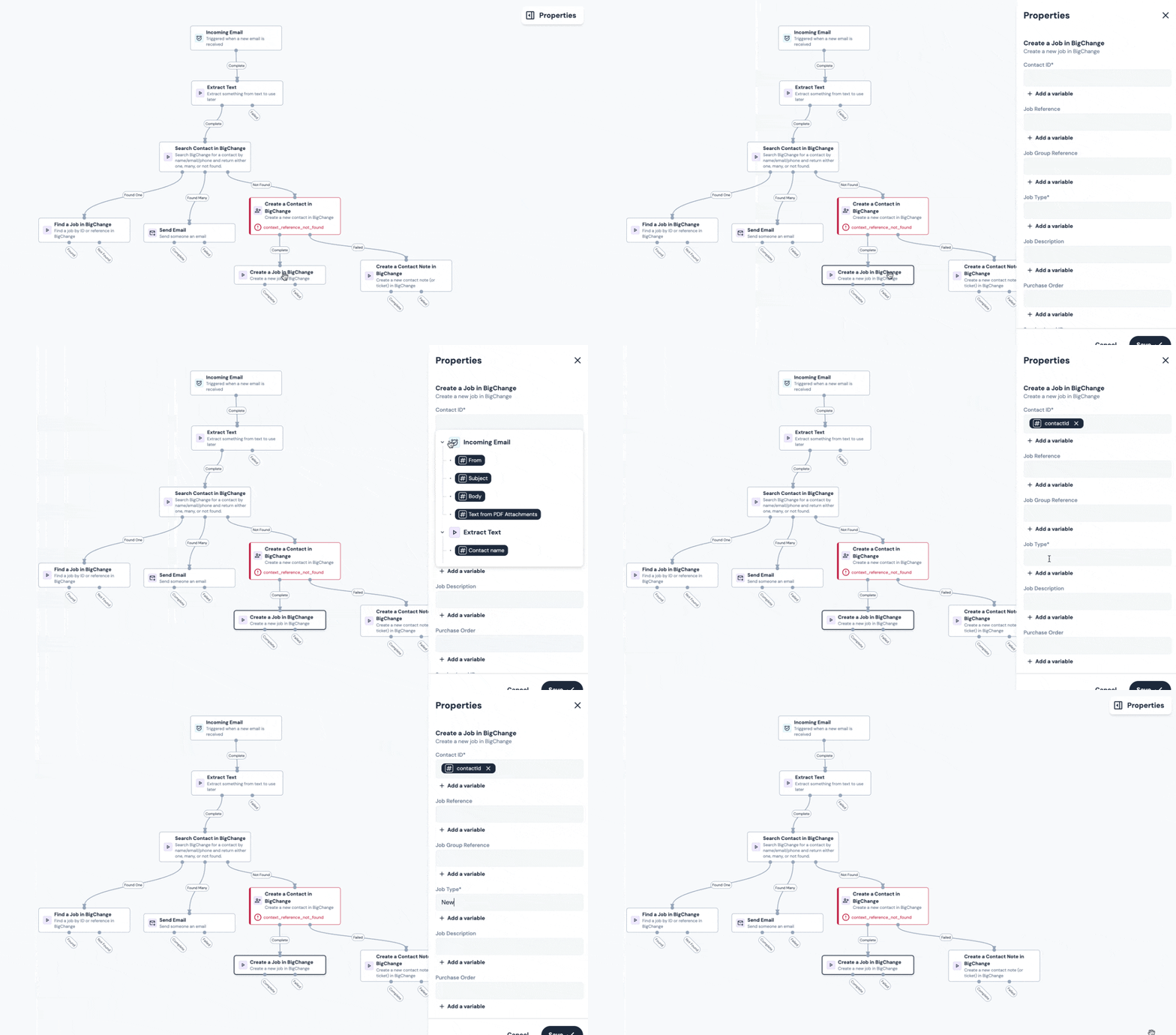
- Click on the node to open the Properties panel.
Mandatory fields
There are two fields that must be configured for this node:
- Contact ID - This field links the job to a specific contact in BigChange. It will usually be mapped using the Contact ID variable that was output from a Search Contact, Find Contact or Create Contact node earlier in the workflow.
Click + Add a variable and select the variable to map it into the field. - Job Type -
- If you only have one Job Type used. in your BigChange account, enter the Job Type name manually, ensuring the spelling and casing match what’s configured in BigChange.
- If you have multiple Job Types, make sure your workflow has already defined the Job Types used in your BigChange account. This will usually mean extracting the raw data that determines Job Types using an Extract Text/AI Prompt node and then categorising the data into the relevant Job Type using a Conditional value node.
⚠️ Note
Job Type names in Build Concierge must exactly match the pre-defined Job Types in your BigChange account. Incorrect Job Type names may result in a failed job creation!
📚 Learn more about Job Types in BigChange in this article.
Optional fields
Job Reference
This is an optional reference ID for the job.
Job Group Reference
Used to assign a grouping reference to the job.
Job Description
This is often populated using text extracted earlier in the workflow, typically via a regex in the Extract Text or AI Prompt node.
Purchase Order
Similar to the job description, this can usually be pulled from incoming emails or attached PDFs using regex extraction.
Service Level ID
This can either be entered manually or set dynamically. A common method is to extract certain data using regex, then apply a Conditional Value node to assign the correct ID based on logic.
Job Start Date
This date is typically pulled from an email or attachment using regex within an Extract Text node.
Resource Name
This can also be extracted from earlier steps using regex, depending on the structure of your incoming data.
Custom fields
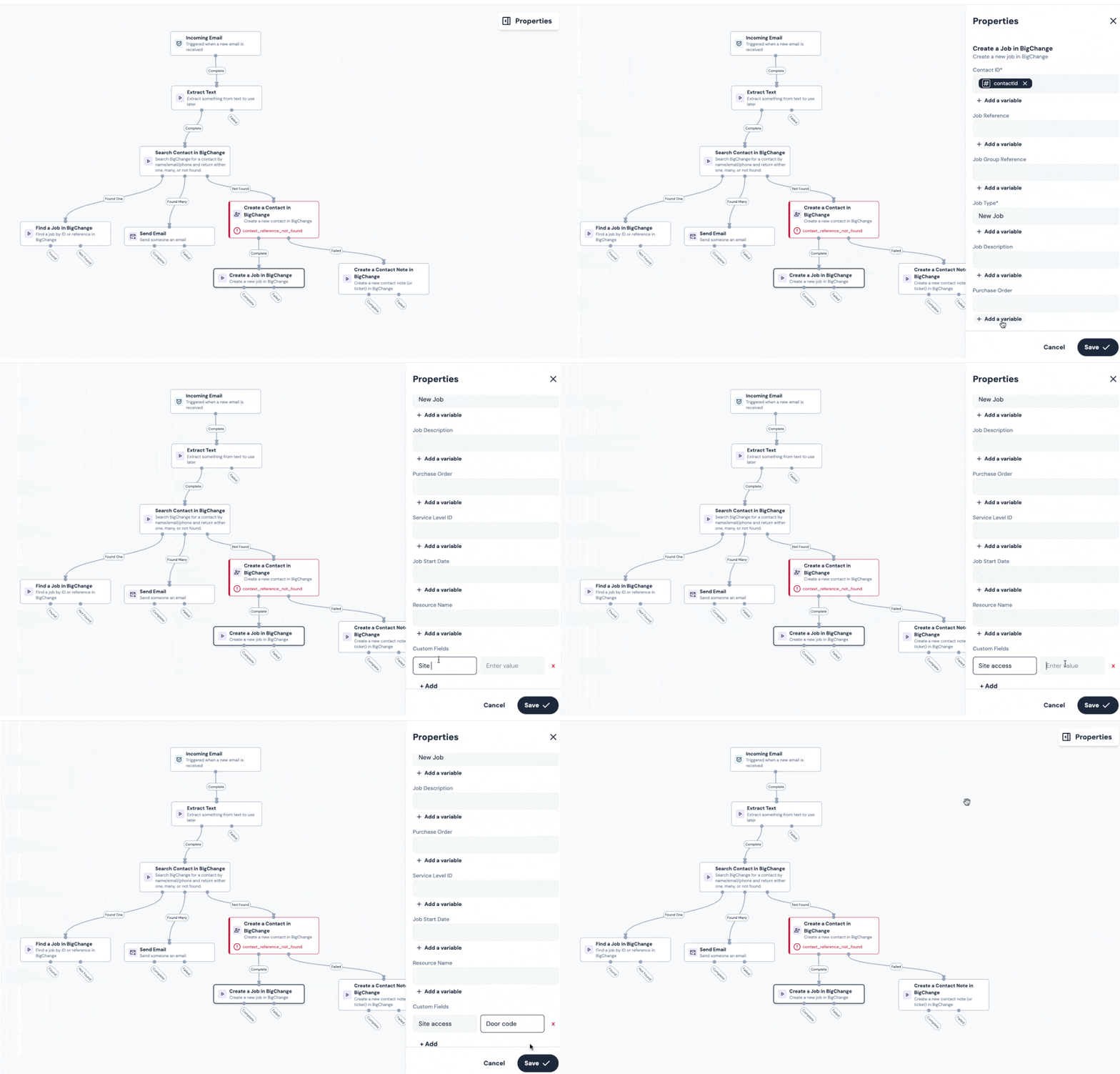
If you use Custom Fields in your BigChange job records, you can populate them too when creating a job automatically.
To add a custom field:
- Click + Add under the Custom Fields section.
- Copy and paste the name exactly as it appears in your BigChange account.
- Define the value with a static assignment.
⚠️ Note
Be sure to match the field name exactly, including spaces and casing, to ensure proper mapping.
Workflow tip
- If your workflow requires multiple jobs to be created as a result of one email or other Starting action, add multiple instances of the Create a Job in BigChange action node into the workflow.
- To keep the jobs together, we recommend adding the same Job Group reference when configuring each of the Create a Job in BigChange nodes.
Outcomes
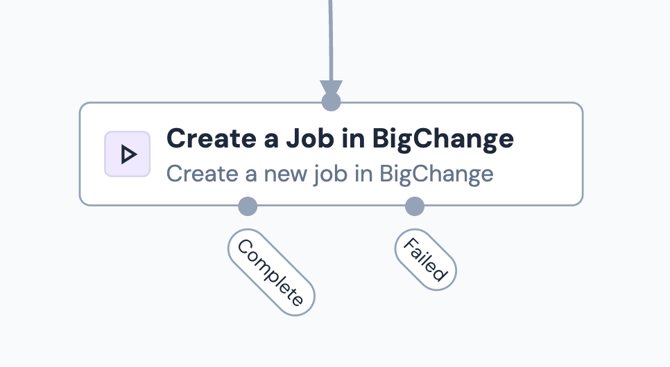
Once the Create Job in BigChange node runs, it will return one of two possible outcomes:
- Complete – The job was successfully created in BigChange. The workflow will continue to the next connected step, if at all.
- Failed – The job could not be created, usually due to incorrect configuration.
💡 Tip
To understand what went wrong in the instance that a job could not be created (i.e. the node fails), connect the Failed branch to a Send Email node. Then, configure the Send Email node so that the Reason for Failure variable is included in the Email Body field.
Default variables
The default variables available for this node are dependent on the outcome of the node.
If the node completes, there is only one variable which is available for use further down the workflow:
Job ID - The unique internal identifier BigChange uses to identify the specific job record.
This can then be used for example, to share the Job ID with the customer via email.
If the node fails, just like other nodes, the default variable available for use is:
Reason for failure - The “reason for failure” variable is a system-generated value that captures why a workflow node (step/module) failed to execute successfully.
This is the variable that would be used to send an automated alert email using the Send Email node whenever the Create Job in BigChange action fails.