
The Create Contact Note in BigChange action allows you to automatically create a new note (or ticket) in BigChange as part of your workflow.
Notes can be used to log updates, track activity, or record important details against entities such as Contacts, Jobs, or Resources.
📚 Learn more about how Notes work in BigChange here.
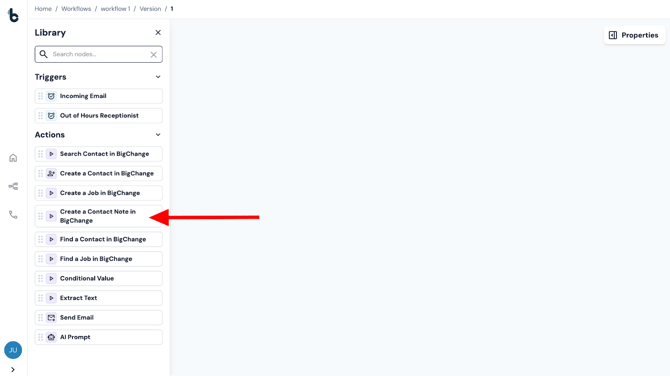
Configuration
To set up the Create Contact Note in BigChange node:
-
Add the node to your workflow, ensuring it is connected to a starting action or another action node.
-
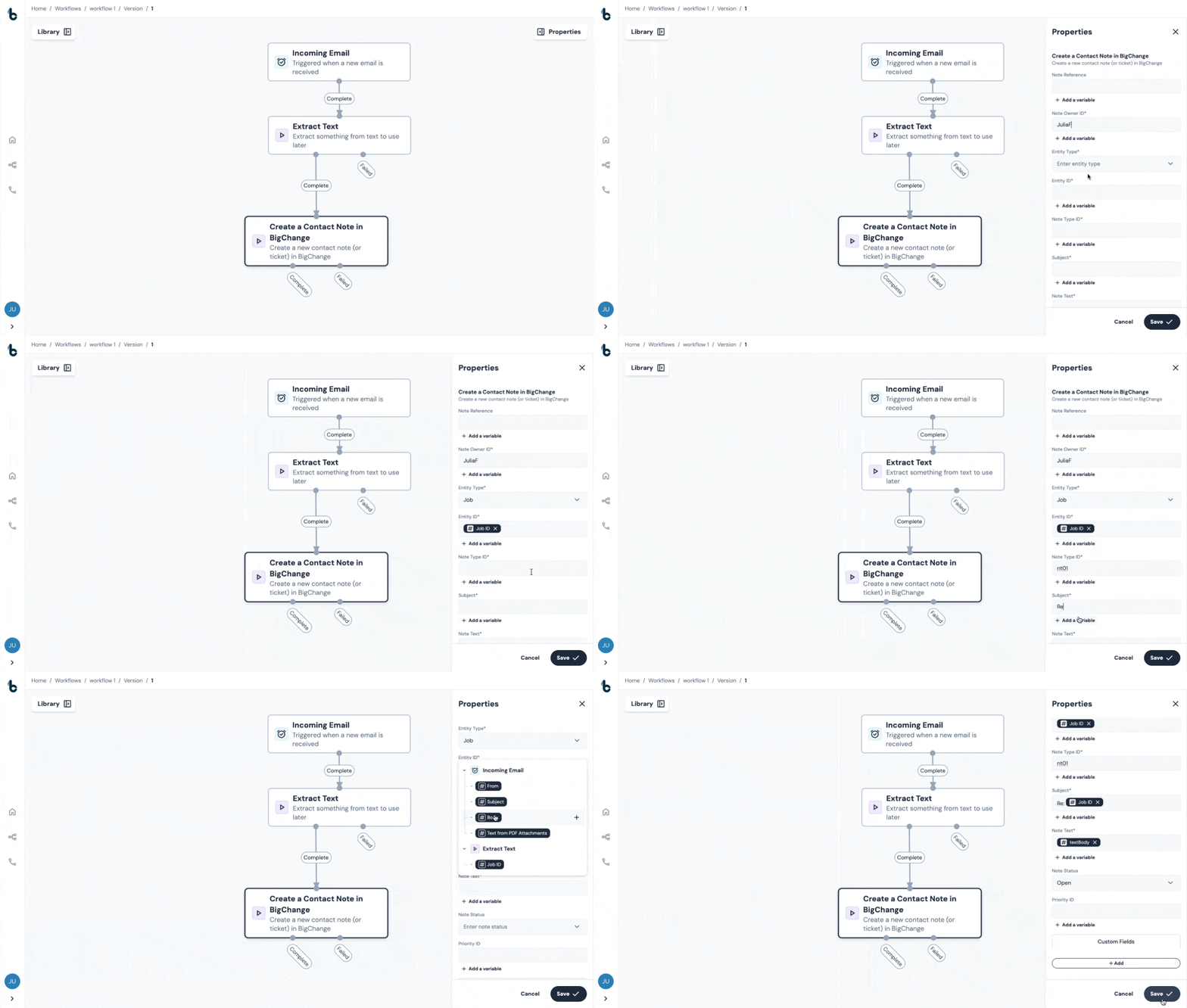
Click the node to open the Properties panel.
Mandatory Fields
To use this node in your workflow, you must configure the following fields:
-
Note Owner ID
Enter the ID of the BigChange user who will own the note. You can enter this manually or map it as a variable where it has been output by an earlier node in your workflow.
-
Entity Type
Select the type of entity this note relates to from the dropdown (e.g., Job, Contact, Resource).
-
Entity ID
Insert the ID of the entity you selected in the Entity Type field ((the Job ID or Contact ID). This will likely be inserted as a variable that was output from an earlier node in the workflow.
-
Note Type ID
Define the category or type of note being created. To find this ID in BigChange:
-
-
-
Go to the Admin section.
-
Click Contacts.
-
Click Contact Note Types, then press
Ctrl + Shift + Lon the note type to reveal the Note ID.
-
-
-
Subject
Add a subject or title for the note.
-
Note Text
Enter the main body of the note. This should contain the details you want to capture and can include variables output from earlier nodes in the workflow to add dynamic data.
Optional Fields
You may also configure:
-
Note Reference
An additional reference for the note (e.g., job number, date, PO number). This can be a custom variable from earlier in the workflow.
💡Tip
If you don’t have a particular use for this in your workflow, leave it blank. BigChange will automatically generate a reference on creation.
- Note Status
Determines if the note is Open, Completed, or Cancelled.
💡Tip
As all newly-created notes would begin as new, it’s likely that Open will be selected from the dropdown for this field.
- Priority ID
Assigns priority levels to notes in BigChange. To find this ID:
-
Go to Admin.
-
Click Contacts.
-
Click Contact Note Priorities, then press
Ctrl + Shift + Lon the priority type.
📚 Learn more about Note Priorities in this article.
Custom fields
If you use Custom Fields in your BigChange Contact Notes, you can populate these too.
To add a Custom Field:
- Click Add+ under the Custom Fields section.
- Go to your BigChange account and copy the Custom Field name you want to include.
- Paste the exact name in the Enter name field in the Custom Fields section.
- Define the value with a static assignment or using a variable.
📚 Learn more about adding Custom Fields to your BigChange notes in this article.
Outcome
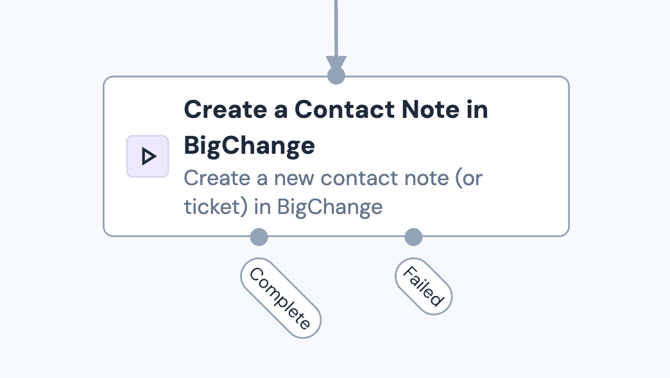
When the Create Contact Note in BigChange node runs, it will return one of two outcomes:
-
Complete – The contact note was successfully created, and the workflow will continue.
-
Failed – The note could not be created, usually due to incorrect configuration.
💡Tip
For error handling, connect the Failed branch to a Send Email node and include the Reason for Failure in the email body.
Default variables
If the outcome is Complete, the only default variable available for use further down the workflow from this node is:
-
Note ID
The Note ID is the unique, system-generated identifier assigned by BigChange to a single note record.
If the outcome is Failed, as with other nodes, the default variable available for use is:
-
Reason for Failure
The Reason for Failure variable is a system-generated value that captures why a workflow node (step or module) failed to execute successfully.
This variable can be mapped to a Send Email node to automatically send an alert email each time a node fails.
Example Use Case
Smith & Co’s customers can request a quote via email forms. Previously, these requests were manually copied into BigChange as notes, which was a time-consuming process that sometimes missed inquiries.
With Build Concierge:
-
Quote requests are forwarded to the Incoming Email node to trigger the workflow.
-
An AI Prompt/Extract Text node captures relevant data from the email.
-
A Search Contact in BigChange action looks for the contact by name or email and retrieves the Contact ID.
-
The Create Contact Note in BigChange node maps the captured variables into required fields:
-
Entity Type → Contact
-
Entity ID → Contact ID from Search Contact node
-
Note Text → Body of the email
-
Subject → Email subject + sender name
-
The note is created in BigChange against the correct contact with no manual work.
Any errors are routed to a Send Email node with the failure reason included.
