The Conditional Value node allows you to set specific outputs based on text matches within your workflow.
It is a way of manipulating data that comes into the workflow, to be used in a different form later in the workflow.
When to use it
Use the Conditional Value node when you need your workflow to manipulate one value to become another value. This allows you to convert data to a variable that can be used further along the workflow.
This is helpful for automating decisions like:
-
assigning jobs to the right team based on service location;
-
selecting the correct contact group for a new lead; or
-
setting a priority level based on the type of request received.
Configuration
To set up the Conditional Value node:
- Add the node to your workflow by dragging and dropping it into the Workflow Editor and connecting it to another Action.
- Click on the node to open the Properties panel.
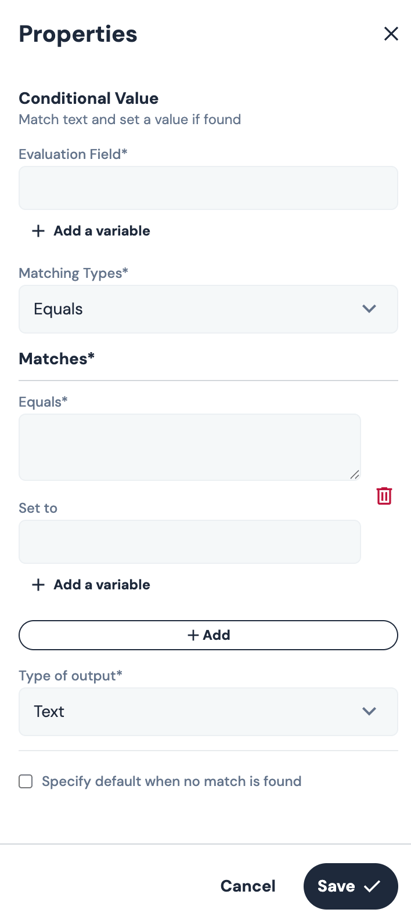
Mandatory fields
To configure the Conditional Value node, all fields are mandatory:
Evaluation FieldThis is the text or value you want to evaluate.
Click + Add a variable to select a variable from an earlier step in your workflow
Matching Types
Choose the type of match logic for your condition:
- Starts with / Ends with – checks if the Evaluation Field value starts or ends with the value(s) entered in the Matches field. This is useful for structured inputs.
- Contains – checks if the Evaluation Field includes the specified text in the Matches field
- Equals – Evaluation Field matches exactly the specified text in the Matches field
- Less than - checks if the Evaluation Field is less than the specified value in the Matches field
- Less than or equal to - checks if the Evaluation Field is less than or equal to the specified value in the Matches field
- Greater than - checks if the Evaluation Field is greater than the specified value in the Matches field
- Greater than or equal to - checks if the Evaluation Field is greater than or equal to the specified value in the Matches field
- Between - checks if the Evaluation Field is between two specified values in the Matches field. This would commonly be used when the Date Time node is used as the variable in the Evaluation Field.
Matches
-
To add a match rule, click + Add
- In the first field (which will be called whatever Matching Type you chose), enter the value(s) you expect to find in the Evaluation Field.
- In the Set to field, define the corresponding value to be output.
Click + Add to add additional conditions.
⚠️ Note
The Workflow Builder is currently limited to 10 match rules but will be unlimited in the future.
To delete a match rule, click on the Trash icon next to the match rule you want to delete.
Type of Output
Choose what kind of value this node should output (Text, Number, Email, Phone, True/False, Date etc.
Specify Default (Optional)
You can define a fallback value if no matches are found. This is useful to prevent errors or unexpected behaviour when inputs are inconsistent..gif?width=670&height=380&name=conditional%20value%20config%20(1).gif)
Outcomes
There is only one outcome from a Conditional Value node, which is Complete.
A completed outcome will either be:
- The matched value (if a condition is met); or
- The default value (if no conditions are met and a default value is defined)
- No value (if no conditions are met and no default is defined)
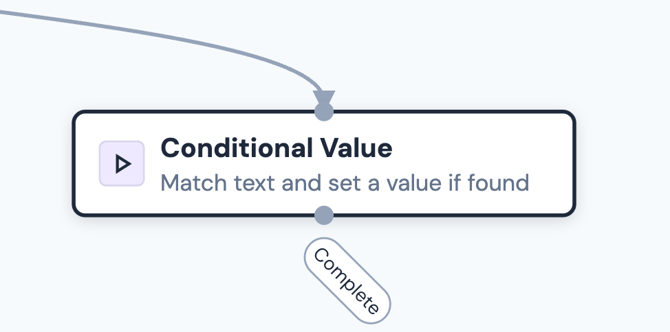
Default variables
No default variables are provided by this node since the node itself uses conditions to define Custom outputs only.
Example use case - Assigning service levels to jobs by manipulating service types
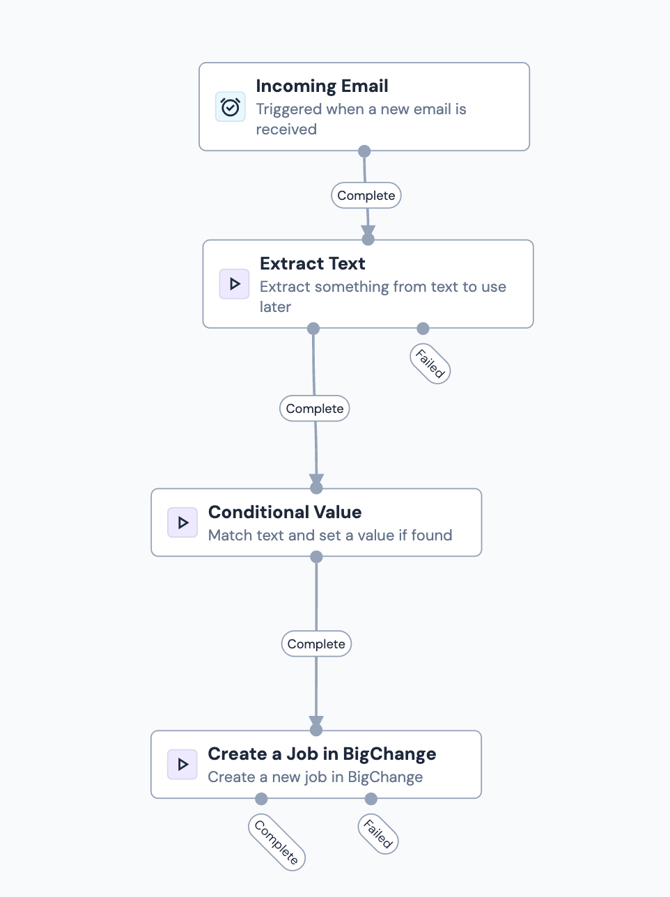
Smith & Co want to assign the correct service level to each new job created in BigChange. Their service levels are different, depending on pre-defined service types.
When a client sends in the new inquiry form, which arrives as an auto-generated email, the information they submit includes the service type.
Their workflow extracts the service type from each inquiry, using an Extract Text node.
In order to convert the service type into the service level, they need to manipulate the different service type names to become the corresponding Service Level ID.
Therefore their configuration might look like:
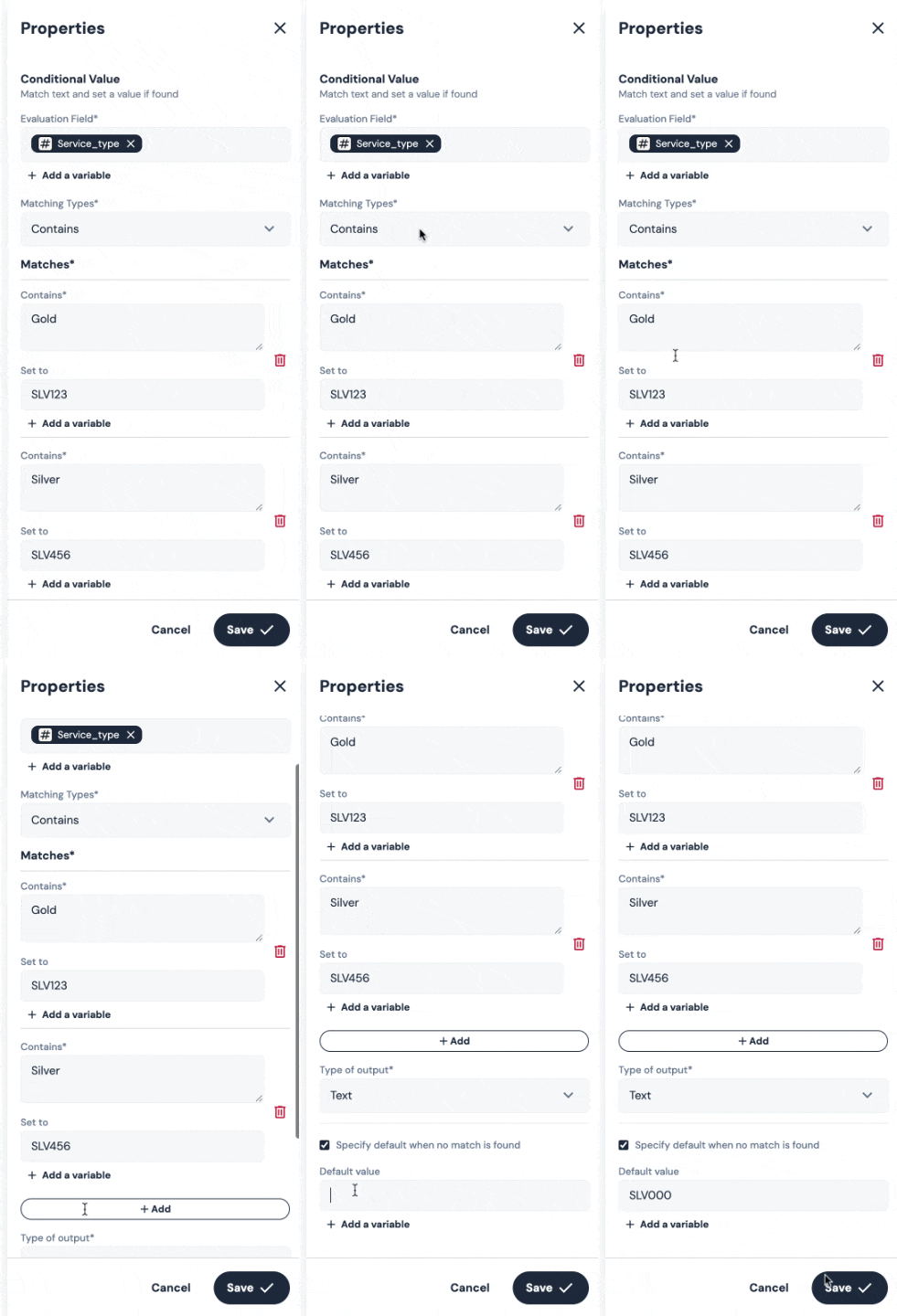
They can then use this data in the Service Level ID field of a Create Job in BigChange node.
The full workflow would look like this: