
The AI Prompt action allows your workflow to use AI to generate or transform text based on earlier steps. It helps you to summarize, reword, or interpret incoming data.
This action is especially useful when you need the workflow to “understand” or “reword” something, rather than just extract or pass it along.
💡Tip
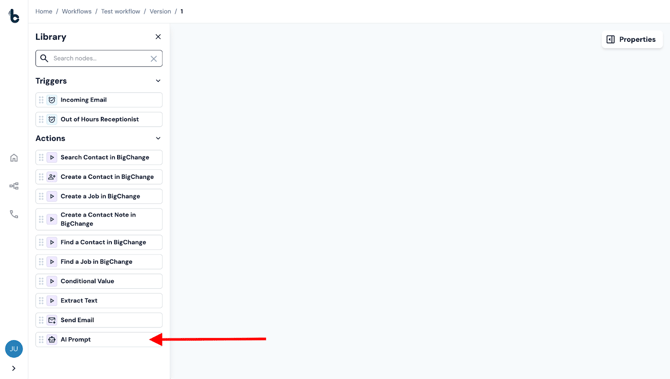
We recommend using the AI Prompt to extract data from non-standardised emails / incoming communication from clients.
When to use it
Examples of when you might want to use the AI Prompt node are to:
- Summarise an email before sending it to a CRM or ticketing system
- Extract the customer’s main request from a long body of text which is not standardized
Configuration
There are no mandatory fields in an AI Prompt action node.
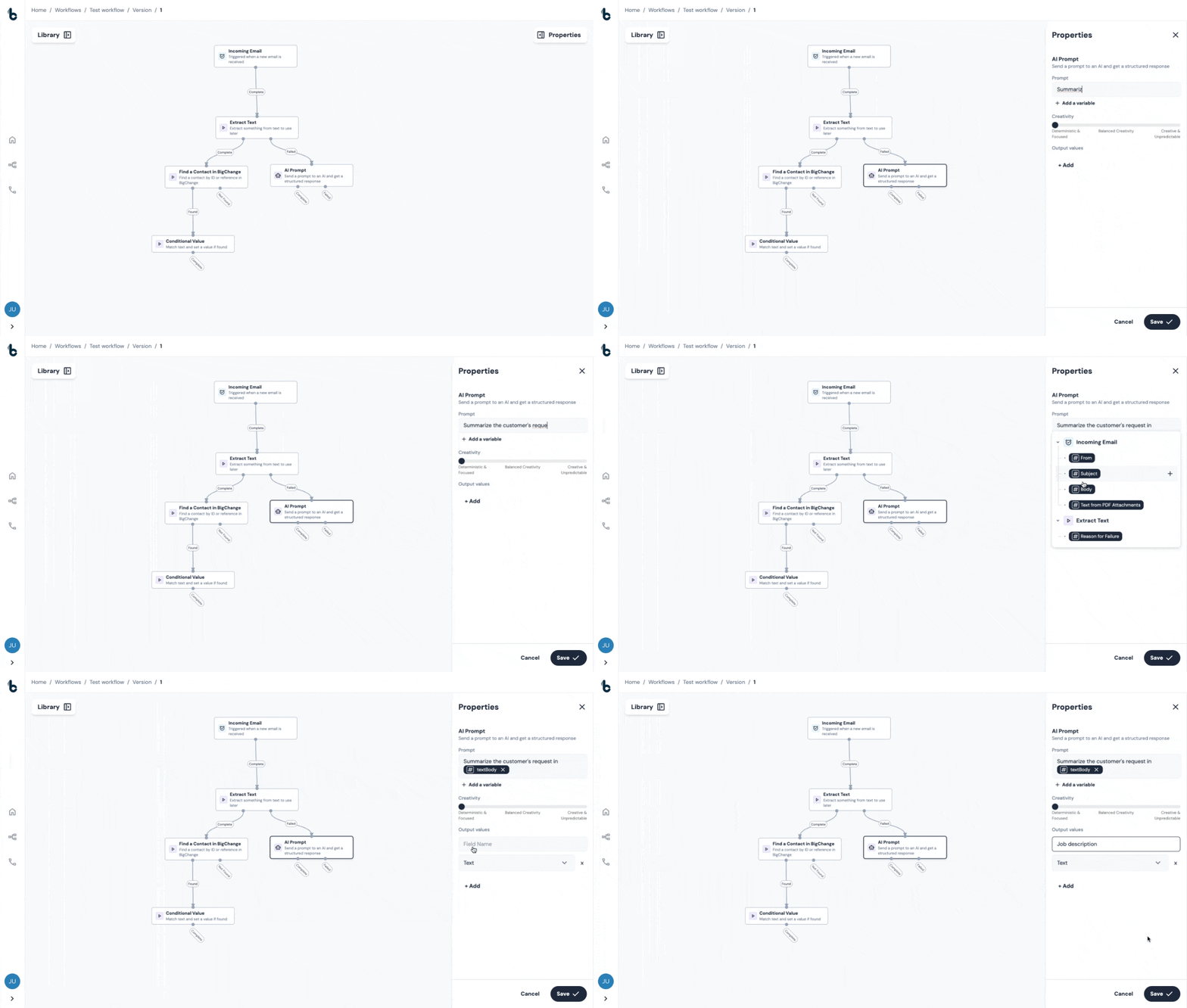
Prompt field
Write your instruction to the AI as a prompt in the Prompt field, for example:
“Summarise the following email in two bullet points”
“What is the customer asking for in this message?”
Tips for writing successful prompts
- If you want the AI to use data from a previous step in the workflow, (like the body of the email which started the workflow), click + Add a variable and choose the relevant variable. This allows your prompt to dynamically reference data from previous nodes.
For example, your full prompt might be:
Extract what is the customer's main request from #textBody
- If you want to give the AI some examples of how to do something, like to classify data, give it the examples and instructions first before putting the information you want it to review.
Here is an example where we set out the terms for the AI to look for before we give it the variable of #attachmentsbody to check:

Creativity slider
Adjust how the AI responds to your prompt. Move towards Deterministic & Focused for precise, predictable results, or towards Creative & Unpredictable for more varied, imaginative outputs.
Output values
Give your output a name (this becomes the variable name you can use later in the workflow) and choose the type of data it will contain, such as text, number, email, phone, etc.
Outcomes
The AI Prompt node has two possible outcomes:
Complete - The node ran successfully.
Failed - The node did not run successfully.
.png?width=670&height=312&name=chrome-capture-2026-02-09%20(1).png)
💡Tip
For error-handling purposes, to understand why the AI Prompt action did not complete, connect the Failed outcome to a Send Email node. Then, configure the node so that the Reason for Failure variable is included in the Email Body field.
Default variables
The AI’s response is saved as an output value, which appears as a custom variable you can use later in the workflow. It will be listed with the variable name you defined in the Output values section when configuring the node.
You can then use the output further down in the workflow. For example, to Create a Job in BigChange, send in an email etc.
Example use case - Summarising job requests for job descriptions using AI
Some of Smith & co's smaller clients do not send job requests via the job request form. Instead, they simply write an email with their request to a specific email address. Currently these are reviewed by the Smith & co support team, who search for the contact and create the job manually.
They want to streamline this process using Build Concierge.
Since the data is unstructured in the emails, An AI Prompt action will work best here to extract the relevant data from the Incoming Emails. They can then use the outputs defined by the AI Prompt node to search for the contact in BigChange and create a new job.
The most simple version of this workflow would look something like this:
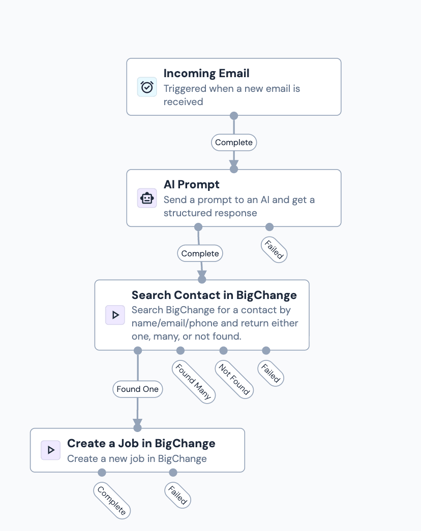
They would configure the AI Prompt node to extract the relevant data fields in order to search for the contact in BigChange and then to create the job.
The prompt might look something like this:
They will choose the Body as the source of the data to extract so the AI reviews the customer’s original message.
The AI-generated outputs will appear as custom variables, which can then be mapped into relevant fields of the
This is a great solution for automating job creation in BigChange or any other job scheduling tool, where freehand emails are sent to a specific email address and are not auto-generated.