
Concierge Support is where you will manage all of your customer interactions.
📚 To learn more about the different components of Concierge Support, we recommend that you read the following article first: Introduction to Concierge Support.
Concierge Support currently supports the following channels for messaging customers:
- SMS
Incoming emails / SMS / WhatsApp
- Incoming emails, SMS or WhatsApp messages are distributed using the Round Robin method to agents.
- When you are assigned an email, SMS or Whatsapp message, it will automatically appear in your Tasks Queue.
.png?width=670&height=329&name=chrome-capture-2026-01-07%20(3).png)
- You will see two buttons underneath the email/message: Accept or Reject.
- To handle the message, press Accept.
- The message/email will open in the Contact Timeline.
- If this is not the first communication with the customer, you can review any previous communication with the specific customer from there to get more context.
- If you don't want to deal with the email/message, click Reject to remove it from your Tasks Queue. The email/message will then be added to the Task Queue of another agent.
- Once you have dealt with the email/message, click Complete. This will remove the message from your Tasks Queue.
.gif?width=670&height=380&name=chrome-capture-2026-01-07%20(5).gif)
⚠️ Note
Currently, you are not able to reply to an email directly from the Contact Timeline. Stay tuned, this feature is coming soon!
Outbound emails/SMS/WhatsApp
If you want to send an email to a customer, there are two ways to do so:
- Email/message manually
- Emailing/message an existing contact.
Email/message manually
- Click the Message button in the top-right corner
- Choose the type of message you want to send from the dropdown (Email, SMS, WhatsApp).
.png?width=670&height=357&name=chrome-capture-2026-01-07%20(4).png)
- A composer window will appear.
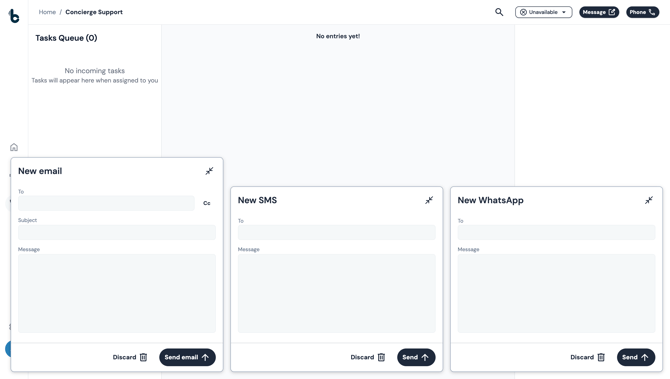
- Fill in the relevant fields , depending on the type of message you are sending:
- To - enter manually the email address or phone number of the recipient of the email/message
- Subject (email only) - enter the subject of the email to be sent
- Message - enter the content of the message you want to send
- Click Send or Send email to send.
Email/message an existing contact
-
Search for the contact using the Search icon at the top of Concierge Support.
-
Select the relevant contact from the dropdown.
-
Click on the relevant icon for the type of message you want to send (Email, Text, WhatsApp).
- The composer will appear with the To field already populated.
- Manually add a subject in the Subject field if you are sending an email.
- Compose your message in the Message field for all message types.
- Click Send or Send email.
.gif?width=670&height=380&name=chrome-capture-2026-01-07%20(8).gif)
⚠️ Note
If the email or phone number of a contact has not been saved in the contact entry, the icons relating to those details will appear greyed out meaning you can't send this type of message.
Discarding an email/message
- If you change your mind about wanting to send a particular email or message, you can click Discard on the composer.
- You will see a warning message asking you if you want to discard your draft.
- Click Discard if you want to remove the draft.
- Click Cancel to continue working on the email/message.
.gif?width=670&height=380&name=chrome-capture-2026-01-07%20(9).gif)
Message records
-
Both incoming and sent emails/SMSs/WhatsApp messages are added to a contact's Contact Timeline.
-
If it's the first time you are emailing or messaging the recipient or they are emailing or messaging your company, i.e. they are not an existing contact in Build Concierge:
-
a contact will automatically be created;
-
the email or number which was used to send the message will be saved against the contact; and
-
the message sent will be the first entry in the contact's Contact Timeline.
-
- Each email entry includes who the email was sent from, who it was sent to, the subject line, and the time the email was received or sent.
- Clicking on the arrow will expand the entry to show the full content of the email.
.gif?width=670&height=443&name=chrome-capture-2026-01-07%20(6).gif)
-
Each SMS/WhatsApp entry shows who it was sent from and to, and the start of the message contents.
- Clicking on the arrow will expand the entry revealing the full content of the messag.
.gif?width=670&height=297&name=chrome-capture-2026-01-07%20(7).gif)