
The Secret Management page lets you securely store sensitive values, like API keys, inside Build Concierge. Secrets are encrypted and used by your workflows and integrations without exposing the raw value.
You can add new secrets any time, and update (overwrite) existing ones when credentials change.
Where to find Secret Management
- Open Settings (gear icon).
- Select Secret Management.
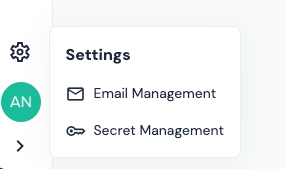
You’ll land on the Secrets page. If you don’t have any secrets yet, you’ll see an empty state prompting you to create one.
Creating a secret
To add a new key:
- On the Secrets page, click Create a secret +.
- A panel will appear entitled Create a secret.
- To create a secret, enter:
- Secret Name — a clear label for your team (example: “OpenAI API Key”).
- Secret Value — the credential itself (example: your API key).
- Click Create secret +
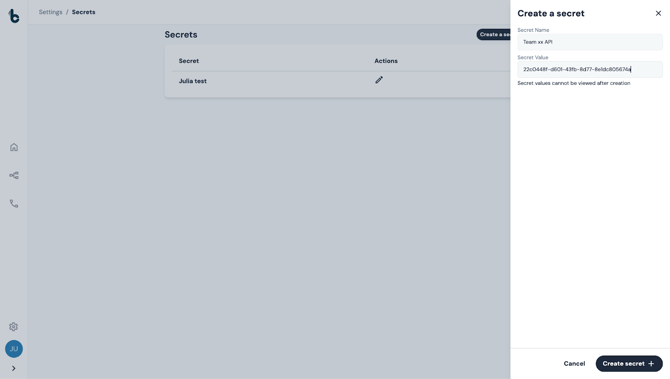
Your secret is now stored securely and available to any Build Concierge feature that needs it.
⚠️ Note
Secret values can’t be viewed after creation.
For security reasons, Build Concierge never displays stored secret values.
That means:
- After you save, you cannot retrieve or view the secret value again.
- Even admins won’t be able to reveal it later.
- If you lose the value, you’ll need to generate a new one in the original provider and update it here.
Therefore, before saving, double-check that the value is correct.
Updating (overwriting) a secret
If you need to rotate a key or fix a typo, you can overwrite the existing value.
To update a secret:
- Click on Settings (cog icon)
- Click on Secret Management.
- Locate the secret you want to change.
- Click Edit (the pencil icon).
- Paste the new key in the Secret Value field.
- Press Edit secret + to save the new secret value.
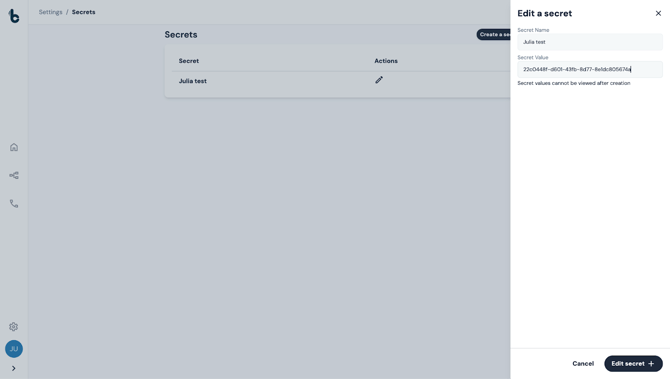
The new value replaces the old one immediately, and the previous value remains unrecoverable.
Best practices
- Use clear Secret Names so teammates know what each key is for.
- Rotate credentials periodically, especially if there’s any chance a key was exposed.
- Only store secrets that Build Concierge needs to run your integrations.
Troubleshooting
If you saved the wrong secret value, since secret values cannot be viewed after saving, overwrite it with the correct value.
If your integration stops working after updating a secret, check that:
- you pasted the full key (no extra spaces),
- the key matches the correct environment (staging vs production),
- the key is still active in the provider.
If needed, generate a fresh key in your provider and overwrite the secret again.