
The AI File Insights action allows your workflow to submit a file to an AI model for analysis, alongside a set of instructions, and return a structured AI-generated response.
Unlike the AI Prompt action, which is designed for text-only interactions, AI File Insights is built specifically for document and image understanding. This makes it possible to extract information from job estimate PDFs, summarise scanned documents, interpret photos attached to a customer email, or otherwise have an AI model read and reason about file content as part of a workflow.
This gives the platform flexibility to use AI models, pricing structures, and validation rules suited to multimodal file processing, separate from those used by standard text-based AI Prompt actions.
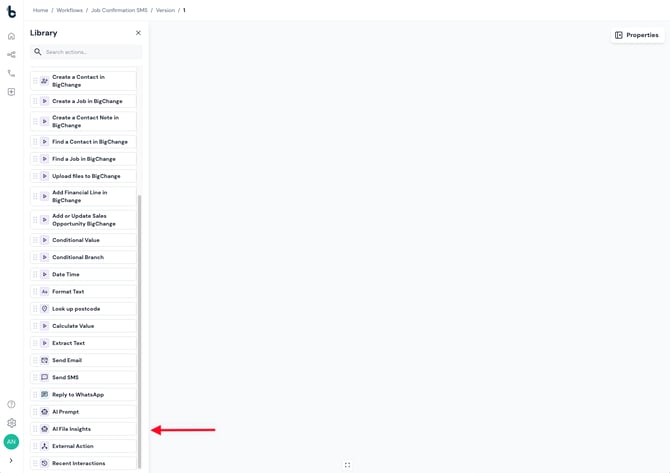
Configuration
To set up the AI File Insights action:
- Add the action to your workflow and connect it to a previous step (a Starting Action or Action node).
- Click the node to open the Properties panel.
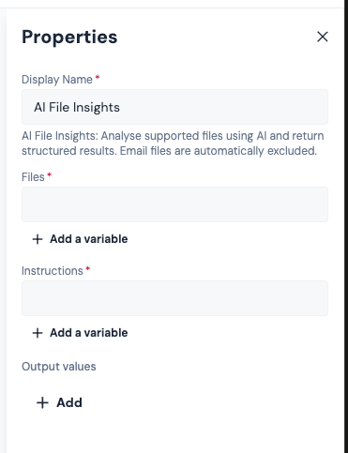
Fields
Contact Method (required)
File (required)
The file to be analysed. This must be supplied as an attachment array variable, sourced from:
- Incoming Email attachments
⚠️ Note: The action accepts a maximum of 5 files per execution, with a combined size limit of 20MB. If the supplied array exceeds either limit, the analysis will fail.
⚠️ Note: emails included in the attachments are not supported. If you need the AI to analyse the content of an email itself, add the email body as text within the Instructions field rather than passing it as a file using + Add a Variable.
Instructions (required)
The instructions to send to the AI model alongside the file. This can be:
- Entered as static text
- Mapped from a workflow variable using + Add a variable
- Built dynamically by combining static text and variables, allowing the prompt to adapt based on earlier workflow steps
Output values
Give your output a name (this becomes the variable name you can use later in the workflow) and choose the type of data it will contain, such as text, number, email, phone, etc.
Workflow tip
This action is most commonly used:
- After an Incoming Email Starting Action — to analyse an attached document or image as soon as it arrives
- After a Filter Attachments action — to isolate a specific file type (e.g. PDFs only) before sending it for analysis
- Before a Condition node — to branch logic based on what the AI identifies in the file
- Before a Send Email or Update Job node — to feed extracted file content into downstream actions
For more advanced workflows, you can:
- Combine this action with an AI Prompt node, using the File Analysis output as additional context for a later text-based step
- Use dynamic instructions to tailor the AI's analysis depending on the contact, job type, or workflow path that led to this step
Outcomes
Once the AI File Analysis action runs, it will return one of two possible outcomes:
Complete — The file was successfully submitted and analysed. The defined output variables are returned, and the workflow continues to the next connected step.
Failed — The action could not complete analysis. This may occur if the file array was empty, the file type is unsupported by the AI model, the file exceeds the model's size limitations, the file could not be retrieved, or one of the defined outcome variables can't be returned.
💡 Tip: To be told when a workflow fails, turn on Enable error emails in the workflow’s Workflow Configuration sidesheet. The email tells you the reason, which action failed, and links to the execution log. See Failed Workflow Notifications.
Default variables
If the node completes:
- Output variables— The AI-generated output based on the submitted file and instructions. These variables can be passed into downstream actions such as Send Email, Update Job, or further AI Prompt nodes.
If the node fails:
- Reason for Failure — A system-generated value explaining why the action failed, such as an unsupported file type or a file exceeding model limits.
Important notes
- This action accepts up to 5 files per execution, with a combined size limit of 20MB. If either limit is exceeded, the action will fail validation rather than attempting partial analysis.
.msgand.emlfiles are not supported as inputs. To analyse the content of an email, extract the body text and include it in the Instructions field instead.- Unsupported file types are handled gracefully: the action will fail cleanly with a clear reason, rather than causing unexpected workflow errors.
- Files submitted and the AI response returned are both recorded in the workflow execution log, supporting auditing and troubleshooting.
- This action behaves consistently during workflow replay — the same files and instructions will be resubmitted for analysis as in the original execution.