
The Recent Interactions action allows your workflow to retrieve a history of recent conversations associated with a contact and store them as a variable for use in later steps.
It works by taking a contact method — such as a phone number or email address — finding the linked contact in Build Concierge, and returning their recent interaction history. You can control which interaction types are included and how far back the action looks.
This makes it possible to build context-aware workflows where later steps, such as an AI prompt, an internal notification, or a decision branch, have access to what has recently been said or sent to that customer.
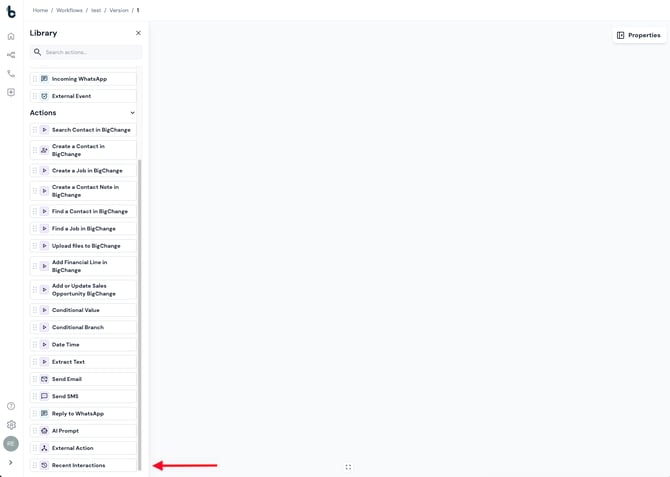
Configuration
To set up the Recent Interactions action:
- Add the action to your workflow and connect it to a previous step (a Starting Action or Action node).
- Click the node to open the Properties panel.
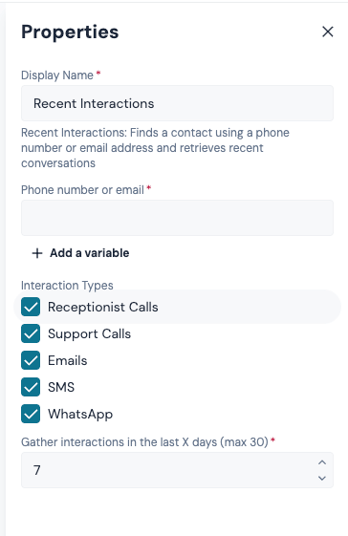
Fields
Contact Method (required)
The phone number or email address used to identify the contact. This can be entered as a fixed value or mapped from a workflow variable using + Add a variable.
⚠️ Note: The contact method must match a record in Build Concierge. If no matching contact is found, the node will fail.
Interaction Types
Select which types of interactions to include in the returned history. Options are:
- All
- Calls
- Emails
- SMS
- Combination
Last X Days
The number of days to look back when retrieving interactions. The maximum is 30 days.
Workflow tip
This action is most commonly used:
- Immediately after a Starting Action — to pull in context before any processing begins
- Before an AI Prompt node — to pass recent interaction history as context for summarisation, sentiment analysis, or drafting a response
- Before a Condition node — to branch logic based on whether recent interactions exist
For more advanced workflows, you can:
- Filter by interaction type to focus the AI prompt on only calls or only WhatsApp messages, reducing noise
- Combine the output with a Search Contact node earlier in the workflow if you need to enrich the contact record before retrieving history
Outcomes
Once the Recent Interactions action runs, it will return one of two possible outcomes:
Complete — The action successfully retrieved interactions for the identified contact. The workflow continues to the next connected step.
Failed — The action could not retrieve interactions, usually because no contact was found matching the supplied contact method, or because a required field was missing.
💡 Tip: To troubleshoot failures, connect the Failed branch to a Send Email node and include the Reason for Failure variable in the email body.
Default variables
The default variables available for this action depend on the outcome.
If the node completes:
- Interaction History — A structured record of recent interactions for the identified contact, within the configured type filter and date range. This variable can be passed directly into an AI Prompt node or used in message templates and notifications.
If the node fails:
- Reason for Failure — A system-generated value explaining why the action failed.
Important notes
- The contact method field accepts either a phone number or email address. The action will use whichever is supplied to identify the contact.
- The Last X Days field has a maximum value of 30.
- If multiple contacts share the same contact method, the action will use the first matching record. Ensure your contact data is deduplicated in Build Concierge to avoid unexpected results.
- The Interaction History variable will be empty (not a failure) if a contact is found but has no interactions within the configured window and type filter.