
Concierge Support is where you manage all customer interactions, including calls, emails, SMS, and WhatsApp messages.
Before you can start receiving and making calls with Concierge Support, you will need to make sure your account has been set up correctly by the Build Concierge team.
📚 To learn more about the different components of Concierge Support, we recommend reading Introduction to Concierge Support first.
Incoming calls
New incoming call
Like all tasks, calls are distributed across your team using a Round Robin system, meaning they are assigned to one agent's Tasks Queue at a time.
If the person making the call is already a saved contact, the name of the contact will appear as part of the call in the Tasks Queue:
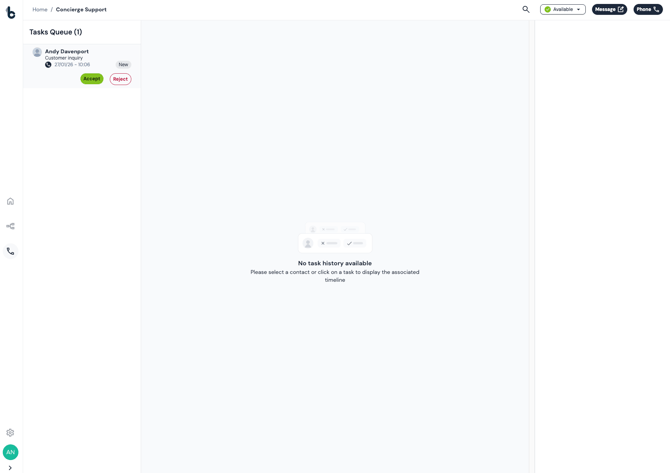
If the call is not from an existing contact, it will show as Unknown.
.png?width=670&height=474&name=Screen%20Shot%202026-01-27%20at%2010.01.58%20am%20(1).png)
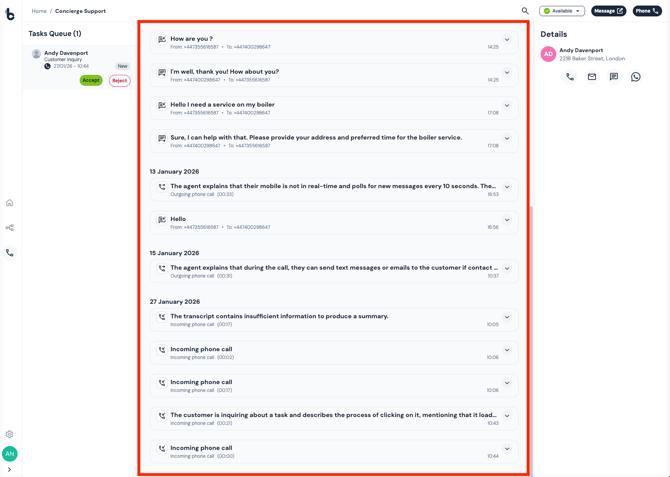
To get more context about who's calling before accepting or rejecting a call, click on the task to open the Contact Timeline.
⚠️ Note
It's worth opening the Contact Timeline whether or not the caller is a saved contact or unknown number. If there have been previous calls with the unknown number, the summary and transcript of those calls will appear in the Contact Timeline associated with the phone number.
Clicking on the task will also show the full contact details for saved contacts in the Contact Details section.
.png?width=670&height=477&name=Screen%20Shot%202026-01-27%20at%2010.44.09%20am%20(1).png)
Click Accept to connect you to the call.
Click Reject to remove the call from your Tasks Queue. The call will then pass to the next agent in the Round Robin, until an agent accepts the call.
During a call
Once you accept a call, the call status in the Tasks Queue will change to On Call.
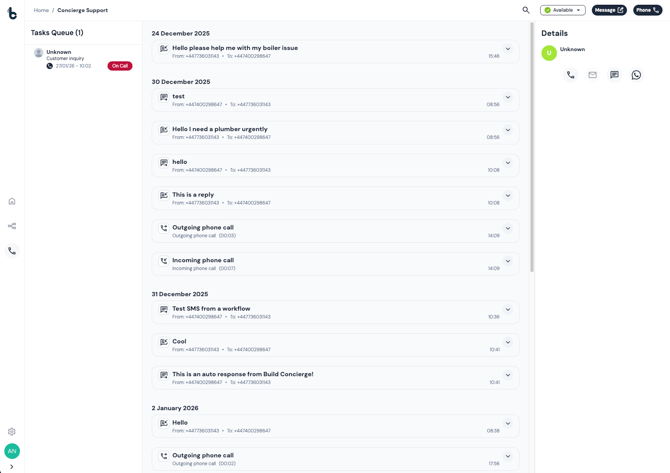
The Action Bar will display while the call is in progress. From here, you can mute or end a call.
.png?width=670&height=65&name=chrome-capture-2026-01-07%20(6).png)
Ending a call
To end a call, click on the End call button in the Action Bar (red button).
The call status in the Tasks Queue will automatically change to Wrapping, giving you time to:
-
Add notes about the call (within Build Concierge or another system); and
-
Complete any follow-up actions before another task or call is assigned to you.
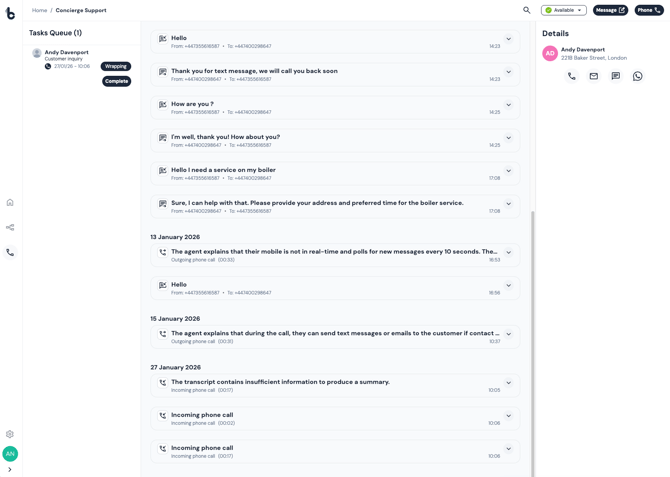
When you’re ready for your next task, complete the call by clicking Complete in the Tasks Queue.
Outgoing calls
There are two ways to make an outgoing call:
-
Call a number manually
-
Call an existing contact who has their phone number saved
Calling a number manually
-
Click the Phone button in the top-right corner of Concierge Support.
-
A keypad will open, allowing you to manually enter the phone number you want to call.
-
Click on the Phone icon on the Dial Pad to make the call.
-
The Action Bar will appear at the bottom of the page.
.gif?width=635&height=360&name=chrome-capture-2026-01-27%20(2).gif)
Calling a contact
-
Search for a contact using the Search icon at the top of Concierge Support.
-
Select the relevant contact from the dropdown list.
-
If the phone number for the contact is available, click the Phone icon in the Contact Details section. This will automatically populate the Dial Pad with the number.
- Click on the Phone icon on the Dial Pad to place the call.
- The Action Bar will appear at the bottom of the page.
.gif?width=670&height=380&name=chrome-capture-2026-01-27%20(1).gif)
Outgoing calls will appear in your Tasks Queue, just like incoming calls, with status updates to guide you through the process.
Call records
-
Both incoming or outgoing calls are automatically summarized and fully logged in the contact's Contact Timeline using AI, regardless of whether the caller is a saved contact in Build Concierge or not.
-
Call entries in the Contact Timeline include:
-
an indicator if the call was incoming or outgoing;
-
the length of the call; and
-
a preview of the AI-generated summary.
-
.png?width=670&height=72&name=chrome-capture-2026-01-07%20(5).png)
-
Click the downward-facing arrow to expand the call entry.
-
Each call entry includes:
-
-
a summary of the call; and
-
a full transcript of the call.
-
.gif?width=670&height=162&name=chrome-capture-2026-01-07%20(10).gif)
The automatically generated call summaries and transcripts reduce manual note-taking and admin, allowing you to stay fully focused on the conversation during a call.
They also help agents to easily review what was discussed with the caller at a later date.