
What is Concierge Support?
Overview
Concierge Support is the central hub for managing all of your customer communication, both incoming and outgoing, from a single place.
Manage customer interactions coming through all channels, including email, SMS and Whatsapp, alongside calls, all from one place.
This gives you all the context you need while handling customer communications, so you can focus on the customer rather than switching between tools.
Setting up Concierge Support
Before working with Concierge Support, make sure you have set up:
- The email that will be used to receive incoming emails and send outgoing emails. You can do that through the Email Management section in your settings.
- The phone number that will be used to receive and make calls from within Concierge Support.
Navigating to Concierge Support
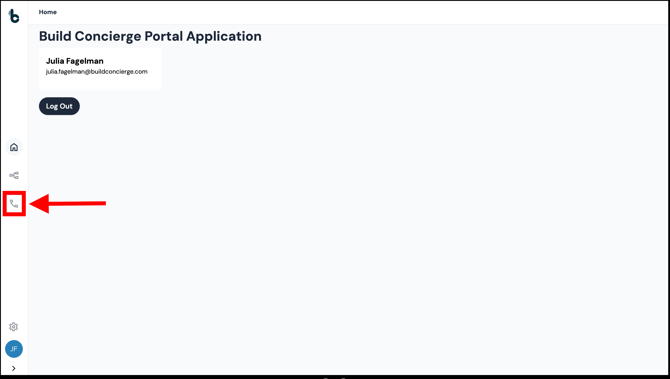
To open the Concierge Support feature, click on the call icon on the left hand pane from anywhere in the platform.
Concierge Support Overview
In the image below you can see the different components which make up Concierge Support.
.png?width=670&height=380&name=chrome-capture-2026-01-06%20(2).png)
Let's understand what each component of Concierge Support is used for:
Tasks Queue
- Calls and messages/emails ("Tasks") will be assigned using the Round Robin method.
- This is where you can manage the tasks which are assigned to you.
- New calls or messages/emails will appear with two options: Accept or Reject.
- Accepting the call means you will be connected on your phone with the customer.
- Accepting an email or message will open up the content of the message/email in the Contact Timeline so that you can handle it.
Learn more about handling calls and emails/messages in these articles:
.png?width=670&height=329&name=chrome-capture-2026-01-07%20(11).png)
Agent status
This is where you can set yourself as Available and Unavailable.
Available - calls and incoming messages can be assigned to you in your Tasks Queue.
Unavailable - no calls or incoming messages will be assigned to you in your Tasks Queue.
⚠️ Note
When you open a new Concierge Support window, you will automatically be set to Unavailable. Therefore, we recommend to always run Concierge Support in its own browser window and have other activities running in separate browser windows to avoid being set to Unavailable by mistake.
Contact search
-
This is where you can search for a particular contact in order to review the timeline of communication with that customer or to pull up their Contact Details to make calls/send messages or emails.
-
You must type at least 3 characters to search.
-
Contacts that match your search will appear in a dropdown:
-
.png?width=670&height=380&name=chrome-capture-2026-01-07%20(9).png)
-
If no contact is found it will display the message 'No matching contacts'.
.png?width=670&height=380&name=chrome-capture-2026-01-07%20(7).png)
Contact Details
- The right panel of the screen is where you can see the name and contact details of a selected contact. Each of their details will appear as icons on the screen.
.png?width=670&height=393&name=chrome-capture-2026-01-07%20(8).png)
- You can call or send a message or email to the contact from here by clicking on the relevant icon.
⚠️ Note
If certain contact information is missing, the icon will appear greyed out e.g. if the contact did not have an email address, then the email icon will appear greyed out.
Contact Timeline
- Shows a chronological history of all communication with the selected contact, with the oldest communication entry at the top and the most recent at the bottom.
.png?width=670&height=380&name=chrome-capture-2026-01-07%20(10).png)
- Each entry contains an icon to identify whether it's an email, SMS or Whatsapp message and if it's incoming or outgoing.
- Each entry in the timeline will show some summarized information and can be expanded by clicking on the arrow on the right hand side to reveal the full information about the call/message.
📚 Learn more about timeline entries in these articles:
Message button
Reveals a dropdown menu to create a new Email, SMS or WhatsApp.
.png?width=670&height=357&name=chrome-capture-2026-01-07%20(4).png)
📚 Learn more about how to send emails and other messages from within Concierge Support here.
Phone button
Reveals a dial pad allowing you to type in a number and make a call.
.gif?width=670&height=380&name=chrome-capture-2026-01-07%20(1).gif)
📚 Learn more about how to call and receive calls from within Concierge Support here.