
The Find a Job in BigChange action lets you look up a specific job in your BigChange account so that you can use the job details later in your workflow, for example, to send an email to a customer or to add a contact note against an existing job.
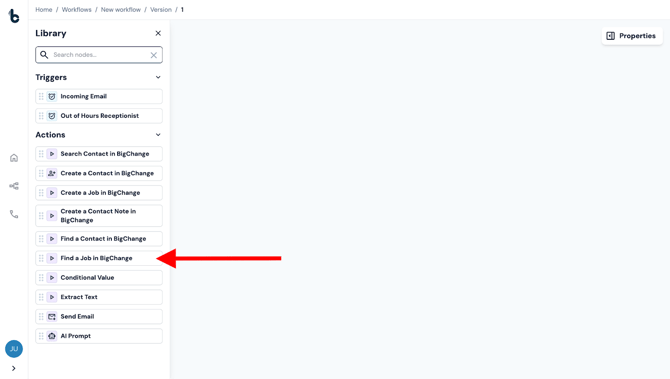
Configuration
To set up the Find a Job in BigChange node:
- Add the node to your workflow, ensuring it is connected to a Starting action or another Action node.
- Click on the node to open the Properties panel.
Mandatory fields
To successfully find a job in BigChange, both fields in the Properties panel must be configured:
- Search Field* – Select which field you want to search by in BigChange from the following two options: Job ID or Job Reference.
- Search Term* – Enter the value to search for in the field you selected or map the relevant variable.
The Search Term may be mapped as a variable from data extracted using an Extract Text node.
Alternatively, if your workflow previously created the job using the Create a Job in BigChange node, the Job ID can be mapped using the Job ID default variable coming from this node.
.gif?width=670&height=380&name=chrome-capture-2025-08-20%20(1).gif)
Outcomes
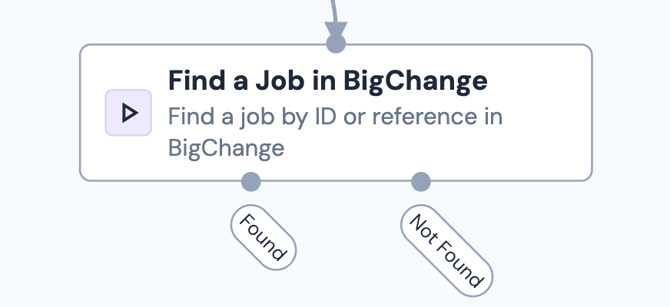
This action can return two possible outcomes:
- Found – The job was successfully located in BigChange. All available job details are returned and can be used in subsequent steps (e.g., adding a note or sending an email with job information).
- Not Found – No job matched the search term in the selected field. You may want to handle this by alerting your team with a Send Email node or adding a new job with details coming from earlier in the workflow.
Default variables
There is a long list of default variables coming from the Find a Job in BigChange node, which can then be used further down the workflow e.g. to send information about the job in an email to the field workers:
ID - The unique internal identifier BigChange uses to identify this specific job record.
Reference - A human-readable job ID/code (often shown to users and external systems), distinct from the internal numeric ID.
Type ID - Internal identifier that links the job to a defined job type (e.g., installation, service).
Type label - Human-friendly name of the job type (e.g., “Emergency repair”).
Status ID - System identifier for the job’s current status (e.g., new, in progress, completed).
Status label - Human-readable status (e.g., “Completed”, “Scheduled”).
Status comment - Optional free text explaining the current status or reason for a particular status (often used in workflows).
Contact ID - Internal identifier for the customer or contact record the job is for.
Contact name - Name of the contact/customer linked to the job.
Location Address - The job site’s street address.
Location Postcode - The postcode or ZIP code of the job location.
Location Latitude - Geo-coordinate latitude of the job site (useful for mapping/routing).
Location Longitude - Geo-coordinate longitude of the job site (also for mapping/routing).
Resource ID - Internal ID of the resource (e.g., field engineer / vehicle) assigned to the job.
Resource name - Name of the assigned resource (person or vehicle).
Asset ID - Internal ID of an asset associated with this job (e.g., equipment or item being serviced).
Asset Label - Human-friendly name/description of that asset.
Planned Start Date Time (UTC) - When the job is scheduled to start (Coordinated Universal Time).
Planned End Date Time (UTC) -When the job is scheduled to finish (UTC).
Real End Date Time (UTC) - When the job actually finished (UTC).
Duration (HH:mm:ss) - Scheduled/planned duration for the job (hours:minutes:seconds format).
Real Duration (HH:mm:ss) - Actual duration of the job based on start and end events.
Driving Distance (km) - Distance in kilometres the resource travelled for this job (often from prior stop).
Driving Duration (HH:mm:ss) - Time spent driving (hours:minutes:seconds format).
Group ID - Internal identifier linking this job to a job group.
Group reference - Human-readable code/reference for the job group.
Group PO - Purchase order or external reference tied to the job group (if used).
Group Contact ID - Contact/customer ID for the group as a whole (if shared).
Group Contact User ID - Identifier of the user (office user) associated with the group’s contact context.
Job Count - Number of jobs in this group (e.g., in multi-stop/multi-task scenarios).
Category ID - Internal ID linking the job to a job category (e.g., service category used for filtering and reporting).
Project ID - If this job is part of a larger project, this is the project’s identifier.
Created at (UTC) - Timestamp for when the job was created (in UTC), useful for audit/logging.
Sales Opportunity - Links the job to a sales opportunity record (often used when converting a lead/quote into jobs).
Example use case - Locating existing jobs in BigChange to add notes use case
At Smith & Co, the back-office team often receives follow-up emails from customers about existing jobs which they want to log as notes against the job.
Instead of manually searching for the job in BigChange, Build Concierge can automatically find the right record using the Find a Job in BigChange action node and then add the email as a Contact Note against the job using the Create a Contact Note in BigChange node.
To set this up:
- Each time a customer emails about an existing job, a forwarding rule would forward it to the unique email address associated with the Incoming Email node, to trigger the workflow.
- An AI Prompt or Extract Text node (depending on the format of the emails) will extract the Job Reference, as well as the other details coming from the email, as a variable.
- The Find a Job in BigChange node would be configured to search using the Job Reference:
-
- Search Field - Job Reference
- Search Term - the job reference variable from the Extract Text/AI Prompt node
.gif?width=663&height=376&name=chrome-capture-2026-01-19%20(2).gif)
-
- If a job is found, the workflow will then move to a Create a Contact Note in BigChange node to log the customer’s email against the job which was found as a contact note.
- If a job is not found, the workflow could create a job first before connecting back to the Create Contact Note in BigChange node.
.png?width=670&height=661&name=chrome-capture-2026-01-19%20(2).png)