
The Find a Contact in BigChange action allows your workflow to automatically check whether a contact already exists in BigChange using the following data points:
- Contact ID
- Contact Reference
It helps prevent duplicates and to automate the creation of jobs for existing contacts.
Configuration
To set up the Find a Contact in BigChange action:
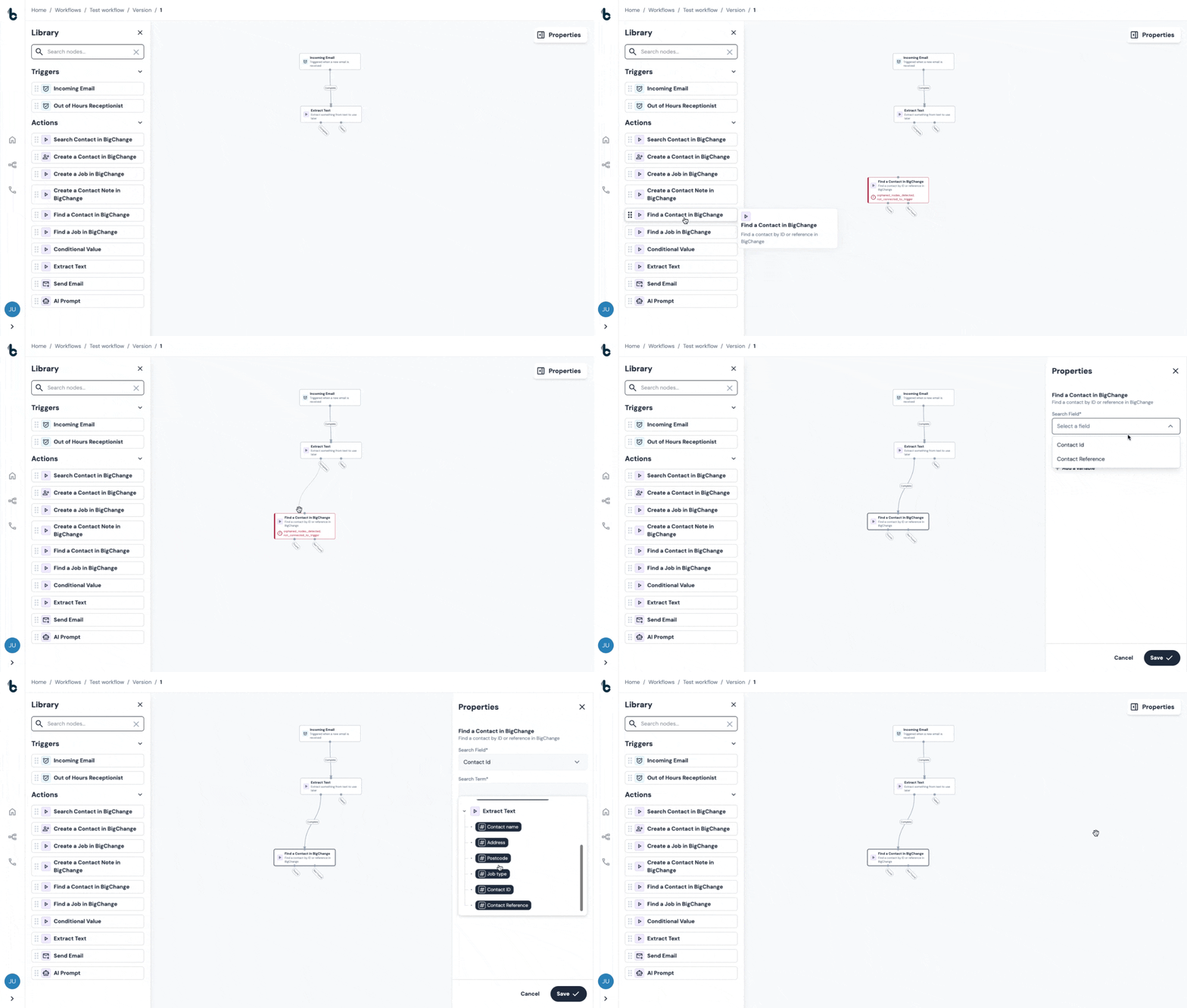
- Drag and drop the node to the Workflow Editor, ensuring it is connected to a Starting action or another Action node.
- Click on the node to open the Properties panel.
- Select Contact ID or Contact Reference in the Search Field as the data point to search for in BigChange.
- You should have defined variables for Contact ID or Contact Reference earlier in the workflow.
- In the Search Terms field, map the variables to be cross-checked with the Search Field you selected.
💡Tip
If the data you want to check against existing contacts in BigChange is received as part of an automatically generated email, we recommend adding an Extract Text node and defining variables using Regular Expressions.
📚 Learn more about the Extract Text node here.
Output
Once the node runs, there are two possible outputs:
- Found – A matching contact was found in BigChange. You can now pass this contact into the next steps of your workflow.
- Not found – No matching contact was found. You might choose to create a new contact or route the workflow differently from here.
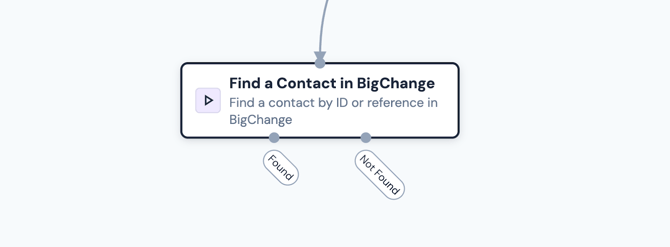
These outputs can be used to create conditional branches in your workflow, ensuring the right action is taken every time.
Default variables
The variables which are produced by the node to be used later in the workflow depends on the outcome of the action.
- Found
If the Outcome is Found meaning the contact was found in BigChange, the following default variables are available to be used later in your workflow:
ID - The ID in BigChange of the contact that was found
Group ID - The ID of the Group which the contact belongs to in BigChange
Name - The name of the contact in BigChange
Phone - The phone number assigned to the contact in BigChange
Email - The email address assigned to the contact in BigChange
Street - The street name assigned to the contact in BigChange
Town - The town assigned of the contact found in BigChange
Postcode - The postcode assigned of the contact found in BigChange
Country - The country assigned of the contact found in BigChange
-
Not found
Find a Contact in BigChange vs. Search for a Contact in BigChange
- If your workflow uses structured data, i.e. Contact References and Contact IDs which are defined in BigChange, the Find a Contact in BigChange node will be the right node for your workflow.
- If your workflow does not include Contact References and Contact IDs, and relies on more unstructured data such as Contact name, email and phone, the Search for a Contact in BigChange node will be more suitable to use to look for existing contacts before creating new ones.
⚠️ Note
The Find a Contact node has only two outcomes: if a contact was Found or Not found. The Search for a Contact node will also identify if multiple contacts containing the defined Search Terms are found in BigChange.