
The Add or Update Sales Opportunity in BigChange action allows your workflow to automatically create or update a Sales Opportunity in your BigChange account.
It works by using data generated or extracted earlier in the workflow to populate the Sales Opportunity record directly in BigChange. Whether you are capturing a new lead or updating an existing opportunity as it progresses through your pipeline, this node handles both in a single configuration.
The action determines its behaviour based on whether an existing record is identified:
- If a Sales Opportunity ID or Sales Opportunity Reference is supplied, the node updates the existing Sales Opportunity.
- If neither is supplied, the node creates a new Sales Opportunity.
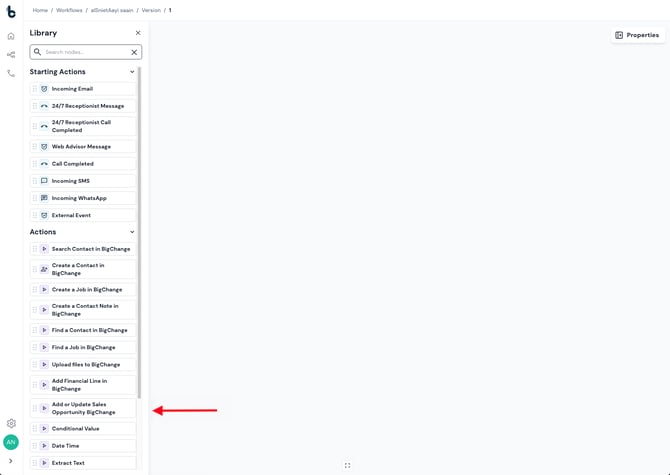
Configuration
To set up the Add or Update Sales Opportunity in BigChange action:
- Add the action to your workflow and connect it to a previous step (a Starting Action or Action node).
- Click the node to open the Properties panel.
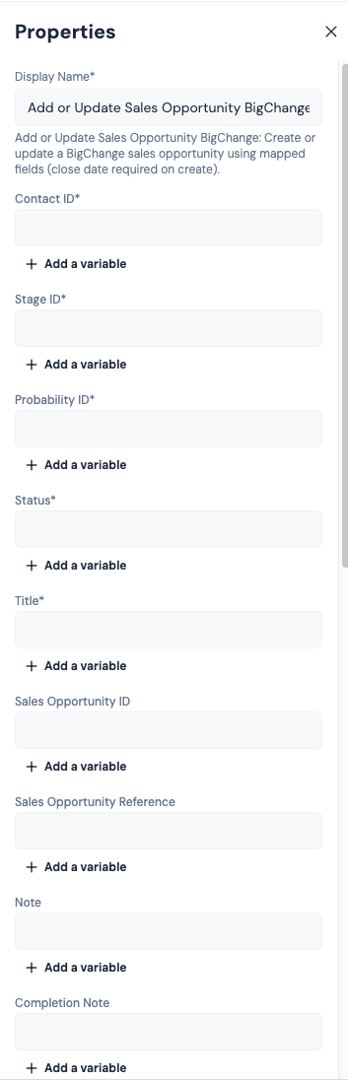
Mandatory Fields
Contact ID: The BigChange contact the Sales Opportunity will be associated with. This is typically mapped from a previous node, such as a Find a Contact or Search Contact node.
Click + Add a variable and select the relevant Contact ID.
⚠️ Note: The Contact ID must match a valid record in BigChange. If the ID is incorrect or missing, the action will fail.
Stage ID: The pipeline stage to assign to the Sales Opportunity. This must match a valid Stage ID configured in your BigChange account.
Probability ID: The probability rating to assign to the Sales Opportunity. This must match a valid Probability ID configured in your BigChange account.
Title: The name or title of the Sales Opportunity. This field has a maximum length — ensure any dynamically mapped value is validated in an earlier step if it may exceed this limit.
Status: The current status of the Sales Opportunity. This must match a valid status value in your BigChange account.
Optional Fields
The following fields can be configured depending on your use case.
Sales Opportunity ID: If provided, the action will update the existing Sales Opportunity with this ID rather than creating a new one.
Sales Opportunity Reference: If provided (and no Sales Opportunity ID is given), the node will update the existing Sales Opportunity matching this reference. If neither this nor the Sales Opportunity ID is provided, a new record will be created.
Note: A freeform note to attach to the Sales Opportunity. This is typically populated using data extracted earlier in the workflow, such as AI-generated summaries or content from incoming emails.
Completion Note: A note to record at the point of completion. Useful for capturing outcome details when closing or completing an opportunity.
Close Date: The expected or actual close date for the Sales Opportunity.
Currency: Defines the currency used for this Sales Opportunity (e.g. GBP, USD).
Cost: The internal cost associated with the Sales Opportunity.
Total Excluding Tax: The total value of the Sales Opportunity before tax is applied.
Total Including Tax: The total value of the Sales Opportunity including tax.
Owner ID: The BigChange user ID of the team member responsible for this opportunity.
Contact User ID: The BigChange user ID of the contact-side individual associated with this opportunity.
Contact Reference: A reference code for the associated contact, if applicable.
Custom Fields: You can add custom fields in the same way as other BigChange actions. This allows you to populate any custom Sales Opportunity fields configured in your BigChange account.
All fields support dynamic value mapping from workflow context using + Add a variable.
Workflow tip
This action is most commonly used after:
- A Search Contact or Find a Contact node — to retrieve the Contact ID required for the Sales Opportunity
- An AI Prompt or Extract Text node — to extract opportunity details such as title, cost, or notes from incoming emails or documents
- Use the Sales Opportunity ID output from this node to feed into an Add Financial Line in BigChange node, building up a full quote against the opportunity
For more advanced workflows, you can:
- Use conditional logic to set different Stage IDs or Probability IDs based on the content of the incoming trigger
Outcomes
Once the Add or Update Sales Opportunity in BigChange action runs, it will return one of two possible outcomes:
Complete — The Sales Opportunity was successfully created or updated. The workflow will continue to the next connected step, if configured.
Failed — The Sales Opportunity could not be created or updated, usually due to missing required fields or invalid field values.
💡 Tip: To troubleshoot failures, connect the Failed branch to a Send Email node and include the Reason for Failure variable in the email body.
Default variables
The default variables available for this action depend on the outcome.
If the node completes:
- Sales Opportunity ID — The unique identifier for the created or updated Sales Opportunity in BigChange. This can be used in later steps for tracking, adding financial lines, or further automation.
If the node fails:
- Reason for Failure — A system-generated value explaining why the action failed.
Important notes
- The action uses a single endpoint for both create and update behaviour. Whether a record is created or updated depends entirely on whether a Sales Opportunity ID or Reference is supplied — ensure your workflow logic accounts for this.
- All ID fields (Contact ID, Stage ID, Probability ID, Owner ID, etc.) must reference valid records in your BigChange account. Invalid or missing IDs are the most common cause of failure.
- The Title field has a maximum length constraint. If this value is being mapped dynamically, validate or truncate it in an earlier step where possible.
- Custom fields follow the convention used across other BigChange actions in the Workflow Builder.