
The Add Flag to Entity in BigChange action allows your workflow to automatically add a flag to a Job, Contact, or other supported record in your BigChange account.
It works by using data generated or extracted earlier in the workflow to apply a flag directly against a record in BigChange, without needing to configure an External Action to call the BigChange tags API yourself.
Automating this step removes the need for manual flagging in BigChange, ensures flags are applied consistently, and gives you a quick way to surface useful context to your team directly within BigChange, without needing a separate note or email.
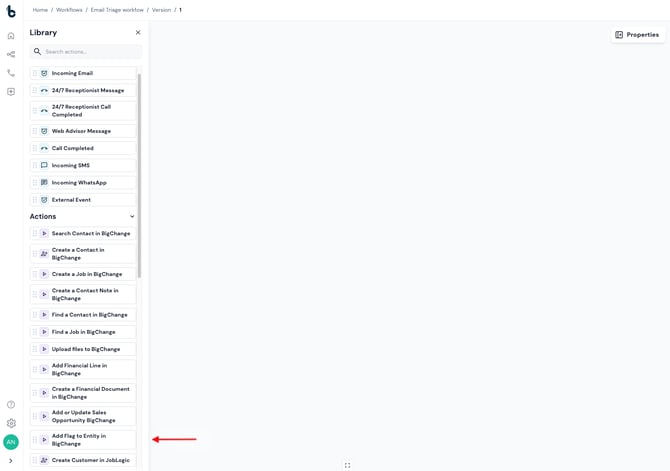
Configuration
To set up the Add Flag to Entity in BigChange action:
-
Add the action to your workflow and connect it to a previous step in the workflow (a Starting action or Action node).
-
Click the Add Flag to Entity in BigChange action to open the Properties panel.
This action uses the BigChange connection already configured for your account, so it's only available where valid BigChange credentials have been set up.
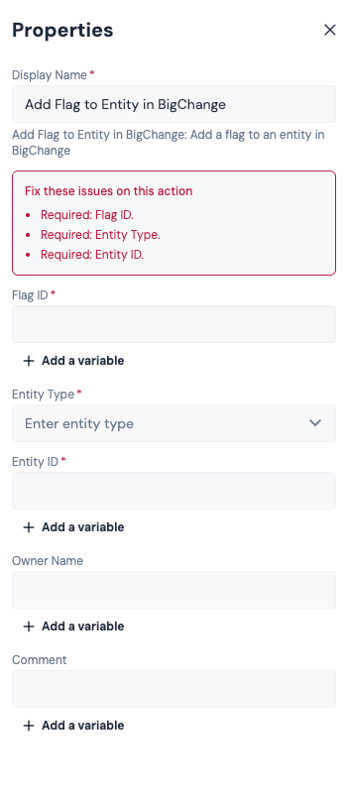
Mandatory Fields
Flag ID:
This field defines which flag will be applied to the entity.
Select the appropriate flag based on your workflow.
Entity Type:
This field defines the type of record the flag will be added to.
Available options:
- Contact Note
- Job
- Def Invoice Item
- Sales Opportunity
- Asset Defect
- Quote
- Proforma
- Invoice
- Purchase Order
- Credit Note
- Delivery Note
- App Payment
- Sales Order
Select the appropriate option based on your workflow.
Entity ID:
This field defines the specific record in BigChange that the flag will be added to.
This is typically mapped from a previous node, such as:
- Job ID from a Create Job node
- Contact ID from a Create Contact node
Click + Add a variable and select the relevant ID.
⚠️ Note: The Entity ID must match a valid record in BigChange. If the ID is incorrect or missing, the flag will fail to apply.
Optional fields
The following fields can be configured depending on your use case:
Owner Name:
The name of the user the flag should be attributed to.
Comment:
A free text comment to add alongside the flag, useful for giving context on why it was raised. This is typically populated using data extracted earlier in the workflow, such as details from an email, an AI-generated summary, or a static value.
Workflow tip
This action is most commonly used after:
- Creating a Job or Contact
- Finding an existing Job or Contact earlier in the workflow
For more advanced workflows, you can:
- Add flags at multiple points in a workflow to build up a clear audit trail of automated decisions on a record
- Use conditional logic to apply different flags depending on job type, contact status, or other criteria
Outcomes
Once the Add Flag to Entity in BigChange node runs, it will return one of two possible outcomes:
Success – The flag was successfully added. The workflow will continue to the next connected step, if at all.
Failed – The flag could not be added, usually due to a missing required field or an invalid Entity ID or Flag ID.
💡 Tip: To be told when a workflow fails, turn on Enable error emails in the workflow’s Workflow Configuration sidesheet. The email tells you the reason, which action failed, and links to the execution log. See Failed Workflow Notifications.
Default variables
The default variables available for this node depend on the outcome.
If the node completes:
-
Flag applied – Confirmation that the flag was successfully added to the entity.
If the node fails:
-
Reason for failure – A system-generated value explaining why the action failed.
Important notes
-
The Entity Type selected determines which records are valid targets for the Entity ID field, so ensure your workflow logic accounts for this.
- Entity IDs should be validated in earlier steps where possible (e.g. by confirming a Create or Find node completed successfully) to avoid failures.
- This action supports both Jobs and Contacts within a single node, simplifying workflow design and reducing duplication.